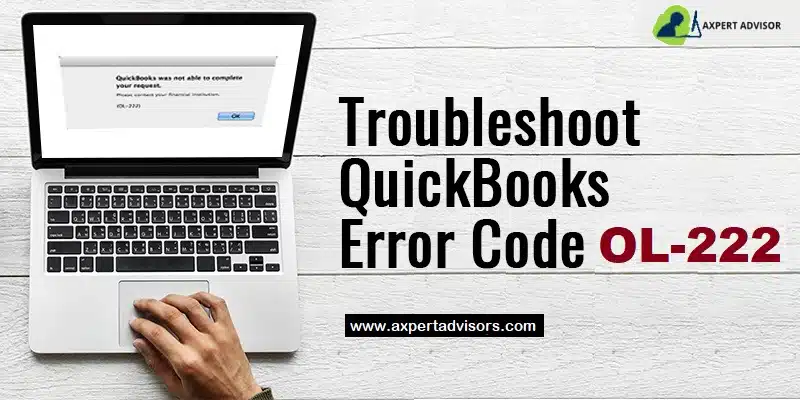
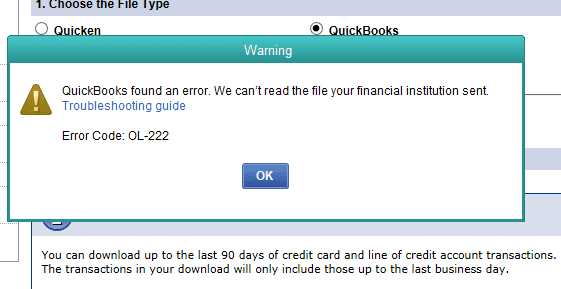
As a QuickBooks user, you may have come across various peculiar errors. This article shall explain about QuickBooks Error OL-222, an error generally encountered by users when they import some web connect files from the bank’s website through QuickBooks. The error appears immediately when the user requests for importing the file through QuickBooks for Mac. Typically, QBO import steps working and the message states “FIDIR.txt file CREDIT service is not mentioned against the FI from lookup {BANKING, WEB-CONNECT,CREDIT, DIRECT-CONNECT or BLANK }". Various factors can be ascribed to this error, all of which shall be discussed within the purview of this blog. So, ensure you go through the full length of this article.
How Can I Troubleshoot QuickBooks Error Code OL 222?
The very first step to be performed by users should be to backup their files to prevent any data loss. The steps to back up the files are:
Hit the File menu.
Following that, click on the Backup Company option.
Pick the Create Local Backup option.
Hit on Ok.
Opt for the location where you want to save the backup file.
Click on Save it now.
Upon backing up the files, users should perform the below given methods one-by-one and consequently check whether the error got resolved.
Method 1: Updating QuickBooks Manually
At first, users should make an attempt to update QuickBooks desktop normally by visiting the Help menu and clicking on update QuickBooks Desktop. If any technical error shows up while performing the process, users can go for the manual procedure to update QuickBooks. The steps for the same are given as under:
At first, navigate to Intuit website and proceed to the Updates and Download Page.
Pick the Country, Product version and the Date from the drop-down menu.
After that, click on the Search button.
Checkmark the Critical Fixes option.
Subsequently, click on the Get Updates option.
Upon downloading the updates, install them on the system.
Method 2: Rename the .QBO file
Any unwanted characters in the file name can incite QuickBooks Error Code OL-222 as it directly goes against the OFX rules when importing the web connect file. As such, correcting the .QBO files becomes essential. Users can conform to any text editor available on the system to correct this issue. The procedure for the same is given below:
Right-click the .QBO file and click on Open With.
After that, choose Notepad or MS Word to open the file.
Remove the unwanted characters like “%,&” from the file name.
Now, reattempt the importing of the .QBO file into the account.
Method 3: Deletion of the FIDIR.txt File
Users are recommended to delete the previous FIDIR.txt file. If this is not done, it could potentially hinder the import process of the .QBO files. The deletion of the old FIDIR.txt file can help in the easy annihilation of Banking Error OL 222. The steps for the same are:
Head to the Downloadsfolder and go to Application.
Visit the QuickBooks folder.
Herein, choose the FIDIR.txt file and delete it by pressing the Delete key.
Keep holding the Ctrl key and run QuickBooks.
Now, attempt the importing of .QBO file to check if the ongoing error got resolved.
Method 4: Disable and re-enable the account
In some cases, disabling and re-enabling the account in QuickBooks can help you to rectify the OL-222 error.
First of all, navigate to the Lists option and then choose Chart of Accounts option here.
After that hit a right-click on the account that is causing the error
Now choose Edit Account.
After that hit a click on Online Settings and select Disable Online Services.
Next step to do, hit a click on OK tab and then repeat the steps to enable the online services.
This step can often reset the connection between QuickBooks and your financial institution.
What causes QuickBooks Error OL 222?
Some of the most common causes that may lead to this error are:
QuickBooks file with .QBO extension may have certain unwanted characters. As such, the resulting format may be in conflict with the Open Financial Exchange (OFX) rules.
QuickBooks not updated to the recent version.
Invalid .QBO file format.
Certain conflicting third-party programs might be in conflict with the OFX operations.
Sum Up!
The current blog discussed the multiple turnarounds to troubleshoot QuickBooks Error OL-222. If you need any technical assistance from our experienced QuickBooks professionals, you can straightaway call our QuickBooks desktop error support team at the helpline i.e., 1-888-368-8874. Our support services are accessible 24/7. We request you to while contacting the support line, you should have your QuickBooks version and other relevant information available so that the experts can assist you more efficiently.
QuickBooks users have been experiencing a missing employee issue in QuickBooks Desktop Payroll. This issue prevents users from using the payroll. This issue is often experienced when the employee has been set to an inactive state or if the employee is not linked to the correct payroll schedule. Nonetheless, there are multiple fixes for this issue and by the end of this blog, users shall master all the troubleshooting steps to fix a missing employee in QuickBooks Desktop Payroll.
Procedure to Fix a Missing Employee in QuickBooks Desktop Payroll
There are two possible cases of a missing employee in the payroll. Both of them have been listed out below, along with the steps for fixing the same.
Case 1: If the Employee is missing in the employee center
In the beginning, head to the Employees tab.
Therein, choose the Employee Center.
Above the Employees’ names, click on the drop down menu and choose All Employees tab.
Look for the missing employee. After that, clear the X mark located on the left side of the employee.
Again, click on the dropdown menu above the employees’ names. This time, hit on the Active Employees option.
Case 2: If the Employee is missing in both the scheduled as well as unscheduled payroll
This scenario may occur when an employee has a termination date or an employment release date. The steps for the resolution of the issue in this case are:
Proceed to Employees tab.
After that, advance to the Employee Center.
Herein, double-click on the employee's name.
Subsequent to that, click on the Employment Info.
After that, clear the field corresponding to the Employment Release Date.
Run the payroll again.
Examine if the missing employee is showing up.
Miscellaneous Fixes for a Missing Employee in QuickBooks Desktop Payroll
Users can conform to the below given fixes if the issue still keeps lingering on.
1st Solution: incorporating the Employee to the Payroll Timetable
Initially, click on the top menu and opt for Employees.
Now, head to the Employee Center.
Hit a click on the missing employee and then advance to the Employee info option.
After that, move to the Employee data option.
Add the release date if it hasn’t been already added.
Finally, set the release date.
2nd Solution: Check if the Employee is Inactive
Go to the Employees tab and then visit the Employee Center.
After that, click on View on the list of Employees and after that, hit on the All Employees option.
If the X mark shows up against the employees, the specific employee is inactive.
3rd Solution: Checking if the employee has been designated as the owner
Head to the Employees tab and then go to the Employee Center.
Double-click on the missing Employee and then visit the Employee Info.
Within Employee Info, head to the Employee Date.
Click on Type and check if the owner is chose or not.
4th Solution: Check for Deleted Employees
Go to the Employees menu and select Employee Center.
After that click on the drop-down arrow next to the View option and select All Employees.
Also look for the missing employee's name in the list of employees.
If the employee is listed with a status of "Deleted," you can click on the employee's name and select the Undelete Employee option to restore them.
5th Solution: Checking the Payroll Schedule
At first, navigate to the Employees menu and select Payroll Center.
After that check the Payroll Schedule to make sure the employee is listed.
If in case it it not listed there, hit a click the Add New Payroll Schedule button and add the missing employee's information.
What are the principal causes that may incite a missing employee in QuickBooks Desktop Payroll?
Some of the main causes behind this issue are:
Employee is inactive.
An Employee hasn’t been added to the payroll.
Employee has a specific release date.
Employee is not linked to the correct payroll schedule.
Wind Up!
The current article contained the different cases and solutions to fix a missing employee in QuickBooks Desktop Payroll. The steps should be clearly discernible to users. However, if you come across any hurdles while performing the troubleshooting steps, just reach out to our QuickBooks desktop error support team of QuickBooks experts at the helpline i.e. 1-888-368-8874.
QuickBooks users have the leverage to import their customer list in QuickBooks Pro. The procedure for the same is pretty simple and requires users to adhere to a few simple steps. Notably, QuickBooks users cannot proceed with the invoicing unless they have the customer contacts added to their invoice. In this context, users can add contacts individually. However, if the user has an existing file that carries full contact information of customers, the importing process will be easier. This article shall guide you towards importing your customer list into QuickBooks Pro. So, stick around till the end.
Procedure to Import your Customer List in QuickBooks Pro
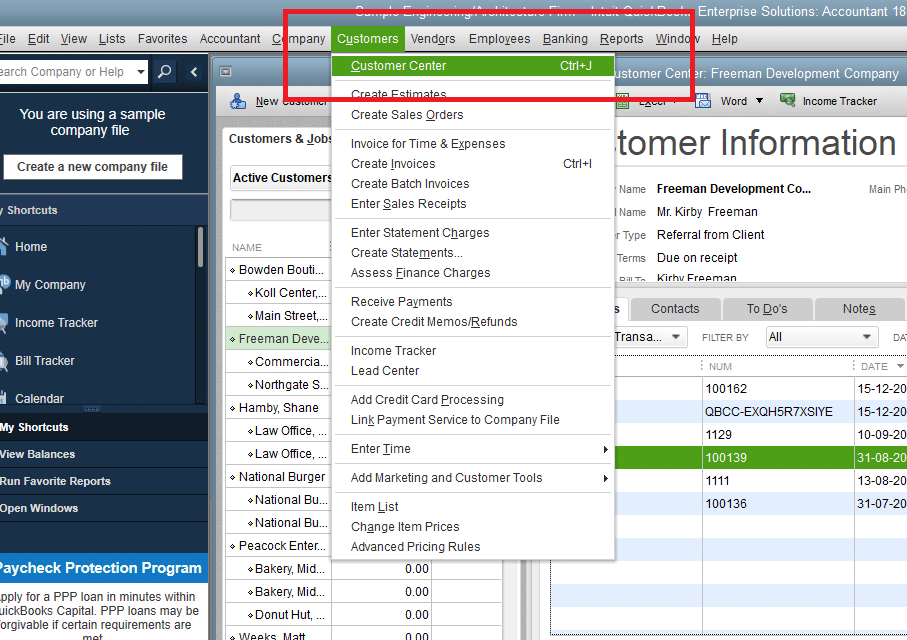
To initiate the process of import your customer list, start off by heading to the Customers option.
After that, head to the Customer Center.
From there, choose Excel and click on the option to Import from Excel.
Step 1: Choose the Customers
Users should be able to see a prompt on the screen stating “if you are importing the Customers, Vendors, or Products I sell.
Herein, pick the Customers option.
In case, user’s Excel file has already been formatted like the Customer Import template of QuickBooks Pro, he/she should skip the step and instead click on the Advanced Import option. The option should be accessible on the right side of the screen. Click on it to finish the importing of customers.
In case, the user is importing the customer list for the first time, he/she will see a popup box message stating that the imported information cannot be undone.
Herein, hit on Yes in order to continue with the process of importing the customer list.
Step 2: Copy paste the Customer data
The next step requires users to copy the customer list data from the existing Excel file.
Subsequently, users are required to paste the customer list data into the QuickBooks Excel template file.
Once the user hovers over any specific cell, QuickBooks Pro will give the details about the type of information that needs to be incorporated in that particular cell.
Users should be able to find the example of the process to format cells located above the column headings.
The below –mentioned customer information can be saved:
Company Name
Mr./Mrs.
First Name
Last Name
M.I.
Display As
Street 1
Street 2
City
State
Zip
Phone
Fax
Alternative Phone
E-mail
Account Number
Step 3: Rectify any issues
Before finalizing the process of importing your customer list on QuickBooks Pro, it is pertinent to ensure that the file is devoid of any errors.
In case of any major issue, QuickBooks Pro will show up a warning message in the error box located on the top left side of the file.
Also, a red warning triangle will show up in the cell that is facing the issue.
QuickBooks Pro will guide you through the process of easy rectification of the error.
Step 4: Choose Add My Data Now option
Upon ensuring that all the data pertaining to the customer list is correct and devoid of any issues, users need to hit on the Add My Data Now option.
Step 5: Saving the Changes
This step requires the users to save the changes made to the QuickBooks Excel template.
For that, hit on the option to Save and Add My Data Now.
Make sure not to pick the option “I will add my data later”. By choosing this option, users will lose their data and all the changes made to the Template file.
Choose the location to save the file and then save the file on the system.
Step 6: Opt for the File
Upon saving the file, the file shall automatically appear in the box.
If it doesn’t show up, just click on Browse, and then choose the file.
Step 7: Importing the Customer List File
Pick the option labeled Add My Data Now in blue color.
This action will successfully import the customer file list.
Users can view the customer list any time upon importing the list.
For viewing the customer list file, users can visit the Customer Center option.
That culminates the importing process of the customer list in QuickBooks Pro.
Once you have completed these steps, QuickBooks Pro should have imported your customer list successfully. You can double-check that the customers have been imported by going back to the "Customer Center" and verifying that the new customers are listed.
Winding up!
Our experts hope that the step-by-step procedure enumerated in this blog should help you in Importing your customer list in QuickBooks Pro. If you feel need of technical support, you can reach out to our QuickBooks desktop support experts without any hesitation by calling at the 24/7 helpline number i.e., 1-888-368-8874.
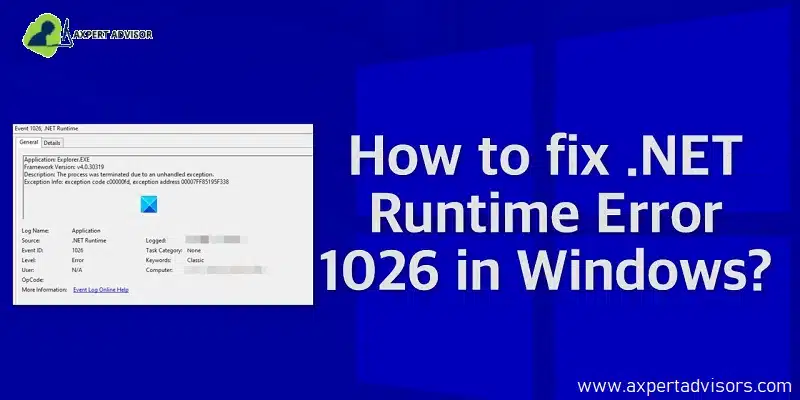
Like any complex software, QuickBooks Desktop may encounter a number of technical difficulties. Some problems are caused by external system dependencies, while others are the result of internal QuickBooks configuration errors or file damage. The QuickBooks .NET runtime error 1026 is one such frequent external issue that users run into. The main cause of this error is damaged Microsoft .NET Framework components, which are essential to QuickBooks' functionality. This particular runtime problem can be caused by a variety of factors besides component corruption. This conversation seeks to elucidate every facet of the ". NET runtime error 1026," describing its underlying causes and—above all—providing workable fixes to assist you in quickly resolving this recurring QuickBooks issue.
Different Methods to Fix QuickBooks Error Code 1026
To resolve this error, try the following steps:
Method 1: Reinstalling the Runtime libraries
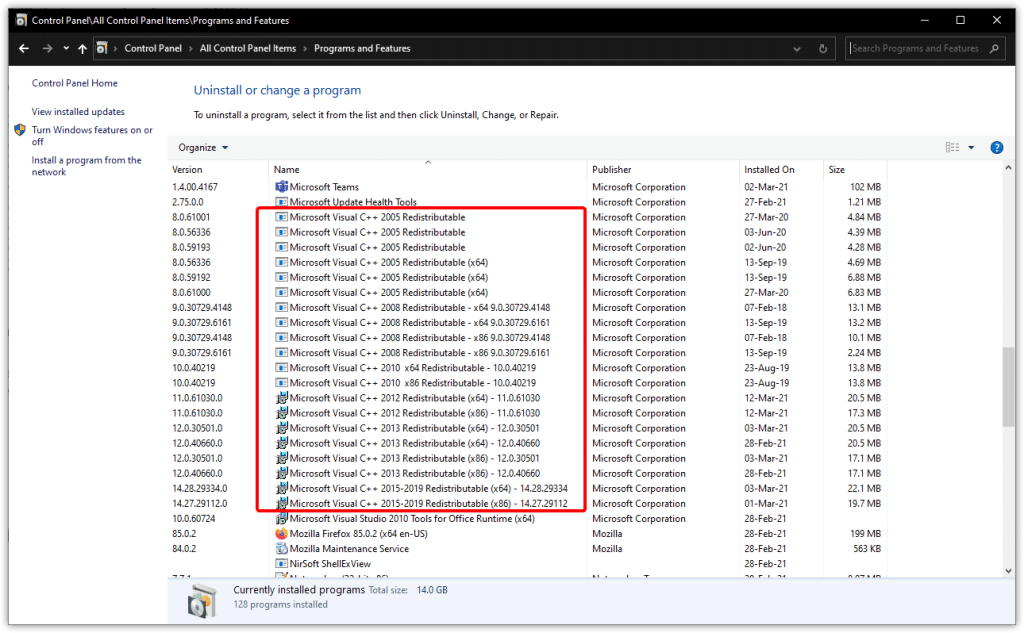
Open the Control Panel.
Go to Programs and Features.
Click on M.S. Visual C++ Redistributable package.
Hit a right-click on it and then choose Uninstall.
Now, reinstall the C++ Redistributable package from Microsoft website.
Run QuickBooks and check if Error 1026 got fixed.
Method 2: Terminate the third-party programs
Some third party programs running in the background can also incite .NET runtime error 1026. To get this cause rooted out, users should end the processes corresponding to these suspicious programs.
Press the Short key Ctrl + Alt + Del to Open Task Manager.
Now, go to Processes.
Click on the processes associated with the conflicting program and end the processes.
Now, run QuickBooks.
This should fix .NET runtime Error 1026.
Method 3: Disable and re-enable .NET Framework
Some technical glitch in .NET Framework might be contributing to this error. To fix such issue, users are recommended to perform the following steps:
Open the Control Panel.
Go to Turn On or Off Windows Features.
Click on .NET Framework.
Disable the Microsoft component and re-enable it.
Now, re-run QuickBooks.
Method 4: Use the Disk Cleanup Tool and chkdsk command
Hit a click on the Start button.
Search for “disk” and now open theDisk Cleanup Tool.
Opt for C Drive and then check mark the temporary files box.
Now, hit the Enter key on the keyboard.
Upon finishing the process, run command prompt from the Start menu.
Now, type in “chkdsk” and hit the Enter key.
Wait for the culmination of the process.
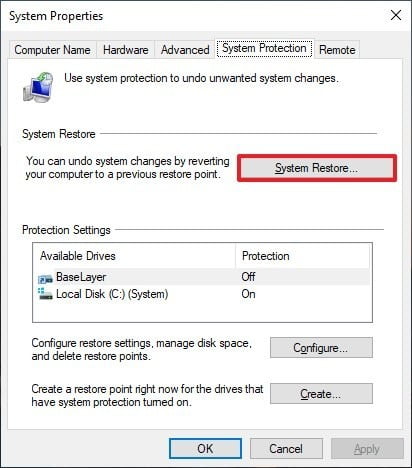
Method 5: Do a System Restore
There is a possibility that some recent system change incited QuickBooks .NET runtime Error 1026. To resolve this issue, users should use the system restore tool, the steps for which are discussed as follows:
Click on the start button.
Now, search for “Restore” and open the System Restore tool.
Choose a restore point and click on Next.
When the process finishes, restart the computer.
Method 6: Update Windows O/S
Updating the operating system will revamp different system features and will also update the latest Microsoft components. The procedure for the same is:
Click on the Start menu.
Search for “update”.
Open Windows Update.
Click on Search for Updates option.
After that, click on all the available updates and get them downloaded on the computer.
Now, restart the computer to allow the installation of the downloaded updates.
As soon as the error message related to this runtime error appears on the screen, the QuickBooks program ends abruptly and any unsaved accounting data is lost.
The system lags and crashes upon running QuickBooks.
Other programs installed on the system cease to run properly.
The system takes a long time to respond to any input commands.
Main causes inciting QuickBooks .Net Error 1026
There are several possible causes of this error, including:
Some conflicting program in the backend might evoke this error.
Damaged Windows registry entries
System files got corrupted due to a virus intrusion.
Concluding the blog on a supportive note!
With this, we reach to the conclusion of this article. Here, we have discussed the ramifications, causes and methods to fix QuickBooks .NET runtime error 1026. Although this blog should help you get rid of the error, there is always a provision of unresolved issues. If you have any such issues or queries to discuss with our professionals, just reach out to our QuickBooks desktop error support experts at the helpline 1-888-368-8874.
SDI is an abbreviation for State Disability Insurance, which is a tax paid by the employee. It is paid by employees and assists them in case of an accident while working. The SDI rates vary across different states. Notably, only a few states offer State Disability Insurance contributions. If you are seeking the procedure on how to change SDI rate in the different QuickBooks products rolled out by Intuit, this article will be of immense assistance to you.
More about State Disability Insurance
State Disability Insurance (SDI) rates vary according to the state of residence. The states in which SDI contributions exist include New York, Rhode Island, California, Hawaii, and New Jersey. It is pertinent to note that SDI rates do not get adjusted automatically, but rather, need to be manually adjusted.
Few things to consider prior to changing SDI rates in QuickBooks
Before changing the SDI (State Disability Insurance) rates in QuickBooks, there are a few things that you should consider:
Check the current SDI rate:
Before you change the SDI rate, you should check the current rate in QuickBooks. This will help you determine whether the rate needs to be changed or not.
Verify the new SDI rate:
Make sure that you have the correct SDI rate for your state. Each state has its own SDI rate, so you need to ensure that you have the correct rate for your state.
Determine the effective date:
Decide on the effective date for the new SDI rate. You should make sure that you enter the correct effective date in QuickBooks, as this will impact your payroll calculations.
Check the impact on payroll:
Changing the SDI rate will affect your payroll calculations. You should review your payroll calculations and ensure that they are accurate before and after the change.
Update all the QuickBooks Components:
To update all the QuickBooks components, follow these steps:
Open QuickBooks and log in to your company file as an administrator.
Go to the Help menu and select Update QuickBooks Desktop.
In the Update QuickBooks Desktop window, click on the Update Now tab.
Put a checkmark on all the components that you want to update.
Click on the Get Updates button to start the update process.
Wait for the update process to finish. This may take several minutes, depending on the number of components that need to be updated.
Once the update process is complete, click on the Close button to close the window.
Restart QuickBooks to ensure that all the updates have been applied.
Update employee records:
After changing the SDI rate in QuickBooks, you should update the employee records to reflect the new rate. This will ensure that the correct deductions are made from each employee's paycheck.
Check the impact on tax filings:
Finally, you should review the impact of the new SDI rate on your tax filings. You may need to make adjustments to your tax filings, so you should be prepared for this.
Update QuickBooks Desktop:
To update QuickBooks Desktop, follow these steps:
Open QuickBooks and log in to your company file as an administrator.
In the Update QuickBooks Desktop window, click on the Update Now tab.
Make sure that the "Reset Update" checkbox is selected. This will clear the previous update downloads and start a new download.
Put a checkmark on all the updates that you want to install.
Click on the Get Updates button to start the download process.
Wait for the download to finish. This may take several minutes, depending on the size of the updates.
Once the download is complete, click on the Install Now button to start the installation process.
By considering these factors, you can ensure that the process of changing the SDI rates in QuickBooks is smooth and error-free.
Simple Walkthrough to Change SDI Rate in Different QuickBooks Versions
To change the SDI (State Disability Insurance) rate in QuickBooks, follow these steps:
Important: The steps to change the SDI rate may vary depending on the version of QuickBooks you are using. Make sure to verify the steps specific to your version of QuickBooks.
Steps for Adjusting the SDI Rate in QuickBooks Desktop Payroll
Open QuickBooks Desktop Payroll.
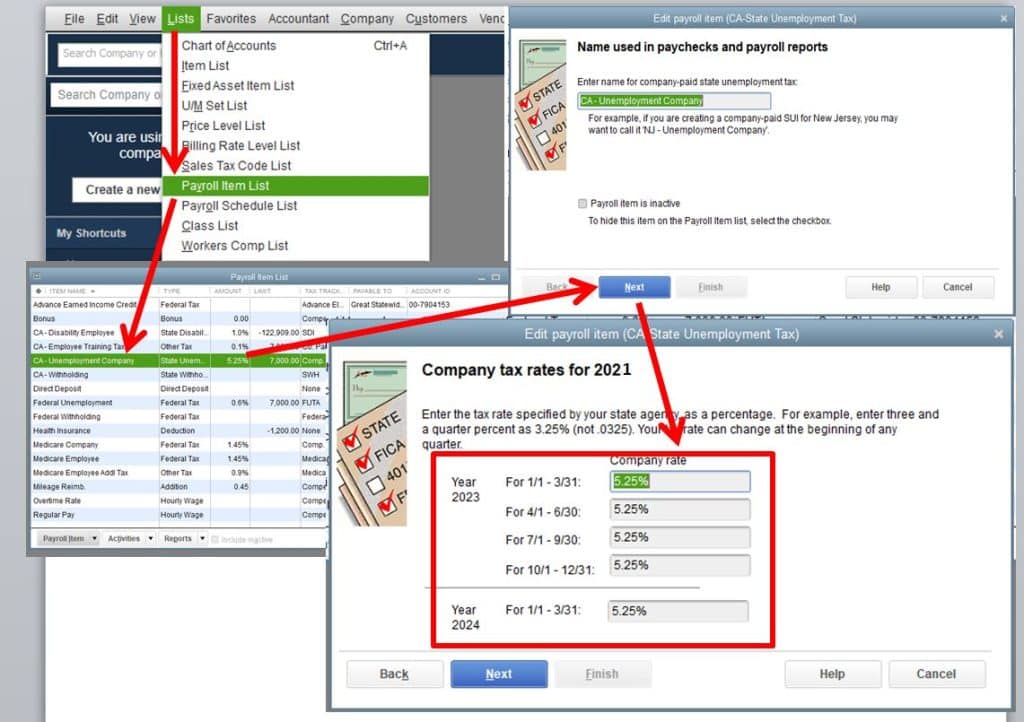
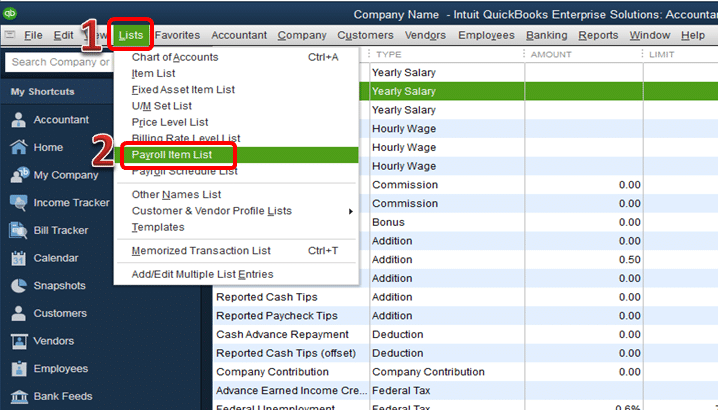
Subsequent to that, click on the List tab.
Now, pick the Payroll Item List tab.
Right-click the Company tab and click on Next.
Head to the Company Tax Rate window.
Therein, provide the correct SDI rates in the space provided.
After that, click on Next tab.
Finally, click on Finish to change SDI rate in QuickBooks Desktop Payroll.
Procedure to Alter the SDI Rate in QuickBooks Online Payroll
To begin the procedure, navigate to QuickBooks Online Payroll.
Sign in to the account after providing the correct login credentials.
Upon opening the account, head to the Payroll settings.
Choose the State and subsequently click on Modify.
After that, hit on the State Disability Insurance tab.
Click on the Modify or Add option.
Enter the revised SDI rate and any updated information.
The tax rates can be changed by adjusting the Surcharge or Assessment tax rates.
Upon making the required changes, click on Ok.
Steps to Change the SDI Rate in QuickBooks Payroll Enhanced
The first step is to sign in to the QuickBooks Payroll account.
After that, click on the Setup option.
Following that, head to the State Taxes option.
Herein, click on the State Disability Insurance tab.
Choose the option to Add or Change.
Subsequently, type in the new SDI rate and also incorporate the effective date.
Click on Ok to save the changes.
Summing Up
This article briefed users with the easy procedure to change SDI rate in the different versions of QuickBooks. If users come across further issues pertaining to SDI adjustment or any other QuickBooks issue, they may call our QuickBooks desktop support advisors by ringing a call at 1-888-368-8874.
















 +1-888-368-8874