Here are the steps to address QuickBooks Error code C=272.
Are you encountering QuickBooks Error Code C=272? Due to the technical complexity of the program, users can sometimes face various error codes and glitches. This particular error often appears when you try to run the Verify and Rebuild Data Utility in QuickBooks, and some users have even reported seeing it when attempting to open memorized reports.
This concise guide will help you get to the core of the issue, providing a complete overview of QuickBooks Error C=272, including its common causes and effective troubleshooting steps. By following the solutions outlined in this article, you'll be well-equipped to resolve this error. If you need further technical assistance, don't hesitate to connect with our expert support team via our support line.
Procedure for Fixing QuickBooks Error Code C=272
You can perform the below-stated set of steps to successfully deal with error code C=272 in QuickBooks.
Step 1: Open the QuickBooks Sample Company File
To begin with, the user needs to open QuickBooks as an administrator and use the No Company Open window mode by pressing and holding the Ctrl key and releasing the same when the No Company Open shows up.
In case the error arises, then the No company open window appears.
In the "No Company Open" window, the user needs to select the option to Open a sample file.
Click on any of the sample files in the list
The company file might be distorted/damaged if the sample company file opens without displaying the error.
Go for Verifying and rebuilding QuickBooks company data or Restore the QuickBooks company file from the backup.
If the error further appears when opening the company file, head forward toward the next step.
Step 2: Run QuickBooks in compatibility mode
At first, hit a right-click on the QuickBooks shortcut icon.
After that, go for Properties.
Then choose the Compatibility tab.
Now you need to uncheck the checkbox 'Run this program in compatibility mode.'
Followed by click on Apply and Ok button,
Step 3: Disabling Windows compatibility for QBW32.EXE file
Under this step, you need to right-click on the QuickBooks Desktop icon.
After that, proceed to the Properties tab.
Then select Open File Location.
Within the QuickBooks folder, you need to right-click on the QBW32.EXE file.
Then move to Properties of the file.
Now, go to the Compatibility tab and uncheck the Run this program in compatibility mode option.
After that, hit on OK, and you are good to go.
Lastly, close your QuickBooks and reopen it.
Step 4: Repair QuickBooks desktop
Press the Windows/Start button and choose Control Panel.
After that, move to the Programs and Features tab.
In the next step, you need to choose the QuickBooks icon from all the installed applications.
Then select Uninstall/Change.
In the next window you will get two options: to Install it and repair it
Now, hit a click on Repair to repair your QuickBooks program.
Step 5: Consider performing a clean installation of QuickBooks.
Within the purview of the current discussion, we uncovered the various troubleshooting steps for QuickBooks Error C=272. Besides, we also discussed the multiple approaches for the easy fixation of this troublesome error. Just in case the issue still bothers you, just give our QuickBooks error support professionals at AxpertAdvisors a call at the helpline, i.e., 1-888-368-8874.
Expert Tips to Fix QuickBooks Multi-User Mode Not Working Issue:
Is your QuickBooks Desktop multi-user mode failing when you need it most, disrupting your team's workflow and productivity? You're not alone, and this common challenge can be resolved effectively. While QuickBooks Desktop's multi-user mode is designed to facilitate effortless collaboration on a single company file, encountering issues can be incredibly frustrating.
This comprehensive guide will delve into the "Multi-User Mode not working" error, exploring its potential causes and providing you with a series of effective, actionable steps to fix it. By following our expert advice, you'll swiftly overcome these roadblocks and restore seamless teamwork within your QuickBooks environment. Get ready to enhance your collaborative efficiency and minimize downtime!
What is QuickBooks Multi-User Mode?
It allows multiple users to work on the same company file simultaneously. This feature is a real time-saver, helping users get more tasks done together. Whether you’re handling invoices, generating reports, or managing day-to-day tasks, Multi-User Mode keeps everything running smoothly. For many businesses, however, it’s an essential tool for keeping operations efficient.
How to Fix QuickBooks Multi-User Mode Not Working Error?
Below are the methods to solve the QuickBooks Multi-User Mode Not Working Error.
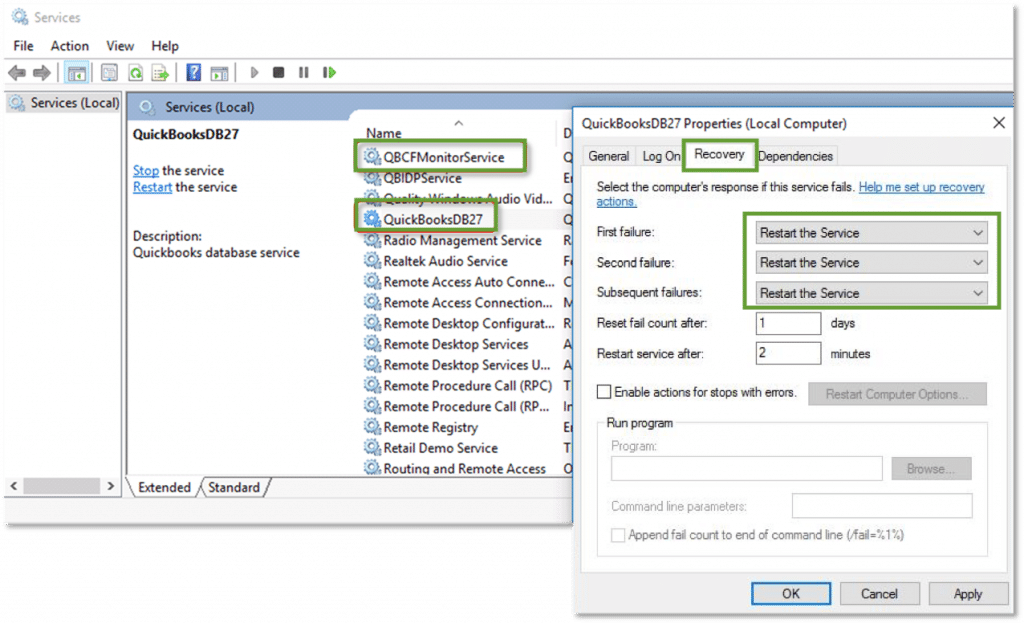
Method 3: Needs to check if QuickBooks Services is running in a proper manner or not
(Note: Before getting started with this procedure, the user needs to verify whether the server PC is running QBCF Monitor Service and QuickBooks DBXX (XX is the year of QuickBooks).
At the very first, type services.msc in the Windows search box and click on Enter to continue.
The user needs to search for the Services Window to see the QuickBooks DBXX service.
By chance, if the Services window doesn’t appear, then the user has to follow the steps given below:
Make sure that the Database Server Manager is installed in a proper manner & Look for the latest Database Server Manager.
Ensure that the hosting is enabled on the server in case the full software is running on the computer.
Next, double-click on QuickBooksDBXX service. Two options are enabled: Run or Start.
Under the Recovery tab, in case of the first, second and subsequent failures, choose QuickBooksDBXX service option.
Finally, repeat the 1st, 2nd, 3rd and 4th bullet points for the QBCF Monitor Service.
Method 4: Needs to check if QuickBooks must be able to send data or not
First of all, the settings of Firewall and Antivirus needs to be changed.
Press the Windows key and hit a click on control Panel, find and Select the Windows firewall and select the prompt to approve an app through the Windows firewall option.
Click on the Checkbox next to the public list for the QuickBooks application.
Later on, hit a click on Change Settings, and then, hit a click on OK. Then, click on Public.
Now, try to run the user in the Multi-user mode.
Next, the user needs to test the path and make sure if the QuickBooks application can communicate with the server. (Note: Turn on Network Discovery)
Press Windows + R keys simultaneously. Type ping (server name). Press Enter. This will launch the Run command.
The user needs to use UNC (Universal Naming Convention) on the computer to access the server’s shared folder.
Finally, use the UNC path to return to the QuickBooks company file.
Next, the user needs to go to the company file by following the UNC path.
Create a New Company File Folder.
Create a New Folder for the Company File for the Company File.
Ensure to reach the Host system.
Next, configure the folder. For the new folder allow Windows to Access Permissions.
The Company files can be shared across systems.
At last, copy the .QBW File to the New Folder. Ensure that the company file is opening in multi-user mode.
Configure Firewall exception for QuickBooks Program and Port.
Method 5: Install and Run QuickBooks File Doctor tool
Next, the user must download the latest version of QuickBooks.
Finally, click on the Multi-user hosting mode and Switch the mode on.
This procedure holds sure chances of resolving the error.
Method 11: Ping the Server From Workstation
Initially, open Start menu on the server.
Heading forward, type network and open the Network and sharing center.
Once done with that, now you are required to tap a click on Change advanced sharing tab and from there Turn on network discovery and also file and Printer sharing.
And further, get the name of the server.
Followed by, tap enter in CMD in the run window.
And now hit on Enter button.
In the CMD window, you need to enter the Ipconfig/all text and also click on Enter tab.
Now you will see the Server name next to the Host name.
You now have to note down the Host name and move to the Workstations.
And then, hit a click on Start menu.
Now open the run command window.
Once done with that, type in CMD tab and then type Ping and hit Enter key.
In the last step type in Server name without the brackets.
Why Does Multi-User Mode Not Working Error Appears?
There are several causes that leads to the QuickBooks Multi-User Mode Not Working error or Error H202. Some of the reasons are as follows:
If the user has not installed QuickBooks server on the computer.
If the hosting settings are not properly arranged on the network.
Because of the firewall settings, if the computer systems on the user’s network are not compatible with each other.
If the user has not granted the permissions to the files or folders in a proper manner.
QuickBooks multi user-mode, an inbuilt feature in the accounting software package, enables more than one user to work on the same file simultaneously. Users, however, may receive some unexpected errors while working on this mode.
Error
Description
Error name:
Multi-user mode not working
Error description:
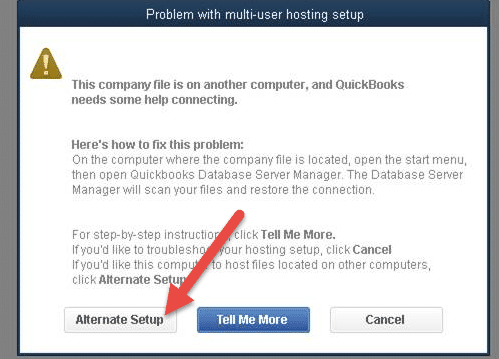
“This company file is on another computer and QuickBooks needs some help connecting”
Software:
QuickBooks Desktop
Prerequisites:
Make sure to install QuickBooks database server manager. Also, install the same version of server manager.
Quick solution:
Run QuickBooks file doctor tool
Important Points Before Troubleshooting
There are two basic requirements for setting up QuickBooks multi-user mode, without which it won’t be possible, namely:
A license of QuickBooks for more than one user.
One system requirement that is to be used as the QuickBooks server.
You need to install the QuickBooks database server manager. (Ensure that you have installed the same database server manager as the current QuickBooks version.)
Conclusion:
The company files and activities of company business may be impacted by accounting errors. With the methods mentioned above, you might be able to fix QuickBooks Multi-User Mode Not Working Error. Not paying proper heed to such errors can result in the damage of your QB files or data. So, it must be resolved quickly. If any doubt still persists regarding such errors, you can contact us at our 24X7 QuickBooks error support helpline i.e., 1-888-368-8874.
Frequently Asked Questions (FAQs)
u003cstrongu003eWhy does QuickBooks Multi-user mode not working error occur?u003c/strongu003e
Following are the reasons for the aforementioned error:u003cbr/u003e1) If the user has not installed QuickBooks Server on the computer.u003cbr/u003e2) If the hosting settings are not properly arranged on the network.u003cbr/u003e3) Because of the firewall settings, if the computer systems on the user’s network are not compatible with each other.u003cbr/u003e4) If the user has not granted the permissions to the files or folders in a proper manner.u003cbr/u003e5) If the Database server manager is unable to open the company file on the user’s system.
u003cstrongu003eWhat is the difference between the Multi-user mode and single –user mode in QuickBooks?u003c/strongu003e
The differences between the Multi–user and Single-user mode in QuickBooks is that the multi-user mode has multiple access to the company file from different workstations or systems whereas the single-user mode provides access to only one user.
u003cstrongu003eWhat are the requirements to Resolve QuickBooks Multi-User Mode Not Working Error?u003c/strongu003e
The user must ensure that:u003cbr/u003e1) QuickBooks Database Server Manager is installed on the system.u003cbr/u003e2) The version of the Database Server Manager should be similar to the QuickBooks version present in the system.
u003cstrongu003eWhat is QuickBooks Error H202?u003c/strongu003e
QuickBooks Multi-user Not Working Error is also known as Error H202.








![type ping [servername] - Screenshot](https://axpertadvisors.com/wp-content/uploads/2021/01/type-ping-servername-Screenshot.jpg "QuickBooks Multi-User Mode Not Working - How to Troubleshoot it? 25")



 +1-888-368-8874