Here is what you can do when you face QuickBooks Online login problems in Google Chrome.
QuickBooks Online is a top-rated web-based accounting software. The software enables users to create and send invoices, manage expenses, and prepare for taxes. If you are a user of this software, you might be familiar with the fact that errors and glitches may appear at any time while operating the software. In this blog post, we are going to discuss QuickBooks Online (QBO) login problems with Chrome.
There are multiple reasons behind the occurrences of this issue. In order to resolve these login errors, you may take help from our online support team by connecting with professionals using the dedicated helpline.
Most of the time you are not able to log in to QuickBooks Online (QBO) due to the security enhancements set by Intuit. To resolve this issue, your account needs to be updated to a new Intuit account with enhanced security. When you face a login issue in your Chrome browser, you may see the following error message on your desktop screen:
[Web page cannot be found, Error 404: File Not Found, OR [QBO is currently unavailable, please try again later]?
QuickBooks Online login Issues on Chrome
Google Chrome is a popular web browser and appropriate for the accounting software. Sometimes, issues may appear while attempting to log in to QuickBooks Online in Chrome. The login issues may be of different types.
Your computer screen displays a “loading” message on your web browser, but nothing loads up.
An error message, “The services are not available,” may appear on your screen.
The sign-in screen and the screen to choose my company may show up in a loop.
Solutions to Fix QuickBooks Online (QBO) Login Problems for Chrome
Check out the following easy troubleshooting steps to fix QuickBooks Online Google Chrome login issues:
Method 1: Use Chrome Browser in Incognito Window
If you face a login issue with Chrome, you can try logging in to QuickBooks in incognito mode in Chrome. When you use Chrome in incognito mode, you can browse the internet without being recorded, and your online activities don’t show in history either. Also, using QuickBooks Online on Chrome in incognito mode is as simple as using it in normal mode.
Here is how you can use Chrome in Incognito or private mode:
Once a Google Chrome window is up on your screen, click on "Customize and Control Google Chrome" (three dots at the top right-hand corner) and select "New incognito window," which is the third option.
You can also use shortcut keys—the "Ctrl+Shift+N" keys.
When Chrome opens in “Incognito mode,” you will be able to see “Incognito” in the top right-hand corner.
Method 2: Clear History and Cache to Resolve the QuickBooks Online Login Problems
If the issue persists even after using QuickBooks Online in incognito mode, you can try this step. The login issue may also be caused by old history or cache, as they may slow down the performance of Google Chrome when you try to open QuickBooks accounting software. Users are required to clear all the history or cache so that it can help you fix the login issue.
Firstly, hit on the "Customize and Control" Google Chrome icon on the top right and choose "Settings".
Now, opt for the "History" tab on the left and then hit the "Clear browsing data" button.
When you hit on "Clear browsing history," several boxes will appear on the screen.
Afterwards, choose the appropriate box.
And then just clear everything, including cookies, cached images and files, and other site and plug-in data.
Method 3: Create the Additional Chrome User
You can also get rid of the login issue by creating an additional chrome user to use QuickBooks Online. Here is how you can create an additional chrome use:
Open the Chrome web browser and hit the "Settings" tab on the left.
Find the "Users" section at the bottom of the page.
Opt for the "Add new user box."
Hit an icon, type a name, leave the "Create a desktop shortcut," and choose the "Create" button.
The "New user" icon will appear on the top left corner of your web browser. Hit on it if you want to switch between different users.
Method 4: Use a Different Web Browser
If you still face any issue logging in to QuickBooks Online in Google Chrome, try using a different browser. See if you have Internet Explorer or Firefox. You can also download them from the internet for free.
Use a different web browser - Screenshot
Method 5: Verifying Google SSO can Fix QuickBooks Online Login Problems
SSO basically refers to single sign-on. One of the updates from Google and QuickBooks stated that QuickBooks users using iPhones and iPads will not be permitted to log in to the QuickBooks online app using a Google account. The iOS mobile users can use a Google account for the login process. Thus, if you are using an iPhone and trying to sign in to QBO with the Google account, then avoid wasting your time doing that. You can use Intuit account credentials for the login process. Put in the user ID and password and log in to QuickBooks Online using the Intuit account.
Advanced Steps to Rectify QuickBooks Login Issues with Chrome
Check out the latest solution steps to resolve the QuickBooks Online login problems.
Step 1: Checking the SSL Setting of Internet Explorer and Mozilla Firefox
Fox Internet Explorer
You need to tap on the "Windows + R" tab and then type "inceptl.cpl", followed by hitting on the "OK" tab.
Now, launch up the "Advanced" tab, and then scroll down to the "security" option.
Moving ahead, you need to mark both "SSL 2.0 and SSL 3.0" turned on by check-marking then and then hit the "OK" button.
The last step is to "open the browser" and then "sign in" at "https://qbo.intuit.com"
For Mozilla Firefox
You need to, first, launch "Mozilla Firefox."
And after that, type in "config" in the address bar and just hit "Enter."
Once done with that, type "tls" in the search bar.
Followed by double-clicking the "tls.version.min" from the shown preference names.
Then, you need to type the "integer value" according to the TLS/SSL version you wish to enable.
Next, hit the "OK" tab.
And the final step is to "close the browser" and open it once again.
Step 2: Check and Change Some Additional Privacy Settings
First of all, the "privacy settings" must be set to "medium" or "lower."
Then, manually "allow access" to "https://qbo.intuit.com."
And after that, "enable cookies."
The last step is to close all the browsers and try to sign in again.
What Causes Intuit QBO Login Problems?
The list of causes is not huge; a few factors in general affect the QuickBooks login on Chrome. These factors include the following:
If you haven't signed out properly from the previous session.
If someone has logged in to QuickBooks Online from a different system or location with the same sign-in credentials, then this type of issue could be seen.
Another reason behind the occurrence of any such issue can be some firewall or antivirus blocking the access.
Antivirus and other firewall applications are blocking you from accessing QuickBooks Online.
If old history or cache is slowing down the performance of Google Chrome.
Summing up!
We hope that this blog post helps you to fix the QuickBooks Online login problemson Google Chrome. Not being able to log in to QuickBooks Online on Chrome can be frustrating and delay your work. You may also check the web browser’s setting if the issue occurs while logging into QuickBooks. If, in case nothing works, you can contact us and speak to our QuickBooks Online error support experts. They are experienced experts.
Simple and Updated Troubleshooting Steps to Fix the QuickBooks Error 6000
Encountering QuickBooks Error 6000 can be a frustrating hurdle for QuickBooks Desktop users. This umbrella error code signals various issues, all pointing to a damaged company file. Common culprits include altered company file extensions or incorrect file permissions, preventing seamless access to your crucial financial data.
This comprehensive article dives deep into QuickBooks Error Code 6000, exploring its root causes, identifying its symptoms, and providing proven solutions to resolve the issue effectively. By understanding the common triggers and following our expert-backed steps, you can often fix this error yourself.
Read on to gain the knowledge and techniques needed to overcome QuickBooks Error 6000 with ease. Should you require additional support or personalized assistance, our dedicated technical support team is available around the clock to provide unmatched service and get you back on track.
What does QuickBooks error code 6000 means?
QuickBooks error 6000 77 is usually occurs when the company file is located in the incorrect folder. An error message error pop-ups on your desktop screen when you haven't granted sufficient permissions to take access to any QB file. When this error takes place, one of the an error message might get on your computer screen that state:
“We’re sorry. QuickBooks encountered a problem. Error codes: (-6000).”
The user must need to resolve the issue at the earliest, otherwise, this problem might cause a serious data damage.
Updated Solutions to Resolve QuickBooks Error 6000: While Opening Company File
Here are specific solutions to help resolve the problem of QuickBooks error 6000. Let us take a look at them in detail -
Solution 1: Opening the Company File Locally
There may be an issue with the current location of the company file. You can try moving it to another place like the desktop to open it.
You need to first open the folder of the company file.
After that, find the file with the .qbw extension.
Furthermore, you have to right-click on the file and choose Copy option.
Moving ahead, hit a right-click on desktop and choose the Paste option.
You now have to hit the Ctrl key and open QuickBooks. It will be directed to the No-company open window.
Here you need to choose Open or restore an existing company option.
In the last step go to the desktop and find the company file you copied and open.
Just in case you are getting the same issue, then opt for the other steps.
Solution 2: Restore a Backup
Many of the QuickBooks file errors, including error -6000 can be easily fixed by restoring a backup copy of your company file. That done, the file may work as new. In case you don’t know how to restore a backup, here is how you can do that.
At first, open the folder that has your company file and then select Open the File.
After that proceed to the File menu and click on Utilities tab.
Furthermore, if the Stop Hosting Multi-user access is on the list, choose that and select Yes on the next two windows that pop up.
Ensure that the name of your company file doesn’t consist of more than 210 characters long.
Now try to Restore the company file again.
If the issue persists, your file is corrupt and you can try the next solution.
Solution 3: Rename the '.ND' and '.TLG' Files
Open the compony file folder where your company file is saved.
After that look for the Company file that you have to fix.
You need to note the name of the company file and search the files with the .ND and the .TLG extensions.
In the next step hit a right-click on the file and change their "Extensions".
Additionally, right-click on .ND file and select “Rename”.
Add .OLD at the end of the file name.
Repeat the same process for .TLG file as well.
Open QuickBooks and open the company file again.
Solution 4: Configure your Firewall Ports and the Anti-virus Software
Initially, you need to locate the Port Monitor tab and look for the QuickBooks version.
After that copy or note down the Firewall port number.
Moreover, access your Windows Firewall and head to Advanced Settings.
Then hit a right-click on the inbounds option and choose New Rule.
Lastly, hit on Port and then choose Next option.
Solution 5: Open up a Sample of the Company File
To open a sample company file, initially, open the folder that contains the required company file.
The next step is to find the file, with the extension ".QBW".
After that, right-click the file and hit on the Copy option.
Moving ahead, right-click on the desktop and choose the Properties option.
Followed by, opening QuickBooks so that you are redirected automatically to the No company open window while hitting the Control key.
Next, restore an existing company.
The last step is to Find the company file you have copied first, and then Open it and navigate to the desktop.
Solution 6: End All the QB-Related Processes
For performing this method, you need to log in as System Admin.
And then, open the task manager by hitting the Ctrl + Shift + Esc keys together.
After that, hit on the Processes tab.
Following that, you need to hit on the End task button, on every QuickBooks process (QBW32.EXE, qbupdate.exe, and QBDBMgr.exe) highlight.
The last and final step is to open the file in the QuickBooks multi-user mode.
Solution 7: Check the Folder Permission
You might get these issues if the folder where you save the file doesn't have the right permission. You should check the folder permissions to share company files. Try opening the file again.
Solution 8: Run the QuickBooks Database Server Manager From the QuickBooks Tools Hub
In the next step click on the Browse option, then select the company file.
Additionally hit a click on “Check your file”, then hit on Continue.
Now enter the Admin password.
Lastly, you need to click on Next tab.
Various types of QuickBooks Desktop 6000 Series Errors
These are the different -6000 series errors you may see on your desktop screen:
Errors
Possible Cause
-6176, 0
Your firewall blocks the connection between two computers
-6000, -107
The .TLG file is corrupt
-6000, -1076
Your QuickBooks installation is corrupt
-6010, -100
A computer that is not the server is hosting the company file
-6138, -105
-6210, 0
-6189, -83
-6190, -83
-6012, -1061
Incorrect network setup
-6144, -82
-6000, -82
-6129, -101
Incorrect folder permission or the QB Database Server Manager isn't working right
-6190, 816
A user is in single-user mode while they work in the company file. It can be a mismatch between the transaction log file (.tlg) and the company file (.qbw)
-6190, -85
-6190, -82
-6000, -832
This error happens when hosting is on or the .ND file doesn't work right
-6144, -304
When you start QuickBooks or open your company file and this happens in a sample file
-6190, 1005
-6189, 1005
-6000, -305
Incorrect network setup or there's damage to your company file
-6073, -816
Multiple computers are hosting the file, firewall settings block the connection, or there's damage to the company file
-6144,-103
The .ND file has an incorrect path to your company file or there's damage to the QuickBooks Database Manager Windows user account
-6144, 0
-6120, 0
One of the workstations hosting the company file or the firewall port 8019 is blocked
-6087, 0
This error occurs when you open the file locally
-6131, 0
-6147, 0
You receive this error when you open the company file or restore a company backup (.QBB)
When does QuickBooks Error message 6000 Appears?
Mostly, you receive this error code when you try to open a company file. This error pops up on your desktop screen and restricts you from opening the file. Generally, the general format of this error is the error code followed by two, three, or more digits. It looks something like the form QuickBooks Error 6000, XXXX.
Symptoms of QuickBooks desktop error 6000
The common signs and symptoms are:
The most common symptom is that you are not able to open the company file.
An error message will pop up for “QuickBooks error 6000”.
A file corruption message can turn up. It shows that the company file is corrupted.
QuickBooks Error code 6000 - List of Causes
There might be one or more of the following reasons to cause you -6000 series error.
Your QuickBooks file got corrupted.
The network connection isn't configured properly.
Incorrect file extension of the company file.
Two or more users are logged in for the same file.
The server isn't allowed to access to access the company file(s).
The user doesn't have permission to access the file.
You are trying to restore a previous backup of your file.
The firewall settings block the connection to the server.
Conclusion!
We have concluded the article here. I hope you are now able to fix the QuickBooks Error 6000 by following the above-mentioned troubleshooting methods. However. in case the problem still persists after following the above steps, then in this case you can contact us at 1-888-368-8874 for 24x7 quick and precise QuickBooks desktop error support services.
Tips to fix QuickBooks 15xxx (15000 series) errors when downloading payroll updates:
QuickBooks Desktop is an incredibly powerful and user-friendly software that simplifies accounting for countless businesses. To keep it running smoothly and securely, regular updates are essential. However, it's not uncommon to encounter frustrating "update failed" messages, especially those in the 15xxx error series, during the download and installation process.
These update failures can interrupt critical operations, lead to reduced functionality, and even cause data inconsistencies. While QuickBooks often provides helpful prompts to fix minor issues, more complex problems might require a deeper dive.
This article will guide you through installing QuickBooks desktop updatesand errors that begin with 15xxx. We'll cover frequent culprits and provide actionable solutions to get your software updated and working perfectly again.
List of QuickBooks Error 15XXX series
Payroll update errors in QuickBooks mostly has an error code in the format of 15XXXor 15000, etc. The causes of QuickBooks error 15000 series are similar and their troubleshooting methods involve common steps. There are a few errors which is related to the 15XXX series which exist when downloading QuickBooks desktop or Payroll updates:
QuickBooks unable to verify the digital signature of a file.
There is a problem with the configuration or security settings of Internet Explorer or the default browser.
And the list goes on!
How to Fix QuickBooks Error 15XXX (15000) when downloading updates
Check out these quick steps to resolve the error QuickBooks error 15xxx. You can also take instant help from our technical support team in order to save your precious time and efforts.
Note down the license or service key for Payroll to check that you have an active Payroll subscription.
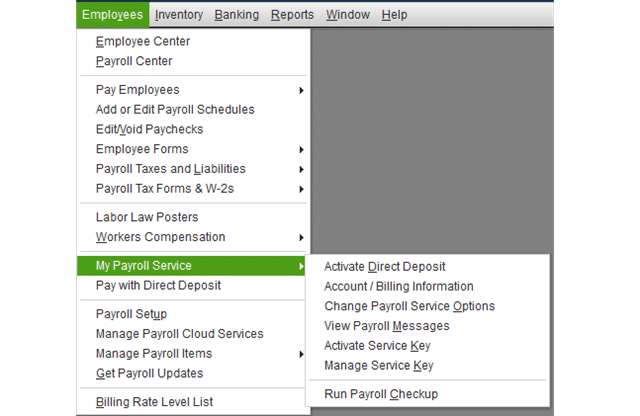
Next step is to open QuickBooks desktop and go to the Employees menu.
After that click on My Payroll Services and then click on Manage Services option.
Now, tap on the Edit button.
Check and verify if the license or service key entered here is correct.
If necessary, edit and enter the correct service. Click Next and save changes.
Now, restart your computer.
Solution 2: Edit Internet Explorer options
At first, launch Internet Explorer.
After then tap on the gear icon and select Internet Options.
Now move to the Security tab and choose trusted sites.
Later, you need to click on Sites and add the following websites if you are using the US version of QuickBooks:
*.quickbooks.com
*.intuit.com
Add the given sites if you have a Canadian version of QuickBooks:
*.quickbooks.ca
*.intuit.ca
Once done with that, hit on Close tab.
Finally, tap on Apply and then the OK button to save changes.
If the above-provided steps didn't resolved the issue, then move to the next solution method.
Solution 3: Update Microsoft Security Certificate
Please check the validity date of your Windows Security Certificate. If it is expired the it can cause the problem. Following are the steps to run Windows Update or download an updated certificate from Microsoft.
Press the Windows key and type File explorer in search bar and tap on it.
Once File explorer open, go to the following location C:\Program files\Intuit\QuickBooks.
Here you are required to find QBW32.exe file.
Once done, hit a click on QBW32.exe and choose properties tab.
Now, go to digital signature tab and make sure that Intuit inc. is selected in signature list.
Here hit a click on details tab.
Furthermore, click on view certificate option in the digital signature details window.
In next step, click on install certificate.
You now have to click on next and wait for the finish tab to appear.
Later on click on finish tab.
Once done, restart your system.
Now you need to open QuickBooks and download the update again.
Solution 4: Download the updates in safe mode
In case, the error still remains on your software after following the above steps, then try to download the updates in safe mode.
At first, you need to simply open your system in safe mode.
After that, download the updates again.
If it gets successful then reboot your system in normal mode.
Once done, open the QuickBooks Tool Hub and navigate to the Program Problems.
Here you need to click on Quick Fix My Program tab.
Let the scan process complete. Once done, check the problem is fixed by the tool.
Solution 7: Try to update QuickBooks desktop
Try opening QuickBooks and company file in your account.
Now download and install the update in QuickBooks desktop.
If you are unable to update the software, delete the update from the root folder.
First, close QuickBooks desktop.
Then open the location C:\Documents and Settings\All Users\Application Data\Intuit\QuickBooks XX\Components (XX is the year or version of QuickBooks software)
Do not shorten the port number of the QuickBooks desktop version.
Go to Start again and click on Windows Firewall.
Click on the Advanced settings option.
Right-click Inbound Rules.
Click on New Rule than port option.
Now click on next and choose enable the TCP option.
Checkmark the specific Local Ports and enter Port numbers.
Click next and Allow the connection.
Click on next and name the new rule.
Follow the same steps for outbound rules to complete the process.
Winding up!
Hopefully this article covers almost every solution that you can try to get rid of QuickBooks payroll error 15000. If you are facing any issue and any doubts or you need any technical guidance then you contacting to our 24/7 QuickBooks enterprise support team is suggested. You can directly speak to our experts and they will provide you immediate guidance for your problem.
Learn How to Resolve QuickBooks Error Code 6123 When you Can't Open Company File
QuickBooks is an invaluable asset for accounting, offering impeccable services and features. However, like any sophisticated software, it can encounter various error codes and glitches that disrupt your workflow. One common and particularly disruptive issue is QuickBooks Error Code 6123, 0.
This error typically appears when you're trying to restore the backup of the company file, potentially jeopardizing your crucial financial data. It's essential to address this issue promptly to prevent further complications or data loss.
This guide provides all the necessary information and effective solutions to help you resolve QuickBooks Error 6123, 0. Dive into our full analysis and tips on how to solve the issue as soon as possible. If you prefer professional guidance, don't hesitate to speak with our technical experts. You can connect with us through our helpline, 1-888-368-8874 or by using the live chat option for immediate assistance.
A brief look at the QuickBooks Error code 6123
This error generally occurs when a user tries to upgrade the company files to new version over a network. Also, it appears if the user tries to restore the QuickBooks company file backup or open the company files in multi-user mode. When this problem occurs the user might see the following error message on your desktop screen:
Error
Description
Error Code:
Error: -6123.0
Error
We’re sorry, but QuickBooks can’t open your company file
Error -6123,0 while opening, upgrading, or restoring your company file
Software
Intuit QuickBooks desktop
Quick Solution
Run QuickBooks tool hub program or Run the file doctor tool
Curative Methods to Troubleshoot the QuickBooks Error 6123, 0
Now that you know what factors would have dragged you to QuickBooks error code 6123, 0. So, let’s take a look at some special methods that you can try out to fix this error. Let us visit these troubleshooting methods one-by-one:
Method 1: Create a portable company file to restore your company file
You can try to create a portable company file and then use it to restore the company file. If you faced any issue while restoring a backup on a new computer.
At first, open QuickBooks on the system you used for creating the backup company file.
After that, open up the original company file.
Now make a portable copy of the company file.
Next, launch the QuickBooks program on the New system.
Restore the company file using the portable copy instead of the backup.
Method 2: Rename .ND and .TLG files
First, go to the QuickBooks folder.
In this folder, search for the file with ND and TLG extensions.
Afterwards, right-click on these files one by one, and then click on the Rename option.
Lastly, just add “.old” to the file names, and following that, run QuickBooks to open the company file once again.
Method 3: Use the QuickBooks Tool Hub Utility
In case you experience any issue in the company file, then perform the below steps.
Step 1: Download & Install the QuickBooks Tool Hub
At first, make sure that QuickBooks software and QuickBooks-related programs running in the background are closed.
Can’t fix the QuickBooks error 6123, 0 using the above corrective measures? Don’t worry! We're here for you. Speak to our 24/7 QuickBooks error support professionals and ask them to eliminate the ongoing problems in your accounting. Our support team has profound experience and expertise in this domain and has successfully served clients globally. To avail the offered services by our expert team, all you need to do is ring us a call at 1-888-368-8874.
Are you facing an abrupt halt in your QuickBooks workflow due to Error Codes -6190 and -816? This common technical glitch frequently occurs when multiple users attempt to access a QuickBooks company file that is inadvertently set to single-user mode. Such disruptions can severely impede your progress and cause significant frustration.
The good news is that like most errors in QuickBooks, this issue is entirely fixable with the right approach. This comprehensive guide is specifically designed to provide you with all the essential information regarding QuickBooks Error Codes -6190 and -816, along with a detailed set of corrective measures you can perform to resolve them.
Stick with us to the end to master these troubleshooting steps, or for immediate assistance and personalized solutions, don't hesitate to connect with our QuickBooks technical support experts via our dedicated helpline. Let's get your QuickBooks back on track!
Troubleshooting Strategies to fix QuickBooks Error Code 6190, 816
This error can be resolved by conforming to the following strategies:
Go for Update Now, and then Reset Updates checkbox.
Now, click on Get Updates.
At last, quit your QuickBooks and then run it again. Also, you need to click Yes to install the updates.
Method 3: Use the QuickBooks File Doctor Tool
When it comes to fixing errors in the company files, the QuickBooks File Doctor tool should be your first priority.
To use this to fix QuickBooks error message 6190, 816, do the following:
In the first step, download Tool Hub and then install it on your system.
Run the tool, then go to Company File Issues, and then select Run QuickBooks File Doctor.
Now hit on Browse, then choose company file.
Provide correct credentials, then begin scanning the file.
When it is over, run QuickBooks, then open the company file again.
Method 4: Check for the Single-User Mode
Initially, go to the File menu and click on the Single to single-user mode option.
It will turn on single-user mode.
After that, log out of the QuickBooks software accounts.
Then reboot the systems that are on the network.
Also, copy the company data file to the desktop screen of the system.
Now transfer it back to the original position.
In the last step, log in to the QuickBooks account.
Method 5: Removing Temporary files
At times, excessive accumulation of temp and junk files can lead to such errors. For this, it becomes necessary to remove the temp files:
At first, click on the Start menu, then search for Clean.
After that hit on the Disk Cleanup tool, choose the C drive.
Now, following that, tick the box besides Remove Temporary Files.
Now, start the cleanup process and wait until it is done.
Manual method to delete the temp files:
Press the Start button and type the Windows + R keys to open the Run box.
After that, hit the Enter key.
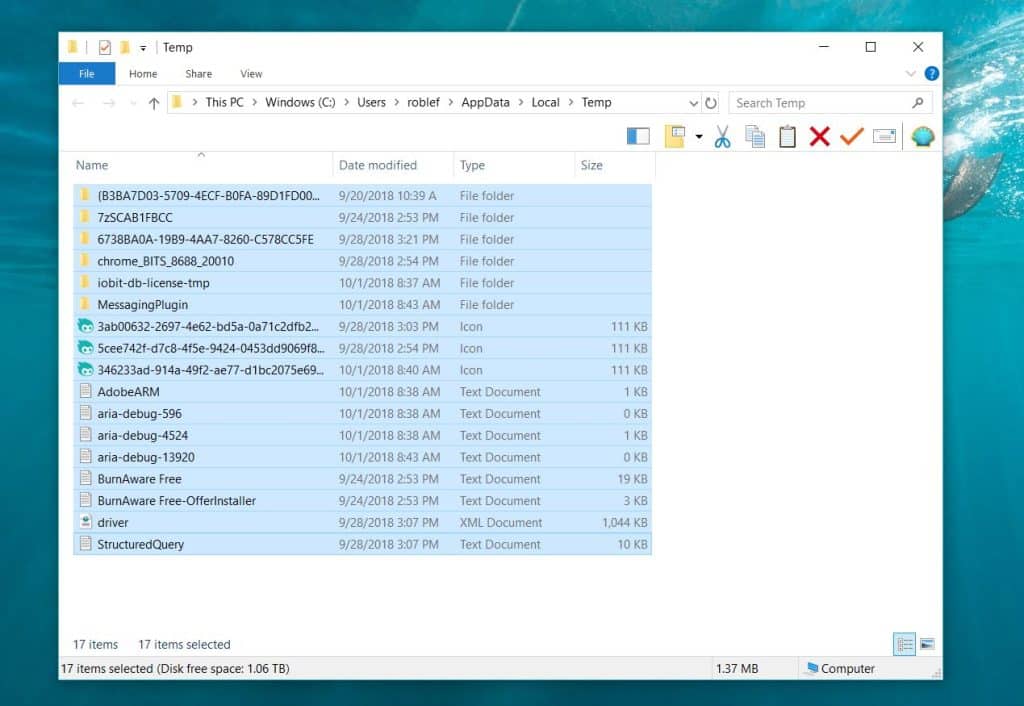
In the next step, type %Temp% in the run box.
You need to select all the temp files in this folder.
At last, delete them by pressing the Shift+Delete key.
Method 6: Update your Windows operating system.
Updating Windows sets up the latest Windows components on the system, which lays the groundwork for a seamless working of QuickBooks. The steps for updating Windows are
From the Start menu, search ’Update,' then open Windows Update.
Go to Settings and choose the Update & Security tab.
In the next step, open the Windows Update tab.
Pick the Check for Updates option.
In case there are any updates, then it will start downloading on its own.
You need to mark the important ones and then download the updates.
To install them, restart the PC, and all the updates will install in the next restart.
Method 7: Verifying and rebuilding the company file
Open QuickBooks and select the Filemenu > Utilities > Verify Data.
QuickBooks will perform a scan of the company file and identify any data issues. If it finds any issues, it will prompt you to rebuild the data.
To rebuild the data, select File > Utilities > Rebuild Data.
QuickBooks will display a successful message once the rebuild process is complete.
Method 8: Try the Windows Restore
At first, click on the Start menu, and then search for “Restore.”
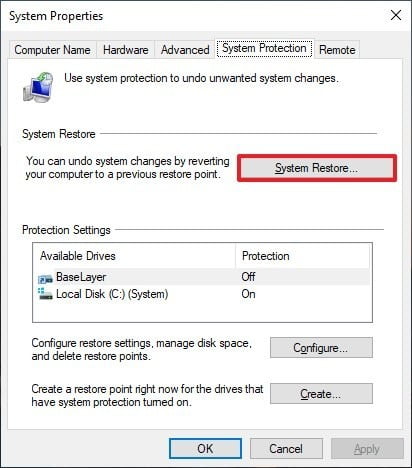
In the next step, click on the System Restore option.
Now select the Recent Reset Point and proceed with the restore process.
At last, run QuickBooks and make another attempt to open the company file.
Method 9: Rename Network and Transaction files
As mentioned in the list of causes, damage in the network (.ND) or transaction log files (.TLG) could also trigger QuickBooks error message 6190, 816.
To resolve this, the most effective approach is to rename these files.
At first, go to Drive C: Users/Public/Public Documents/Intuit/QuickBooks.
Then, look for files having the .TLG and .ND extensions.
Right-click them, then choose Rename.
Then, choose .OLD at the end of the filename.
When all done, run QuickBooks, then open the company file previously facing the ongoing error.
The file should be accessible this time without the occurrence of the error.
Method 10: Move the company File to different folder
Moving the company file to the desktop or any other location besides the original company file folder has fixed this error in many cases. To do this:
At first, go to the company file folder, then look for the company file.
Right-click it, then select Copy.
Then make a new folder on the desktop and paste the file in it. Either use the Ctrl + V keys or right-click in the folder, then hit Paste.
Run QuickBooks, then try opening the file from this new location.
A Sneak Peek Into the QuickBooks Error 6190 and 816
This company file error shows in the form of a message stating as:
Information
Description
Error code:
6190, -816
Error description:
QuickBooks has encountered a problem and needs to close. We are sorry for the inconvenience.” or “An error occurs when QuickBooks tries to access the company file (-6190, -816): or "QuickBooks was unable to open the file [path] on the host computer.
“QuickBooks is unable to open the company file. It may have been opened by another user. You should ask that user to switch to multi-user mode so that you can both use the company file simultaneously. This file could also be located in a read-only network folder. Error Codes: (-6190, -816) or QuickBooks Error 6190 Multi-User Not Working.”
Software:
Intuit QuickBooks Desktop
Symptoms:
Error code appearing on the screen, windows running slowly, system freezes, system crashes, loss of some essential data files, etc.
Quick solution:
Use QuickBooks file doctor tool
When this error happens, QuickBooks is unable to access the company file and the user receives the following error message on their screen:
Some of the noteworthy causes of QuickBooks Error 6190 and 816
It is prudent to first go through the various causes that may result in this error code. These include:
The company file may be damaged due to a virus or a sudden system shutdown, which led to its data damage.
The transaction log file (TLG file) may be damaged or not showing a match with the company file. Another reasons can be damaged Network (ND file)
QuickBooks is not updated to the newest version.
The company file may be saved in the read-only folder.
The file location got changed, and the user may be trying to access the file from the previous location.
You can land into a similar issue if the .qbw file is being updated on another system but the transaction log file isn’t updated to the latest version.
What Signs indicate QuickBooks error code 6190 816?
Some of the notable symptoms that act as a forerunner of this company file error in QuickBooks include
The first conspicuous sign is the appearance of the error message related to Error 6190 and 816 when opening the company file.
QuickBooks and the system experience technical glitches when opening the company file or when running QuickBooks.
Need further assistance...!
This blog earmarked the major strategies to help you resolve QuickBooks Error 6190, 816. If the error is still occurring, or if you need help on any other matter, call our 24/7 QuickBooks error support team at Axpert Advisors through the helpline, i.e., 1-888-368-8874
Discover solutions for QuickBooks error 1618 that occurs when another program is undergoing an update.
QuickBooks has become the go-to financial management software for businesses of all sizes, thanks to its efficiency in handling complex financial tasks. Its user base is constantly expanding, a testament to its effectiveness. However, even the best software can encounter hiccups, and QuickBooks Error Code 1618 is one such annoying issue that users occasionally face.
This error often appears during the installation or uninstallation of QuickBooks or related programs, preventing you from getting the software up and running smoothly. But don't worry – you're not alone, and this issue is entirely resolvable.
In this comprehensive guide, we'll delve into the common reasons behind QuickBooks Error 1618 and provide you with multiple effective solutions to fix it. We're here to help you get past this obstacle. If you'd rather not tackle the troubleshooting steps manually, simply call our tech support line to speak with our specialists for expert assistance.
What is QuickBooks Error Code 1618?
QuickBooks error 1618 typically appears when you try to update the program or install QuickBooks on your desktop. This might occur as a result of an unsuccessful installation or update. This error, which is an update error, can take the following forms:
Error
Description
Warning
Error code: 1618
Error
There was a problem installing Microsoft Runtime library (Error 1618)
Error 1618:
ERROR_INSTALL_ALREADY_RUNNING error message when you run the setup program to install QuickBooks programs
Software:
QuickBooks Desktop
Symptoms:
Active program window crashes, system crashes, slow Windows performance, incomplete install process
Quick solution:
Create a backup of the Windows registry
You might see the following error message on your computer screen:
Causes of the QuickBooks error code 1618
There are several possible reasons behind the QuickBooks error code 1618. Some of these are related to the installation, while others may not be directly related but may trigger the error.
Installation error 1618 can occur if your updates and installations are not done properly.
After downloading, save the install file in that location from where you can access it easily.
After that, open the QuickBooksToolHub.exe file and install it.
After installation, double-click on the QuickBooks Tool Hub icon to open it.
Click on the 'Installation Issues' tab and select ‘QuickBooks Install Diagnostic Tool’ to launch the tool.
It will take approximately 20 minutes to find and diagnose the problem.
After completing the process, open QuickBooks to check whether the error 1618 is resolved or not.
If you are facing the same issue, then follow the next solution to fix it.
Method 6: Update the Windows
From the Start menu, go to Settings.
Choose the tab for Update & Security.
And further select the Windows Update option.
Next, select the Check for Updates option.
The download process will start automatically when updates are available.
Restart your computer and let the updates install.
At last, launch the QuickBooks software and check if the error 1618 got resolved.
Method 7: Run Quick Fix My Program
In the first step, run the Tool Hub and access the Program Problems tab.
After that, move to the Quick Fix My Program option.
Then, proceed with the scan process and allow this feature to diagnose and rectify issues within QuickBooks.
Method 8: Using clean install in selective startup mode
There is a possibility that the error 1618 in QuickBooks is not resolved even after applying all the above techniques. In that case, you can try a clean installation in safe mode. This prevents third-party app interruptions during the reinstallation process. Follow the below steps to resolve the error:
Step 1: Switch to the Safe Mode
Open the Run dialog box (Windows + R)
Type MSConfig in the text box.
After pressing Enter, you will see a pop-up window.
The General tab will be already selected in the window. You will see three mode options.
Now click on Selective Startup and then click on Load system services.
Now, go to the Services tab and tick the Hide all Microsoft services option at the bottom.
Choose Disable and then untick the Hide all Microsoft services option.
From the list of services provided, select Window Installer.
After selecting the above, click OK and select the Restart button.
Step 2: Uninstalling and reinstalling QuickBooks desktop
Go to Control Panel and click on the Programs and Features tab.
Select QuickBooks from the list of installed applications.
Then click on the Uninstall program option.
Finish the uninstallation by following the instructions on the screen.
Next, reinstall QuickBooks from the installation hard drive.
Continue the download and installation by following the instructions on your PC screen.
Step 3: Returning to the Normal Mode
Press the Windows + R keys to open the Rundialog box.
After that, write MSConfig in the search box and press the Enter key.
You will see a pop-up window.
Now, select the Normal Startup option in the General tab.
Reboot your system again to apply the changes and see if the problem persists.
Conclusion!
In this segment we discussed the quick fixation of QuickBooks error code 1618 and the causes of this error. By using the methods mentioned above, you will be able to fix the error easily, as this would prevent any further damage to your important company files. Moreover, if you have any doubts and you need any technical guidance, then you can contact our QuickBooks installation error support professionals at 1-888-368-8874. Let them fix the error from its root cause.

















 +1-888-368-8874