A Quick Guide to Install, Update & Set up the QuickBooks Database Server Manager:
QuickBooks services and databases have created a massive impact in the world of accounting and finances. It is now extremely preferred by most businesses to generate invoices thus helping small businesses run with authenticity. One great thing about QuickBooks is that its interface is so easy that anyone can use it without any hassle. You can share your company files with other users over your network using the QuickBooks Database Server Manager application. When you set up a network, run the tool so users can access your company files. It also aids in network monitoring for multiple users. Following the instructions on your screen will guide you through the straightforward installation process.
The tool lets the team members work together more effectively and produce more work. Let's explore the installation, updating, and configuration of QuickBooks Database Server Manager.
What is QuickBooks Database Server Manager?
QBDBMis an important part of QuickBooks accounting software. This feature allows you to manage the QuickBooks server for multi-user access. This tool creates a network data file (.ND) for any desired company file on the local host system. Through this article, today we're going to talk about QuickBooks Database server manager and it's uses. We will also elaborate on the complete process of it and discuss why it is so useful feature provided by Intuit. Moreover, If you already have it installed and need to update it, we will step-wise help you through it.
QuickBooks Database Server Manager lets you manage your QuickBooks company files from a central location. It creates a network data file that can be viewed simultaneously from several computers, which can help your QuickBooks program run faster and more effectively. It's particularly helpful if different users are accessing the same firm file. You don't require QuickBooks Database Server Manager if you don't intend to share your file with other users.
If you need multiple access from the host computer, it is not possible if you do not have this tool. But it has more capabilities other than just networking. They are as follows:
Automatic detection of local storage device for the new company.
Creates a file which is also known as network data files that are in the host computer.
You can add various users during the installation process.
These are some of the things that usually come along with the tool itself. Therefore below you will find a comprehensive guide that will help you install the tool.
How to Set Up QuickBooks Database Server Manager?
In this section, we will talk about the steps that are required to use the tool. We will also talk about the setting up process.
First, you need to configure the firewall manually. This will allow the tool to run on the server.
Open the database and hit the ‘port monitor’ tab.
Tap on start and then on the windows firewall tab.
Head to advanced settings and then inbound rule. Then choose ‘rule’
Choose the port and then hit next.
Make sure that you select TCP and specific local ports option.
Then, hit on next then ‘allow the connection’.
Mark all the profiles and hit next.
Create your rule and then hit the finish.
Your QuickBooks database server manager is now set up. All the company files which are designed in the scanned folders for multi-user access will be scanned automatically.
Monitored Drive Features
Whenever you add new company files to the server, you can use the Monitored Drive features which keep your QuickBooks Database Server Manager updated.
Hit on the Start button and then opt for Program. Then, tap on QuickBooks Database Manager.
Hit on the Monitored Drive tab.
Rename and remove and then choose in case you want all the local drives which you want to be monitored for company files that are added.
Database Server Features
Determine open your QB Database Server Manager
List the users who are logged into each company file and the company files which are connected to the server.
The status will be displayed on the services of the QuickBooks Database Server. All the services would be running when the server is hosting the company files.
In such a case, if you want to change the status of the services, then use the Services Administrative Tool to repair the services QBDBXX.
Features of Update
For downloading the QuickBooks Server updates, use the updated features and check the versions of QuickBooks Server.
Firstly, tap on the Start button and then immediately pick Program.
Now, hit on QuickBooks Database Manager.
Hit on Updates.
Follow the instructions displayed on the screen so that you can install the updates.
Firstly, hit on the Start menu.
Now, opt for Program.
Choose the QuickBooks Database Manager option and then hit a click on System.
Check on system information for the computer which has the database server installed on it.
Guide to Install QuickBooks Database Server Manager
Undermentioned are the steps that will help you to install the tool without any hassle.
First, double-click on the installer to begin with the installation of the “Wizard“.
You will get an option asking your computer if they have an active internet connection. Press yes or no accordingly and hit next.
Next, close all the programs that are already running on your computer and hit next.
Read the terms and conditions on the following page and accept them when you are done.
Click next.
Now you will have to choose the “Custom or Network options“ and then the installation type.
When you are done, you can either choose to be the host computer or otherwise.
The options you will get are: I’ll be using QuickBooks on this computer And I’ll be storing and “I will not be using QuickBooks on this computer".
Choose accordingly and then allow access.
After that, you will be asked to enter your product key and license number.
Follow the next steps according to the installation process.
Your tool is now installed. For the best results, set up your QuickBooks database server manager. this will be according to your preferences and you are done.
Guide to Update QuickBooks Database Server Manager
To update QuickBooks Database Server Manager, you need to:
Visit the official Intuit website and Download the update patch for the Database Server Manager from the authentic link.
After that, you need to reboot the server once.
This process will update the server on every workstation. Now you will get a message that say ‘Company File requires an update to work with this version of QuickBooks Desktop’.
Moving ahead, open the QuickBooks Database Server Manager and go to the Updates section.
Complete the updation process by following the on-screen instructions.
Next, you will see that the updates are modifying the database structure. Now you will get a message asking you to create a backup.
Keep following what the next steps are according to the tool.
Check if every user has access to your files.
You can also update QuickBooks Desktop to the most recent version to get the latest updated version of database server manager.
What QuickBooks Database Server Manager Tool Does?
It can operate the following tasks for you:
Scan the QuickBooks company file which is compulsory for multi-user access.
Study the local storage device to detect a new company file automatically.
NOTE: The QuickBooks Desktop requires for optimum file performance on the network, you can install and set-up this tool on the computer where the company files are located. The below given image shows how QuickBooks Database server manager tool looks like:
Some Important Points
Add a User: Each QuickBooks versions will add a user when the QB Database Server Manager is installed. (For Example- QBDataServiceUser28 for 2018 and QBDataServiceUsers27 for 2017).
Multiple Versions: If you are installing various versions of Database Server Manager it will grant you only numerous versions of processes, but it cannot provide multiple versions of the software.
Dump that the year's database services are running in the background when the Database Server Manager works for every year. Make sure that the functions of the Windows interface which are accessible via the Windows and the "Control Panel" than this service are labeled as QuickBooks DBXX, where the XX shows the number of versions (example- "27" is for QB Desktop 2018 and "28" for QuickBooks desktop 2019).
QuickBooks Database Server Manager (QBDBMS): QBDBMS created a Network Data files and stored the company files on the host computer. If you wish to use multiple versions of QB Desktop, then you should install every version of the Database Server Manager.
You may install the QB Database Server Manager in a chronological order from oldest to newest for each version when you want to use multiple versions of QuickBooks desktop.
Requirements for Installing QuickBooks Database Server Manager
Before installing QuickBooks Database Server Manager, you must always confirm that the computer satisfies the following conditions:
Windows 10, 8.1, 8, or 7 SP1 (64-bit).
At least 2.4 GHz processor.
4 GB of RAM (but 8 GB is advised).
2.5 GB of available disk space.
An internet connection.
The server computer has QuickBooks Desktop installed.
Conclusion
That's all on our behalf. We know that all the processes can be quite tricky for you. An even trickier task is to set up, install and update the database server manager for QuickBooks. Nonetheless, it helpsthe businesses immensely and that is why it is worth it. We hope you found this guide helpful. However, if you don’t have much time to spend on performing these steps or you are facing any difficulties, then you can simply get in touch with our QuickBooks desktop support team at 1-888-368-8874.
How to deal with the QuickBooks error 6175, 0 like a Professional:
QuickBooks is a powerhouse in accounting, but even the best software can stumble. If you're seeing QuickBooks Error 6175, 0, it's usually a sign your company file is damage or corrupt company files, especially when trying to use it with multiple users. This common issue can halt your work, but it's often fixable!
This error pops up when QuickBooks can't properly access or host your company file in multi-user mode. Don't worry, we're here to help you understand why it happens and how to resolve it quickly. Our guide provides clear, actionable steps to get your QuickBooks running smoothly again.
Still stuck? Our 24/7 QuickBooks support team of certified experts is ready to provide immediate, tailored solutions. Get back to business without the headache!
What is Error Code 6175, 0 in QuickBooks?
The QuickBooks Error Code 6175, 0 happens when QuickBooks tries to gain access of the company file. Generally, when you try to host multi-user access of your company data file, this issue erupts in the QuickBooks Desktop. You will get the following error message on your desktop screen when the Error 6175,0 occurs in your QuickBooks desktop:
It's essential to have a detailed image of what the problem is all about before jumping onto the troubleshooting procedures. For example, when users decide to access a company file, but the computer system does not reply/respond, the QuickBooks Desktop Error 6175 shows up. A further cause might be that users are attempting to open the QuickBooks company file for many users. Furthermore, whenever the multi-user configuration is incorrectly set up, or the firewall prevents connection, the error may obstruct your operations.
Methods to Fix QuickBooks Error Code 6175
Our experts have provided the following solutions in order to get rid of from the QuickBooks error code 6175:
Option 1: Evaluate the Server Settings as a First Step
Step 1: Double-Check the Desktop Configurations
QuickBooks may be installed on any one of the hosting systems. Multi-user functionality is possible on the desktop. The only server configured to accept the service must be one's web server (which stores one corporate data).
Make sure the Host Multi-User Access feature is turned off on every desktop (system linked to the internet that does not store the corporate data)
Start QuickBooks and go to the File menu and select Utilities.
If the Host Multi-User Access item appears, ignore it. Instead, proceed to the following page. It's still not the source of the issue.
Opt for Stop Hosting Multi-User Access if it is available.
Repeat steps across all desktops if Error -6175, 0 is still present.
Step 2: Double-Check the Computer's Configuration
Based on the system, follow the instructions below.
When the computer has the complete version of QuickBooks desktop installed, proceed to the host desktop and change the service configuration once you have checked all of the desktops.
On one host server, launch QuickBooks.
Advance to the Programs list and choose Utilities from the drop-down menu.
Hit on the Host Multi-User Access if this is available. Then, tap on Stop Hosting Multi-User Access and continue the cycle. It will turn off the multi-user configuration.
Go through the procedure again, this time choosing Host Multi-User Access.
If you are not using the real version of QuickBooks Desktop installed on the server PC, they have Server Software Manager. To examine the folder containing the system files, follow the procedures below.
Step 3: Check Whether QBDBSM is Properly Installed on Your System
Afterward, move to the Start and type in 'database.'
Now, choose the QuickBooks database server manager option from the list.
After that hit on the Scan option.
Once the scan process completes, try to open your company file and check the problem is resolved or not.
Step 4: Uninstall and Reinstall QuickBooks on Your System
In case none of the above stated methods work in your favor, then it is recommended to reboot the application and also uninstall and reinstall it once. In some cases, this solution might be effective.
Option 2: If Error -6175, 0 Still Persists, Implement This Troubleshooting Walkway
Step 1: Download and Install QuickBooks File Doctor
Open "QuickBooks Tool Hub" and hit on the short key (CTRL+J keys) to navigate to the files.
Opt for [QuickBooksToolsHub.exe] from the downloaded menu.
Permit the application to make modifications by hitting Yes.
Continue by tapping on Next to activate the software; after that, hit on yes to approve the licensing deal once more.
Choose Continue after this.
Hit on Finish once the installation gets completed.
Advance to "QuickBooks Tool Hub" and open it (The symbol will be shown on the screen).
Now, you have to right-click on the Reimage Repair Tool Download Link and save it to the desktop
Once you are done with downloading Repair Tool, navigate the file location and then double-click on it.
The installation process will initiate now
In case you want to run the program, the User Account Control will give a prompt.
Now, you have to hit on Yes to Continue
On the initial launch of this application a welcome screen will be displayed
You have to leave the checkbox unticked in order to allow the repair tool to begin an automatic scan
Now, you have to tap on Install to start the procedure of installation
Now, the Reimage Repair Tool will get installed in your computer
Internet connection is required so that the tool can download all required updates.
In order to check the status of your computer Reimage Repair Tool will automatically start a scan of the system.
Once the scan is completed the tool will inform you if the PC has any damages and requires any kind of repair.
In the bottom right corner tap on the Start Repair button.
Once Reimage Repair Tool has finished repairing, your system will be fully fixed.
In order to complete the process you have to restart your computer.
Step 3: Change QuickBooksDBXX Service to Local System Account
First, tap on the Start button.
Then, in the Search box, type 'MSC' and then hit on the Enter key.
Now, right-click on the QuickBooks DBXX service.
After this you have to hit on Properties and opt for the Log On tab.
In the Local System Account, you have to hit the radio button and then tap on the Next button.
Now, tap on Apply and then choose the OK button.
Now you can switch to Multi-user again.
Step 4: Uninstall & Reinstall the QuickBooks Desktop
If the foregoing avenues don't help in fixing the issue, you are left with the last, yet the effective option of uninstalling and re-installing the QuickBooks software. Proceed as follows:
To begin with, access the Control panel from the Start menu.
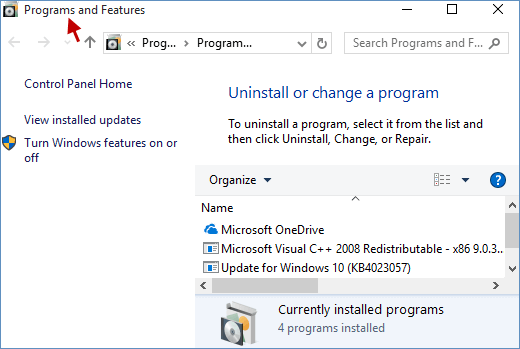
Following that, advance to the Programs and features.
Herein, you are required to opt for the QuickBooks Desktop from the list of installed apps available.
Then, hit on Uninstall/Change.
Now, choose the Uninstall option.
Wait for the uninstall process to conclude.
Reboot the PC and set up a fresh copy of the QB Desktop on your system using the original product and license keys.
Once the installation is finished, restart your PC and open QB.
Finally, verify whether the error got removed.
What Causes QuickBooks Error 6175 ?
The following are some of the most common causes of QuickBooks Error 6175 0:
This issue may arise during the process of communication.
Other causes might be that the Firewall connection has been damaged.
The active condition of the computer holding the company file might cause this error.
Any barrier or information filtering software might prevent communication.
Another cause of such an issue appears to be that the computer holding the company file becomes overburdened.
The network function in QuickBooks cannot be started.
Content Blockers (cyber-sitter programs)
If users operate the database server operator under multi-user configuration, users could get the error code 6175.
How do QuickBooks Users Recognize Error 6175 in the Multi-User Configuration?
Users should know the standard signs that may assist them in detecting QuickBooks error code 6175, 0during facilitating multi-user service in QuickBooks after they are familiar with the following reasons.
Users will not have access to the business information.
That display will no longer have access.
Whenever the QB accounting program fails while users are attempting to figure it out, the error appears.
If someone’s computer lags regularly, QuickBooks Error 6175 0 might be the cause.
Final Words.!
All the above solutions can easily fix the QuickBooks error 6175,0. Once completing all of the procedures mentioned above, users should no more be experiencing this error, but in case of any technical issue, you may contact the QB specialists for assistance. Call us at our QuickBooks error support number for further assistance.
Learn easy ways to solve QuickBooks error 15106: The update program cannot be opened:
QuickBooks, developed by Intuit, is a leading software for handling finances and accounting for various business types. Although it greatly assists with finances, there are times when it encounters a setback. A frequent issue encountered is QuickBooks Update Error 15106.
This error, belonging to the 15XXX series, frequently occurs when you attempt to update QuickBooks or process payroll. It prevents crucial software updates from taking place. Don’t allow a minor tech problem to hinder your productivity! We understand you require these issues resolved quickly. Discover straightforward solutions and resolve Error 15106 today. Ensure your QuickBooks operates efficiently and your financial information is consistently current. Eliminate update issues and ensure your business remains robust!
Error
Description
Problem
Error 15106: Your update software is corrupted, either Error 15106: The update application can even be launched.
Payroll system update problems, unlike many other (15XXX) serial problems, are caused by the absence of administrator privileges and security [safety] limitations, mostly on the QuickBooks task scheduler. The Microsoft Installer is a software program that helps in installing and uninstalling programs and upgrades on the Windows operating system. Under certain untoward circumstances, when the installation becomes corrupted or faulty, certain apps begin to generate errors throughout the installation phase. The same issue happens while using QuickBooks whenever the Microsoft Installer becomes corrupted or faulty, resulting in the QuickBooks error code 15106. The error pops up whenever the QuickBooks user attempts to download or upgrade the payment.
Therefore, whether people have run into QuickBooks Payroll Error 15106, they will have to follow all necessary measures to fix the installation and uninstall any third-party programs that are forcing it to malfunction. Let us first get a rudimentary overview of the error code, following which, we shall dive into the causative factors and the fixes for this error.
What is QuickBooks Error Code 15106?
The QuickBooks software has always amazed its users with its extraordinary and unprecedented features. But, users sometimes face specific errors during their access to this software and one of them is the error code 15106. This error code usually arises when there is a specific issue with the update program. Sometimes, When you try to update the payroll, then the QuickBooks Update Error 15106 can occur. When this error occurs, you get a message on your screen stating the following line:
Error 15106:
The update program damaged or the update program cannot be opened
Error 15106:
The update program is damaged
Steps to Resolve QuickBooks Update Error 15106
Let us now check out the apt solutions in order to resolve the QuickBooks error code 15106. Since there are several reasons behind the error code, consequently, the error may be fixed by any of the below-mentioned solutions. So, make sure to perform each solution till the end in a proper sequence.
Solution 1: Register to the PC as an admin
Tap Control Panel from the Menu bar, or hit (Windows + R), type 'Control Panel' into the Run window, and push the Enter key.
Hit on the User Profile after choosing User Accounts and Family Safety.
Opt for Control other profile, then, and if prompted, input the administrator password.
The profile category is displayed properly below the username. When the profile becomes an administrator account, head to the next troubleshooting solution.
Solution 2: Perform a clean install in Selective Startup
Click on the Start menu and type "MSConfig," followed by hitting the "Enter" key.
Now, you need to visit the "General" tab.
Within this tab, choose Selective Startup and Load System Services.
Here, ensure to "Hide all Microsoft Services" after clicking on the "Services" tab.
Opt for "Disable All."
Afterward, you need to remove the check mark beside the "Hide all Microsoft Services."
You should then save these changes by clicking on "Ok."
After restarting the system, the Selective startup mode is now operational. You now need to visit the Control Panel and then enter the "Programs and Features" tab.
Make a choice for "QuickBooks Desktop" and hit on the "Uninstall/Change" option.
Hit on "Uninstall" to get QuickBooks removed from your system.
Then restart your computer.
Now, you should reinstall QuickBooks Desktop using your product and license keys.
Launch the QuickBooks software and advance to the Help tab, then opt for Update QuickBooks.
Head to the Settings panel and choose Mark all.
Hit on Save, then advance to the Update Next page.
Make a checkmark. Choose Receive Upgrades after resetting the Update next option.
If you continue to receive Error 15106 when updating payroll, implement the following solution.
Solution 4: Restore the QuickBooks Desktop
in the beginning, hit the [Windows + R keys], then input “appwiz.cpl” and then hit the 'Enter' key.
In the Uninstall or Change a Program box, scroll to the bottom and double-press QuickBooks from the menu of downloaded software.
Hit Next after opting for Change / Remove.
Pick the Repair option from the drop-down menu and tap Next.
Thereafter, hit on Repair to resolve Error 15106.
If the error notification 'File in Use' appears, choose Ignore and proceed only with Repair.
Afterward, reboot your pc and launch the QuickBooks program.
Whenever users receive the QuickBooks that have recently installed an upgrade box, hit on the Install Now option.
Solution 5: Uninstall Webroot Spyware Sweeper
Advance to the Control Panel from the Start menu on the client's computer.
Choose the Add/Remove Programs from the drop-down menu.
From the menu, double-click "WebRoot," then opt for Uninstall/Remove.
Hit Next after choosing Uninstall.
To entirely uninstall the program via Windows, follow the on-screen directions.
Open your web browser and attempt again to Download QuickBooks updates.
When the issue gets resolved after uninstalling Webroot, restore it after the Upgrade.
Solution 6: Turn Off User Account Control (UAC)
First of all, hit the Windows + R keys to launch the Run window.
After that, type 'Control Panel' and hit the Enter key.
Now, choose the User Accounts and then opt for User Accounts (Classic View).
Opt for changing User account control settings. If you are prompted by UAC, opt for Yes to proceed ahead.
Move to the slider.
You need to set it to Never Notify and choose OK to turn UAC OFF
You need to set it to Always Notify and choose OK to turn UAC ON ( Note: if prompted by UAC, select Yes to continue.)
Finally, reboot the computer.
Solution 7: Login as System Administrator
Open C Drive from my computer.
Then, open C :\ Program Files\ Common Files \ Intuit\QuickBooksxx\Components
Navigate the folder named ‘downloadqb’ and rename it to ‘download.old.’
This will definitely solve the issue but, if you still face this error then you can try the other solution given below.
Solution 8: Uninstall your antivirus software
under certain instances, the antivirus software obstructs the normal functioning of the QuickBooks software, thereby, provoking the error code 15106 in your system. If none of the above-mentioned solutions work in your favor, you should remove the antivirus software from your computer. To do that, follow the lead:
In the Search field of the Start menu, type 'Control.'
To access the Control Panel, double-click on the Control Panel and hit Enter tab.
After picking Programs, advance to the Programs and Features.
Choose your antivirus program from the list.
Opt for the Uninstall/Change button.
Choose Uninstall and wait for the procedure to finish.
Open QB Desktop once more.
Solution 9: Rename the folder & disable your antivirus
The first step is to terminate all your antivirus-related processes. For that, head to the Task Manager by holding the "Ctrl + Shift + Esc" keys.
Once the task manager window opens, the "Processes" tab needs to be chosen.
Herein, choose the process(es) related to your antivirus.
After clicking it, hit on the "End Task" option.
Once the antivirus processes are terminated, the next step is to rename the folders associated with the QuickBooks update. For this, you should initially open the file explorer.
Head to Drive C, followed by moving to the Program files. Within Program Files, look for intuit folder and then head to the folder named QuickBooks.
Herein, you are supposed to search for the QB file and change its name by right-clicking and choosing Rename. All you need to do is add a .old extension at the end of the filename.
After all the above-mentioned steps have been complied, open QuickBooks once again and attempt to update your accounting software once again to check if, this time around, the error vanished.
Solution 10: Switch to normal startup mode
At the very first step, you are required to open the run box.
After that you need to enter Misconfig followed by pressing the OK button.
Now user need to go for the Normal startup and in the General tab, click on Ok tab.
At end select Restart option on the System configuration window.
What Leads to Error 15106 in QuickBooks?
There seem to be a variety of reasons why issues occur with upgrading payments or downloading QuickBooks upgrades. For example, QuickBooks desktop error 15106 occurs whenever the QuickBooks installer's program becomes corrupted, or the user may not have the necessary permissions to complete the Upgrade on the PC. Therefore, all of the possible causes of Payroll Update Error 15106 are given here.
QuickBooks refuses to download all of the extra tools needed to upgrade the software and paychecks afterward.
Users may have Webroot virus protection loaded on the machine, identifying QuickBooks installation as a possible danger and preventing it from running on Windows.
QuickBooks Update Error 15106 may also occur when a user profile does not have Microsoft management permissions.
When Spy Sweeper is present in the Webroot anti-virus software.
Users might not have logged in with the username having admin level rights.
The Windows User Account Control options are configured to moderate, and this causes the QuickBooks upgrade to fail.
Security or anti-malware software from a third party blocking the QuickBooks latest versions i.e. QuickBooks desktop 2022.
Concluding!
That concludes the article. This piece of writing entailed all the possible QuickBooks error code 15106 remedies. When the following procedures fail to wipe out this error from QuickBooks software, you can contact our QuickBooks error support number i.e., 1-888-368-8874 for more help.
To thoroughly remove common QuickBooks errors from the system, experts may have to establish a remote connection with the user. Thanks for spending your valuable time reading this article. We hope that at the end of this article, you might be able to get rid of the issue.
Are you searching for ways to access a QuickBooks company file (QBW)without launchingQuickBooks desktop itself? You've landed on the perfect resource. This comprehensive guide is specifically designed to walk you through the entire process of opening and viewing your crucial financial data contained within .QBW, .QBB (backup), and .QBX (accountant's copy) files, all without needing to open the full QuickBooks application. A .QBW file is the primary format where QuickBooks stores all your vital business information, including detailed financial transactions, customized templates, essential letters, company logos, and even integrated images. Understanding how to interact with these files independently can be incredibly useful for various scenarios. We highly recommend you review this detailed guide to successfully implement the necessary steps. If you encounter any challenges or require expert assistance during this procedure, please don't hesitate to connect directly with our skilled tech professionals via our dedicated helpline, 1-888-368-8874 for immediate support.
A brief description of the QBW File Extension
QBW (QuickBooks for Windows) is a kind of format under which the QuickBooks Data File is stored with .QBW File extension. These QBW Files usually save financial data, templates, letters, logos, and images. They include QuickBooks Financial statement designer, cash flow projector, business planner, and loan manager. Hence, QBW Files consist of essential and sensitive data therefore, it is crucial to have a reserve.
What are the steps to open qbw file without QuickBooks Desktop?
You can perform the below-stated procedure to successfully open qbw file without using QuickBooks Desktop.
Initiate the procedure by tapping on the Windows start menu.
After that, click on the all programs tab.
When you see a list on the screen, scroll down and choose intuit option.
Access the folder and head for the QuickBooks option.
Pick the company file to export from QuickBooks.
After that, push the open option.
Type in the password if asked to.
Agree on customer, vendors, or employees list. These options are at the top of the screen.
Hit on the customer center.
You can even import QBW to an excel report.
Take the excel option at the top.
Opt for the option to export excel.
Now, tap on export after saving the file.
After that, open the imported file.
This will need excel version 2010 or later.
Adopt the current version of excel to access the QBW files without using QuickBooks.
Soon after, hit on the Data tab.
Then, click on the other resources tab.
Look for the .qbw file in windows.
If you are unable to locate the .qbw file, then look for the file separately.
Finally, hit on the new qbw file that will open up directly.
Steps to convert QBX file to open qbw file without using Quickbooks
You can simply open the .qbw file by converting it.
In the beginning, open the QuickBooks file.
Head to the File menu and hit on the send company file.
Opt for the accountant’s copy.
Choose the convert accountant’s copy option to company file/qbw.
Hit on the Ok tab.
Choose the location where you wish to save the file.
Thereafter, hit on the save tab.
Conclude the procedure by tapping on the Ok tab.
What makes file extensions essential in QuickBooks?
The various pointers below attest to the importance of file extensions in QuickBooks. Besides aiding users in easily recognizing their files, file extensions carry a vast array of additional perks.
QuickBooks File extensions permit users to quickly look for the nature of the file and its contents.
Another perk can be that it provides a simple method of storing all the files.
File extensions also safeguard the file in terms of security purposes.
Moreover, it becomes easy with extensions to spot all sorts of documents by looking at the filename.
Index of File Extensions used in QuickBooks Desktop
There are various lists of file extensions which are given as under:
Accountant files
QuickBooks working files
Fixed Assets Manager
Log and utility files
Payroll files
Conclusive lines!
Once you perform the above-given steps, the process to open qbw file without using QuickBooks desktop will become relatively easy for you. However, if a scenario occurs wherein you aren’t able to open the file or you find yourself stuck at any point in time, then, in that case, do not hesitate to contact our QuickBooks desktop support team. Our team will solve all your QuickBooks-related issues.
QuickBooks stands as the undisputed leader in accounting software for growing businesses, empowering countless companies to manage their finances, track revenue and expenses, and maintain a clear picture of their financial health. From invoicing clients and paying bills to generating insightful reports and simplifying tax preparation, QuickBooks offers an all-encompassing solution.
However, even the most robust software can encounter occasional hiccups. A common challenge users have recently reported is QuickBooks Error 15221. This update error can disrupt your workflow and prevent you from accessing crucial new features and security updates.
ExperiencingQuickBooks Error 15221? You're not alone, and solutions are available. This article will guide you through understanding and resolving this specific QuickBooks update error, helping you get back to seamless financial management.
Effective Methods to Troubleshoot the QuickBooks Error Code 15221
In this section, we shall discuss the various avenues of troubleshooting the QuickBooks error code 15221. So, buckle up and start implementing the measures. We assure you by the end of this article, the error code 15221 will be resolved. So, without wasting any second, let us jump to the methods for fixing the error.
Method 1: Update QuickBooks Desktop to the latest release
Updating QuickBooks is a viable method of resolving the problem. It's critical to update QuickBooks desktop regularly to keep it up to date with new functionality, services, and security patches. The updated software is better in features and is much more convenient for users.
Firstly, proceed to your device's homepage.
Choose the QuickBooks Icon option.
Afterward, choose Help from the drop-down menu.
Then, hover over the Update QuickBooks option then hit on it.
Find the appropriate software version from the table to upgrade it.
Afterward, hit upon the Update Now option to start the upgrading process.
To save the modifications, just reboot the computer after completing the foregoing process.
Method 2: Install the Digital Signature Certificate
Initially, make an exit from the QuickBooks software.
After that, browse to C:/Program File/Intuit/QuickBooks. Check for QBW32.exe in this folder.
After you've located QBW32.exe, right-click it and choose Properties.
Opt for Digital Signature from the drop-down menu, then ensure Intuit Inc. is chosen.
Now, hit on Details from the drop-down menu.
Choose View Certificate from the Digital Signature Details tab.
Upon on the Security page, hit on the Install Certificate option.
Once the final text appears, tap Next.
Finally, hit on Finish.
Reboot the system and reopen the QuickBooks desktop once more.
Finally, install the update.
Method 3: Windows update is necessary
The QuickBooks software will not operate properly if you are operating on an older browser. As a result, you should go for updating the software to the current version. The methods to setup and upgrade the Windows Operating System are listed here:
To begin, hit on the Start button.
Afterward, type Update. Then, hit on the Enter key.
When you're finished, choose the Windows Update option from the drop-down menu.
Finally, hit on the Check for Updates option. Following that, the system will display the most recent updates that are available.
If any recent versions are found, choose Download and Install.
Finally, when the installation is complete, restart the PC. Verify to see whether Error 15221 QuickBooks is still there on your PC.
Method 4: Clean any junk files from your computer
Initially, head to My Computer from the Start menu. Afterward, right-click System C: Drive and hit on Properties.
You are now required to choose the Disk Cleanup option. Wait for the process to analyze and Clean the junk files.
Once done, make sure to remove any Temporary files. This can be done by opening the Run window, followed by typing '%Temp%.' Subsequently, hit the Ctrl + A keys and hit the Delete Button.
After performing the above-stated steps, launch QuickBooks and check if the error got fixed.
Method 5: Label the Intuit website as Trusted
One more approach of fixing Error 15221 is by the addition of Intuit in the trusted sites list, the procedure for which is given below:
Hit on the top-right gear icon to enter Internet Explorer.
Click on the Security tab, and then head to the Trusted Sites icon and Sites button.
The next step is to add the following website to the zone, “https://www.intuit.com/ (if using the US version)” or “https://www.intuit.ca/” (if using the Canadian version)
Following that, hit on Add.
Also, make sure to check mark the option “Require server verification (https:) for all sites in this zone”
Now, hit on Close and then click on Ok.
Most Common Causes Leading to the QuickBooks Error Code 15221
Before you learn how to resolve the QuickBooks error code 15221, let us first make a visit to the various causes that provoke the error code. There is a wide range of factors that combine to bring this issue. After you've gone through these causes, you'll be able to come up with the best remedies. Let's have a look at the various causes first. The various causes are earmarked as follows:
Internet Explorer settings are incorrect.
Your system does not support electronic documents(e-docs).
QuickBooks updates are prevented by the firewall settings or some security program running on your computer.
Out-to-date or incompatible digital signatures.
In QuickBooks, there are certain files that got damaged. They may comprise your company files or the QB installation-related files.
Culminating!
If the methods above somehow fail to assist you, you may have to remove and restart QuickBooks Windows to resolve the QuickBooks error code 15221 completely. Also, contact our QuickBooks error support team at 1-888-368-8874 for a detailed solution where we check all possible causes and fixes based on our depth analysis. We always give the best solutions that are not available anywhere else. So, make sure to drop us a call and get all your QuickBooks issues solved.















 +1-888-368-8874