New and updated features in QuickBooks Desktop 2022:
Intuit’s QuickBooks Desktop 2022 includes many new capabilities with tracking financial transactions, data synchronization and speed improvements and is esteemed to enable your business complete more accounting tasks quicker. In this blog post, we are giving you a brief about what’s new in QuickBooks Desktop 2022. Read on to know more about the new features and methods to use them.
Like every year, Intuit has again launched a new version- QuickBooks Desktop 2022. This new version consists of bug fixes and improved features for the users. The best part is that this software is easy to use, fulfills the needs of the users, and is also faster. Since this new version has many new and interesting features that bring positive effects on functionality and workflow, you need to upgrade to this version.
Learn the assorted features in QuickBooks Desktop 2022
Checkout the following enhanced features of QuickBooks desktop 2022:
64-bit advanced processing power
QuickBooks Desktop will enable you to use the 64-bit processor to its full capability. The 2022 product release is lab tested to be up to 38% faster. Just install the 64-bit QB 2022 version and then restore your older backup file or your account’s copy. And you can perform your accounting tasks at much faster speed with a more reliable QuickBooks.
E-commerce for QuickBooks with Webgility
This feature will allow you to track your revenue from different retail platforms like Amazon, eBay, and Walmart, and sync directly in QuickBooks. Integrating E-commerce Webgility into the 2022 product release will also provide you with more flexibility while performing your accounting tasks, simplify e-commerce management and easily track your profitability.
Invoice History Tracker
For QuickBooks Pro, Premier Accountant 2022 and Enterprise 22.0
Real-time invoice tracking feature is available and it includes
Invoice due data
Create data,
Email date and customer name.
Invoice view data. It is easy to see viewed date if you have a good internet connection
Date and amount of customer payment receive.
Amount and date of make deposit recorded in QuickBooks
Improved status tracking
Real-time visibility of the invoice statuses.
With these new and improved features, from now on users will not get confused about the invoice history information. They can also take relevant decision in real-time and set up proper communication with the clients. However, one should be aware that this feature doesn’t support Microsoft Outlook 2010.
Transfer Credit between Jobs of the Same Customer
This feature is available for QuickBooks Pro, Premier Accountant and Enterprise 22.0
The user can apply for customer credits for all jobs of the same selected customer. There is a new column on applying for the credit window shows the customer and the job. Through this feature the users can designate credit to other jobs of the same customer record a delay in transfer of credits between the jobs.
What is best about this feature is that it saves a great amount of time and also provides solution for applying credit memos all across the job. Moreover, QuickBooks develops a special Account for Credit Transfer. Other Current Asset account type automatically by making use of the general entries which record the modification that happens behind the scenes.
The transfer of credits from one job to another within the same customer cannot be undone. However, you can undo it by manually making additional entries.
Do note that the users can in no way perform the first instances of the transfer of credits between jobs without using Chart of Account access.
Below are some of the improved features in QuickBooks Desktop 2022 Update.
Pay and schedule bills faster
Upgrade to the 2022 product and you will be able to schedule and pay bills within QuickBooks using multiple payment modes such as bank transfer, credit card, and debit card. QuickBooks Desktop 2022 will enable vendors receive money through bank transfer or physical check.
Bill approval process
Using QuickBooks Desktop 2022, you can now handle and manage accounts payable with confidence. This feature will let you set up and define the approval process, send bills for approval, and approve the bill. You can also edit, deactivate or delete entries from the approval tab.
Sick and Vacation Pay Tracking
This feature is available for Premier Accountant 2022, Enterprise 2021 with an Enhanced Payroll Subscription and QuickBooks Pro.
This feature provides improved tracking and reporting of sick or vacation time. The first change in this feature is that it gives warning to the QuickBooks users while saving a paycheck that exceeds the employee’s available sick and/or vacation time. The improvement is that the Accrued, Used and Available sick and vacation hours by reformatting the pay stub.
Prompt to Create a Bill Payment when using the Write Check
This feature is available for QuickBooks Pro, Premier Accountant 2022 and Enterprise 22.0
Revised and Enhanced new features: These features includes - provides visibility into unpaid vendor bills to assist in payment management. This is also important for the users as QuickBooks now prompts as well as guides its users to link their checks along with the open bills, showing open bills for few specific vendors to provide access. Moreover this new version of QuickBooks also highlights the GO TO PAY BILLS option in the new check bills pop-up.
QuickBooks also automatically filters out the previous window for the specific vendor who users initially attempted to write a check for, when the users click this earlier mentioned option. After this the Pay Bills windows opens for the users. Users can easily avoid these features using the Write Check Transaction type.
Bill entry automation and customized bill payment stubs
QuickBooks Desktop 2022 will let you automate your bill entries from the mobile app for QuickBooks Desktop as well as from bills sent via email address. Just upload the bills to QB Desktop and review them. Also, bill payment stubs have been added to the list of customizable QuickBooks forms. You can now maintain professional and dependable communications by emailing confirmation to your vendors.
Upload documents
Directly upload documents and attach them to transactions through QuickBooks Desktop mobile app. Just upload documents from your mobile device, view them in the QuickBooks Desktop Soc Center, and attach them.
Sensitive Payroll Permissions
This feature is available for QuickBooks Enterprise 22.0:
This features gives the Admin user the ability to identify when any permission level assigned to a user includes the access to sensitive payroll related information which is marked by an *(asterisk).
Employee Pay Adjustment History
This feature is available for QuickBooks Pro, Premier Accountant 2022 and the Enterprise 21.0, Maintenance release R3 or newer. This feature is used by the customers along with the payroll subscription as it allows them to track changes for employee pay rates for hourly:
Payroll items
Bonus items
Commissions items and
Salary
Intuit Interchange Format (IIF) List and Data Imports
Available QuickBooks Premier Accountant 2022, Enterprise 22.0 and Pro:
The enhanced feature of IIF importing basically checks and validates the data feature before importing it and generate a report of the issue in case the import is not successful thereby permitting the user to fix the issue and import the right records separately, IIF Imports also supports both lists as well as transaction.
Choose from multiple customer contacts
The 2022 release will enable you to add multiple customer contacts to your batch emails. You can now send emails quickly by selecting the right recipients from your list of customers or vendor contacts. This will minimize miscommunication caused due to manual entry of email addresses.
Instant deposit
Receive funds instantly after your customers pay you. You would just need a QuickBooks Payments account and then get deposits anytime, even early mornings, late nights, weekends, and holidays.
Payment links
Payment links, a QuickBooks Desktop payment tool, can be used to collect payments for items that do not require an invoice. Go to customer and create a link for payment or use the payment link icon. Next, enter amount, description, select or add a new customer, customer email, and payment method and send the link.
New and Improved features in QuickBooks Desktop Mac 2022
The QuickBooks for Mac 2022 version has some new as well as improved features and they are listed below.
Square Import
This feature helps in importing sales data from Square via the use of .csv file type.
iCloud Document Sharing
By using iCloud, users can easily share QuickBooks for Mac file very conveniently.
Email Tracking
Through this feature it is very easy to track the date of the email sent through a tab in the vendor or customer centers by internet connection.
Bank and/or Credit Card Reconcile Discrepancy Report
This feature is used to identify modifications made to reconcile transactions.
Report Windows
It has enhanced spacing as well as readability.
User Passwords
The personal information of users are encrypted. It is suggested that all password combinations should be complex to avoid hacking of accounts.
Winding up with the hope that the blog served your purpose.
So these are some of the most notable, new, and updated features and tools integrated into the QuickBooks desktop 2022 that you should be familiar with. If you want to learn more about any feature or face any issue while using QuickBooks, please feel free to contact our QuickBooks enterprise support team of certified technicians.
When it comes to QuickBooks desktop, what strikes everyone’s mind is features and functionalities, but what comes along with that is the bunch of errors that are accompanied with those fabulous features and functionalities. One such error that we will be addressing in this piece of writing is QuickBooks error code 6130, 0. This particular error indicates that QuickBooks isn’t able to disconnect from the system on which the file is located. It often occurs when QuickBooks is being operated in multi-user mode.
Get to know a little more about the factors triggering QuickBooks error code 6130 along with the quick fixes for the same, by going through this segment till the end. Or else you can also connect with our tech team using our dedicated support line and they will get back to you with the most effective solutions for your queries.
Early Signs to QuickBooks Error 6130, 0
These signs can help you in spotting the QuickBooks error 6130:
One of the basic signs can be if the system freezes repeatedly.
If the error appears on the screen with the error code itself.
If the active program window crashes after the error appears on the screen.
You might also face this issue when the system runs sluggishly.
If the system crashes when running the same program.
What Instigates This QuickBooks Error 6130 Issue?
The following can be the triggers to QuickBooks error 6130:
One of the major triggers can be mistakenly deleted QuickBooks-related programs and files.
If there are corrupted QBW files or Windows system files due to the virus attack.
Due to an incomplete QuickBooks accounting software installation.
Another reason can be if the QuickBooks software download is corrupted.
You can also face the error if there exists a corrupted windows registry.
Methods to Resolve the QuickBooks Error Code 6130, 0
You can rely on the following methods, to correct the QuickBooks error 6130. If any method doesn't help your cause, then without feeling demotivated, jump to the subsequent troubleshooting method. Let us explore together:
Method 1: Use Disk Cleanup to Clean Out the System Junk
Under this process, you need to hit Start tab.
Type in Command in the Search bar.
Avoid hitting Enter yet.
You would now have to press and hold Ctrl + Shift keys.
Hit Enter key.
Now you will get a permission dialog box where, you need to hit Yes tab.
Type in cleanmgr in the search bar and hit Enter again.
The Disk cleanup will evaluate the space occupied by the Temporary file and also permits you to remove it.
Finally, you would have to choose the boxes of the Categories you wish to clean and hit OK tab.
Method 2: Rename your QuickBooks Company file
You need to first locate the files with .nd and .tlg extension.
Further, you would have to right-click on the files with .nd and .tlg extensions and hit Rename.
Moreover, alter the filenames by Adding OLD at the end.
You also have to open QuickBooks and try to access the files. If the error continues, head to the further processes.
Method 3: Reboot the Database Service for QuickBooks on the Server
Herein, you are supposed to open Run window on the server system by pressing Windows and R keys.
Type in 'Services.msc' in the box and hit the Enter key.
You need to now look for QuickBooksDBXX service.
Moreover, hit on the service and press the Start tab from the left side panel.
Open the company file and check if the issue is rectified.
Method 4: Repair Windows Registries
You are supposed to hit the Start tab at first.
Furthermore, type in the Command tab and avoid hitting Enter key.
Press Ctrl + Shift keys and hit Enter key.
A permission dialog box will appear.
Opt for the Yes tab.
A black box will be seen with a blinking dialog box.
You will also have to type in 'regedit' and hit on the Enter tab.
Now, in the File menu, choose Export option.
Head to the Save in list and select a Particular folder where you can save the QuickBooks desktop key.
Move to the File name box and type the name of the backup file.
Further, go to the Export range and ensure that select Branch is correct.
Hit the Save tab.
The file will get saved with .reg extension
At last, you would have to have the backup of the QuickBooks related entries.
Method 5: Use the System Restore to Undo the Recent System Changes
Herein, you need to hit Start tab.
Furthermore, type in System restore and hit Enter key.
Click on the System restore option.
Now, if asked you should enter any Admin password.
Perform the steps according to the instructions in Wizard ad go for Restore point.
End the process safely by rebooting the system.
Method 6: Make a New User on Windows
Under this process, you would have to again hit the Start tab,
Go for the Control panel and choose User accounts.
Next, opt for Create new user option.
You also have to check that you have selected the Admin for user type.
Log out of the Existing user.
And reboot the system.
You need to log in to the QuickBooks with the help of the created users.
Also, save the QuickBooks company file on the desktop.
Moreover, open QuickBooks again.
Run the company file.
Method 7: Creating a Damaged Folder Again
If the above methods didn’t work for you, you can simply open the new folder on C:\ drive
Furthermore, launch the folder where the company file is saved.
Place the File therein.
Also, right-click the .qbw file and hit on the Copy option.
You need to now Open the new folder and select Paste.
Further, Share the company files by setting windows access permissions.
Finally, launch the QuickBooks desktop and access file from new location.
Method 8: Opt to Uninstall and Re-Install the QuickBooks Desktop
There might be a chance that the previous methods didn't work out. In that case, the best avenue is to opt for a clean installation of the software. Proceed as follows:
Hit on the Start button, then opt for the Programs and Features window.
Thereafter, double-click on the Control Panel from the menu's right side.
Next step is to opt for Programs.
Then, head to the Programs and Features.
Find the program that is responsible for Error 6130, 0.
Select the option related to this error.
Hit on the Uninstall button in the top menu.
Wait for the QB software removal process to complete.
Once done with the installation, launch the QuickBooks Desktop and verify that the process removed the error.
Concluding this Blog with a Brief Note!
Once you are thorough with the steps discussed above, you should be easily able to chuck off the QuickBooks error code 6130. On the contrary, if you aren’t able to, then in that case get on a call with our 24/7 QuickBooks desktop support team. We shall make sure that the error doesn't bother you next time.
Learn how to fix Error 12159 when downloading payroll or QuickBooks updates:
Users notice the payroll error code 15212 while trying to update their payroll software or their QuickBooks desktop. Typically, this particular issue comes up when the update installation does not complete properly or there is a wrong installation. Later, this can result in more issues in the operations of your QB software. To note, Intuit is very particular about releasing the latest updated versions of their QuickBooks software and the Payroll software. This is valuable to the users in getting the right error resolutions on time while operating the software for their company operations/transactions.
In some of these updates, Intuit offers additional applications and features. When they integrate with the QuickBooks software, users experience a more responsive and optimized performance. So, users need to learn to resolve QuickBooks error code 15212 perfectly. Thus, you must have an active payroll subscription for your QuickBooks account first.
Possible Causes behind to QuickBooks payroll error code 15212
The following are the main reasons for the appearance of the QuickBooks error code 15212.
The subscription to the QuickBooks and (or) Payroll software is inactive.
There are restrictive settings available in the personal firewall and other Antivirus software installed on your PC. This stops the new updates from downloading or automatically installing.
Some users install more than one QuickBooks software like QuickBooks premier edition and enterprise edition. Both working simultaneously hinders the proper installation of updates.
The main reason behind the appearance of the payroll error code 15212 on QuickBooks software is if the update does not load as intended. So, find the main reason for the issue you are facing first. Follow the below-given methods mentioned carefully and then download the update.
How the QuickBooks Error Code 15212 shows up on the screen?
You need to resolve this error if you notice one of the following messages on screen. These are signs for Error Codes 15212 or 12159 in the software; take appropriate action quickly afterward.
Error
Description
Error 15212
The payroll update did not complete successfully. Please try again. You must successfully download the update by the deadline displayed in the Get Updates window.
With this, users get the prompt to download their pending updates directly from the Get Updates option on the screen. One must complete it within the set time limit.
Message
Description
Error 15212
The QuickBooks update did not complete successfully.
Error 15212
The payroll update did not complete successfully. The location for the shared download is not accessible.
This prompt comes up if the proper 'Shared download' location you mention cannot be reached. Incorrect mapping or restrictive entry to the drive causes this.
Methods to Resolve QuickBooks Error Code 15212
The followings are the different methods in order to resolve the QuickBooks payroll error 15212:
Method No. 1: Manually download the recent QuickBooks update
Before beginning this process, make sure that the recent QuickBooks desktop update is in place on your system. If not, refresh the finance programming module of QuickBooks efficiently.
Now, open QB Desktop once the installation is complete. Verify that the error has been resolved satisfactorily.
Method No. 4: Download the Update in Safe Mode
Press on Windows Button.
Press the Shift key, press on the Power icon, choose restart and click it.
A blue window will show.
Select Troubleshoot. Now click on the Advanced options.
After selecting Startup settings, start again. The system will turn off and turn on again.
Now select the option Enable Safe Mode with networking.
Press on the power icon that is present on the sign-in page.
Now click on a particular QuickBooks icon and choose to Run as Administrator.
Update QuickBooks desktop to latest and then restart system.
Method No. 5: Starting the system in Selective startup mode
Starting your system in Selective startup mode can help you identify and resolve issues that are preventing QuickBooks from installing or running correctly. Here are the steps to start your system in Selective startup mode:
Close all programs and applications on your computer.
Press the Windows key + R on your keyboard to open the Run dialog box.
Type "msconfig" in the Run dialog box, and then press Enter.
In the System Configuration window, select the Selective startup option.
Uncheck the Load startup items option.
Check the Load system services and Use original boot configuration options.
Now hit a click the Services tab, and then check the Hide all Microsoft services option.
Also, hit a click on Disable all button.
Click the Apply button, and then click OK.
Lastly, start your computer system.
Try to install or run QuickBooks to see if the issues have been resolved. If QuickBooks installs and runs correctly, you can gradually re-enable the startup items and services until you find the one that is causing the issue.
Note: Before making any changes to your system configuration, make sure to backup your important files and data to avoid any potential data loss.
What to do if the error still keeps bothering you?
If you are still facing issues while trying to resolve QuickBooks error code 15212, access the 24x7 QuickBooks error support helpdesk. The experts available would assist in identifying the main error cause and rectifying it.
Learn how to add an EIN to existing Payroll subscription in QuickBooks Desktop:
Employer Identification Number, popularly known as EIN, is used by the IRS for keeping a business tax liability record. Though adding an EIN to the existing payroll subscription is a complex task, however, in this article, we will guide you throughout the process of adding EIN to the QuickBooks payroll account.
Apart from this, we will be highlighting some of the limitations and requirements that are important to understand before diving into the EIN process. Follow this article till the end to get all the answers to your brimming questions, or contact our support team using our toll-free.
Requirements and Limitations for Adding an EIN to the Existing Payroll Subscription
If you want to process that Payroll with only one payroll subscription for more than one company, you need access to the same QuickBooks payroll account and the same device.
The information such as the payroll admin or the contact information should remain the same in all companies you’re looking to add under your QuickBooks desktop payroll subscription.
QuickBooks desktop payroll only supports the single company data file per EIN; however, in case the user attempt to use numerous companies' files under a single EIN, it might cause multiple errors.
Each QuickBooks desktop payroll service has a fixed limit of the companies you can add to the QuickBooks list. Remember, this limit is not justified by the number of employees in the company but is based on the company data files.
Limit your service key to yourself; otherwise, it can reveal your QuickBooks payroll subscription account details to unauthorized users.
Service
Maximum number of EINS
QuickBooks Desktop Payroll Basic
3
QuickBooks Desktop Payroll Standard
3
QuickBooks Desktop Payroll Enhanced
3
QuickBooks Desktop Payroll Enhanced for Accountants
50
QuickBooks Desktop Payroll Assisted
Charged separately. Discount is applicable for multiple companies
A Step-by-Step Method to Add EIN to the Existing QuickBooks Payroll Subscription
Here’s how you can add EIN to the existing payroll subscription to your latest QuickBooks Desktop:
Open the “QuickBooks”, select “Employees,” and tap on “Payrolls.”
Click on the “Use my existing payroll services” option.
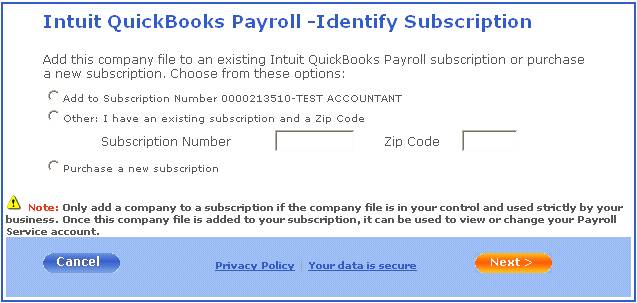
Select “identify subscription” and choose “Use subscription number XXXXXXX” (Payroll Subscription Version].
By any chance, if you don’t find the option showing your subscription, click on I have an existing subscription and a Zip Code. And enter all the information asked.
You will be directed to the Add CompanyInformation screen. Opt for Next and type your EIN.
Now, either get the print by hitting on the Print button or return to the QuickBooks desktop by opting for the Return to QuickBooks Desktop button.
Hit on the My Payroll Services under the Employees tab to activate the service key, then tap on the Manage services key.
Tap on the View option to display the new service key with an active status.
Is there any need for adding a company file?
Check the service key of the EIN you’re adding.
Jump to “Employees”, hit on the “Payroll”, and tap on the “Enter Payroll ServiceKey'' option.
Tap on Add. Mention the services keys as a single number without any hyphens.
In case the company file already consists of the service key, hit on the “Edit” button instead of choosing Add, and then follow the same process of mentioning service keys.
Adding or editing anEIN to the existing QuickBooks desktop payroll subscription is an essential but complex step. Today, we have given you a stepwise guide to add an EIN to the existing payroll subscription. In case you still need superior technical guidance or assistance to complete the process, get in touch with our 24X7 QuickBooks desktop support team. We have technical experts who will guide you with the most relevant solution possible.
Learn what to do if you use Express Install, but can’t find or open QuickBooks Desktop 2022:
Intuit has lately launched the QuickBooks Desktop 2022. The updated version is dedicated to assisting you to enhance the productivity of your business via easy and quick executions of accounting tasks. While the newest version comes with several new features and better alternatives to some old tools, you as a user initially may face some challenges and intricacies. One of them is being unable to find or open QuickBooks Desktop 2022 after installation.
You may face the issue of “not being able to find or open QuickBooks Desktop” if you use Express install. You actually don’t install the Desktop app but a server-only component. If you are unable to find or open the 2022 version of the accounting software after the installation, please proceed to the subsequent section.
If you face any hindrances or difficulties while performing the steps earmarked below, you should reach out to our expert's team, who can be connected vi the helpline or the live chat.
Solve Unable to Find or Open QuickBooks Desktop 2022 after Installation Problem
Follow the given steps sequentially fix the issues confronted with the QuickBooks Desktop 2022 after installing the software:
Step 1: Search and find QuickBooks Server 2022 on your computer
Head to the Windows Start menu.
Then, visit the "Control Panel" and click on it once.
Once you are in the Control panel window, open Programs and Features.
Hit on the Uninstall or change a program and then from the list choose QuickBooks Server 2022.
If you don’t find QuickBooks Pro, Premier, or Enterprise 2022 on the list, move on to the next step.
Step 2: Uninstalling the QuickBooks Server can fix unable to find or open QuickBooks desktop 2022 Error
Once you are on the Uninstall or change a program list window, opt for QuickBooks Server 2022.
Hit on Uninstall/Change and then choose Next.
Click Remove to uninstall QuickBooks Server 2022.
Step 3: After you have uninstalled QuickBooks Server, run the downloaded QuickBooks Desktop 2022 install again
Follow the install wizard and opt for Custom and Network options. Do not choose the Express option.
Tap on Next.
Choose one of the following options:
I’ll be using QB Desktop on this computer.
I’ll be using QB Desktop on this computer, AND I’ll be storing our company file here so it can be shared over our network.
Tap on Next to complete the installation once you are ready.
We are concluding this segment, and expect the reader might have leveraged from the contents offered in this blog and should be successfully able to find or open QuickBooks desktop 2022 after installation.
However, on the contrary, if you aren’t able to find it, then in that scenario, you simply have to connect with our QuickBooks technical support professionals. Our experts will consider the nitty gritty and try to resolve the hitch for you.












 +1-888-368-8874