Learn the easiest ways to reset QuickBooks desktop password for Windows:
Have you forgotten or lost your QuickBooks admin password and are locked out of your crucial business data? You've landed on the right page! Maintaining a strong admin password is vital for protecting your business from unauthorized access, but occasionally, forgetting it happens.
This comprehensive guide provides a step-by-step process to reset your QuickBooks admin password for both QuickBooks Desktop for Windows and QuickBooks Desktop for Mac. We'll walk you through the necessary procedures to regain access to your accounting files quickly and securely. Don't let a forgotten password halt your operations – learn how to reset it now!
Convenient Steps to Reset the QuickBooks Desktop Admin Password
Just in case you forgot your password, you can perform some steps and try retrieving your admin password successfully:
Steps to Follow for a Misplaced Admin Password:
You should note that there is no need to Enter a username, as when logging in, you only would have to Enter a password.
Moreover, your User name will be admin, or other Admin user names that you created at the time of creating the admin user,
There can be two scenarios for changing the Admin password, either you want to change it for security reasons, or you have forgotten the password.
In case you are not an admin user, then your QuickBooks admin can reset your password for you. You need to contact your admin and have them follow the steps in the "Reset a user password" section below:
Steps for Resetting password for QuickBooks desktop 2020 or later versions
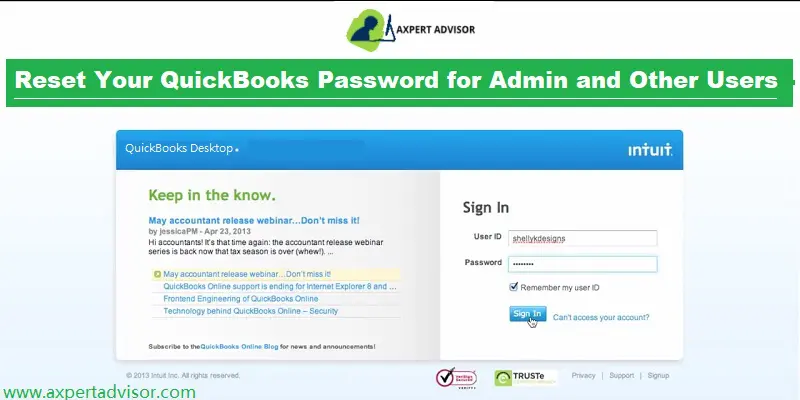
You will first have to Login the company login window and select the option stating I forgot my password.
Now, in the drop-down list, go for the Next tab and a token will be Emailed to reset the password. It should be noted that if you are unable to see the email address, then you are supposed to go for the option stating Don’t see your email in the list above? And perform the onscreen instructions.
You are then required to Insert the token that you received in the email address. You can also check the spam or junk folder if the email is not visible in your inbox.
Steps for Earlier Versions of QuickBooks Desktop 2019
If you are using the earlier version, you are supposed to Start the QuickBooks desktop first. And choose ''I forgot my password.''
Later on, enter all the information in the form:
The License number of the QuickBooks version that you are using is to be entered, which can be found by tapping on the F2 key.
Fill in the Accurate name, email address, phone number, and ZIP code you formerly used at the time of purchasing the software.
Just in case the information recorded is accurate, then you will Get a code on the original email listed in the CAMPS. Moreover, emails from Intuit sometimes can be marked as spam, so you can check the spam folder.
QuickBooks will guide you through the process to create a new admin password.
You will now see a screen where you can enter a new password and choose a challenge question for safety purposes.
After creating your new password and entering a challenge question you will be navigated to the login screen.
Now, enter your latest created password to login into your account. Here you will another window where you will see the 'Change QuickBooks desktop password' message. You need to fill in all the information asking it is and then push the OK tab.
Now you will get a message i.e. "Your password has been changed". Hit on OK to close it.
Important
In a scenario, when none of the methods to reset QuickBooks Desktop password work out, then you can perform the below-illustrated steps:
Cross-checking the information that you provided is recommended. Also, we suggest you verify that the information you catered matches with the info you registered in CAMPS.
You must meticulously adhere to the instructions given below in order to use this tool:
1st Step: The QuickBooks Desktop Version Needs to be Verified.
To verify your QuickBooks Desktop version, follow the steps listed below:
Press F2 to open the Product Information window, and then go through it.
View the QuickBooks version.
Now, Select Reports after launching the QuickBooks program.
Select QuickBooks Report writer and then select Help.
Go to the About QuickBooks Report Writer menu.
Next, look for the QuickBooks version in About window.
For QuickBooks Basic and Enhanced Payroll, Proceed as Follows:
Go to the Payroll centre by selecting Employees.
Next, select the Payroll tab.
For QuickBooks Point of Sale:
Select Help from the menu, then select Product Information.
Look up the release and version of QuickBooks.
2nd Step: To Open the Company File, Select an Earlier Version.
Download QuickBooks Automated Password Reset Tool first onto your computer first.
You must save the file to your desktop after downloading it, then execute it by following the on-screen directions.
Next step is to confirm your registered mail address because a message with a password reset token will be sent to that address.
Resetting the new password requires the token.
Pick the Product from the drop-down menu.
Select the file that you wish to reset the password for now.
Make sure the company file you select to reset the password for is the correct one.
Create a new password and type it in again.
In order to complete the operation, you must now click the Reset button.
Resetting Password in QuickBooks Desktop for Mac
Following are the quick steps for resetting your admin passwords if you are a QuickBooks desktop for Mac user:
Steps for QuickBooks Desktop Mac 2019 or Earlier Versions
If you are a QuickBooks desktop mac 2019 user, then you will require a QuickBooks license number for resetting the admin password and also will need an email address, phone number, zip code, and the name that you use to purchase and register the product. You can get all the information on the CAMPS website.
You can head to the login page and choose Forgot password.
Furthermore, you should Enter all the information on the form and hit the OK tab.
You will then receive a password Reset code or link on the registered email id. Where you can insert the code and tap on the ok tab.
QuickBooks will cater to you with the instructions to Create a new admin password.
Steps for Resetting Admin Password in QuickBooks Desktop Mac 2020 and Later Versions
Well, if you are using the Mac 2020 or later versions of QuickBooks, then you would require the following steps:
Start with selecting the Lock icon from the password field. Moreover, you will see a pop-up menu listing the Recovery email address.
Further, you would have to choose an Email address that you have access to and hit the OK tab.
You will get an email from QuickBooks itself, within a short period of time that would state the further steps for Creating new admin password.
Reset a Non-Admin Password in QuickBooks Desktop for Mac
These steps are only for limited users. Only the company file admin can reset a password for non-admin users.
Firstly, sign in to the company file as the admin.
After that, from the Company menu, choose Users and Passwords opt.
Furthermore, choose the user you want to Change the password, and then choose the Edit option.
Now you need to select the Lock icon, then enter the new password.
Last step to perform is to choose Save.
Points to Keep in Mind Before you Reset QuickBooks Desktop Password
Before you head to the process of resetting the admin password, we have got certain pointers for you to consider and ponder on:
The most important point that you should keep in mind is that the password shouldn’t contain any spaces. Also, you are supposed to re-enter the password without spaces, in case any spaces are found.
Moreover, always try to create a complex password. You can take into consideration the instructions which include having at least 7 characters, i.e. letters, numbers, special characters, and at least 1 number and upper case letter.
Another important aspect is that the password might be blank, as a few of the users wish to leave the admin password blank.
You should also keep in mind that your keyboard should be functioning properly, as at times it might happen that your keyboard might not be functioning properly.
One more aspect to be considered is that you might be seeing an incorrect login screen. As a login screen that asks for a password but doesn’t ask for a username is the admin login screen and you have a non-admin login, then try closing QuickBooks and reopening it.
Before you head forward, also check if the caps lock is turned on.
The final words..!
That was all you need to know about how to reset QuickBooks desktop password successfully. As always, if you have any queries, then you can get in touch with our QuickBooks desktop support team via our toll-free i.e., 1-888-368-8874. Our team will provide you with the best possible information in a single call.
Get the latest steps to track your cash flow in QuickBooks Desktop:
QuickBooks accounting software is renowned for its powerful features and tools that revolutionize financial management. Among its most critical functions is the ability to monitor cash flow—the lifeblood of any business, representing the movement of money both into and out of your bank accounts.
Maintaining a clear, real-time picture of your cash flow in QuickBooks Desktop is essential for understanding your current financial health and accurately forecasting future business finances. This comprehensive guide will walk you through the precise process for tracking cash flow in QuickBooks Desktop.
Dive in to discover the straightforward steps that will empower you to effectively manage and optimize your business's financial liquidity.
Check Out Your Financial Position Using the Below Steps
Here are some simple steps that you can execute so as to track your company’s financial position. Explore the steps by scrolling down carefully.
Step 1: The first step to track your cash flow in QuickBooks is to ensure that data is accurate
The very first thing that you should ensure is that the books of accounts are appropriate and accurate. All the reports will make use of the data in QuickBooks, thus, it is very much important to have a clean starting point.
You are required to ensure that you have entered all the transactions into QuickBooks.
Just in case you have set up bank feeds, download the transactions and match them to the transactions in QuickBooks.
Reconciling the accounts in QuickBooks is the next step you should perform and ensure to match them with the bank and credit card statements. Just in case you need any assistance in reconciling the account, it is a good idea to consult an accountant.
In case, you reconcile report tallies with the bank statement, then you are all set to start running reports. If not, then you can check the process to fix beginning balance issues in QuickBooks.
Step 2: Make use of the Financial Reports to See how much you have made
The profit and loss report and balance sheet report will display how your business is doing based on the data in QuickBooks. Thus, you can run a profit and loss reportfor the past 3 months and get a better insight into the average income and expenses for each month.
Head to the reports menu and then the company and financial option.
After that, choose the profit and loss detail.
Set the date range for the past 3 months.
Also, note that if you wish to change what appears on the report, then choose to customize report and customize it based on the data you want.
Once done, print, email, or export the report to excel.
When you check the income, make sure to see the top sources of revenue. For expenses, you can pay attention to things such pay payroll, rent, insurance, and marketing expenses to see where you can reduce your spending.
Running a balance sheet detail report
You can run a balance sheet report to get the financial snapshot of the company as of the specific date. This will calculate the business worth by eliminating the money your company owes from the amount you own.
You are supposed to head to the report menu and then the company and financial.
Choose the balance sheet detail.
And pick the customize report and customize it according to the data required.
Once done, print, email, or export the report to excel.
Steps for Optimizing the Cash Flow in QuickBooks
You can perform the below steps for optimizing the cash flow:
Step 1: To Track your cash flow in QuickBooks, start by setting up a cash flow projection
Making use of the upcoming bills and cash on hand, you can check the cash flow looks for the next six weeks by creating a cash flow projection.
Step 2: Looking for the top-selling items
You can use the company snapshot, and see what the customers are buying the most. Run the best-selling item report by performing these steps:
Head to the company menu and opt for the company snapshots.
Select add content and choose the arrow on the right.
Look for the best selling items and select add.
Double click each product to see a detailed report.
In case you wish to change what appears on the report, go for the customize report tab and alter it depending on the data you need.
Print, email, or export the report to excel.
Step 3: Identifying the customers having upcoming or overdue invoices
By using automated invoice payment reminders, QuickBooks will be able to spot the customers with upcoming or overdue invoices. After it is set up, you will see a notification that you have payment reminders ready to send. You can review and approve them before they go out.
Step 4: Look for the Bills you wish to pay
With the help of the bill tracker, you can spot the pending and unpaid bills and pay them directly in QuickBooks.
Step 5: Check where you can cut down the spending
You can use your company snapshot and see what your top expenses are and see what you can do to cut down your expenses:
Run the expense breakdown report, by heading to the company menu and select company snapshots.
Choose the add content and select the right arrow.
Look for the expense breakdown and select add.
Double click the wedge on your expense breakdown.
And print, email, or export the report to excel.
Concluding step: Also check for the top vendors by expense
Just in case the cash flow is causing a delay in paying the vendors, you can negotiate the payment terms or delay paying bills till you have the cash. In QuickBooks, you can also run the report to see the vendors you spend the most. You can run the report using the steps below:
Move to the company menu and choose the company snapshots.
Choose the add content and tap on the right arrow twice.
Hit on add from the top vendors by expense.
Double-tap the vendor on your expense report to see a detailed report.
Print, email, or export the report to excel.
Get instant support 24/7
That was all you need to know about tracking cash flow on QuickBooks desktop. As always, if you are still puzzled to opt for the right option, then you must get in touch with our QuickBooks desktop support team of technocrats to make your development choice clear. Our team comprises certified and experienced professionals who have served the industry for several years and have attained unfathomable skills in troubleshooting evolving issues encountered while working with the Quickbooks software. For assistance on various issues pertaining to Quickbooks, you can reach us out on our helpline, or through the Live chat option.
Are you looking to streamline your expense tracking by uploading receipts directly to QuickBooks Desktop? You've landed in the perfect spot! QuickBooks has revolutionized the accounting sector, offering an unparalleled suite of features and utilities that empower businesses of all sizes.
One of its most valuable, user-friendly functionalities is the ability to easily upload receipts to QuickBooks Desktop. This not only simplifies your record-keeping but also leverages intelligent automation: QuickBooks accounting software can pull crucial information from your uploaded receipts and even match them with existing transactions for your review and approval.
Whether you're using QuickBooks Desktop Pro, Premier Plus, or Enterprise, this comprehensive guide will walk you through the entire process of uploading receipts, ensuring you maximize this powerful feature for accurate and efficient financial management. Read on to master receipt management in QuickBooks Desktop!
Procedure to upload receipts to QuickBooks desktop pro plus, premier plus, or enterprise
You can perform the below steps, so as to upload the receipts to QuickBooks successfully.
Step 1: Adding the receipts to Quickbooks software
You are required to ensure to not upload any sensitive information such as credit card numbers, social security numbers, or health information.
Easy process to Upload receipts using QuickBooks desktop
Below is the process that you can follow to upload PDFs or images of the receipt to the QuickBooks desktop. The most important point that you should consider is that if you are using PDFs, you can only have one receipt per page.
Start off by heading to the vendor menu, and choose the receipt management tab.
Opt for the intuit account that you use for the company file.
Also, note that if you don’t have permission for accessing the company file or the account isn’t associated with one, then you can carry out the necessary steps for the same.
Now, drag and drop the receipts into QuickBooks or pick browse to upload, and choose the receipts.
Uploading receipts from QuickBooks desktop to IOS mobile app
The most important point to be noted here is that the QuickBooks desktop supports PDF's and images with JPEG, JPG, GIF, or PNG format. In case you make use of newer iPhone or iPad, then you might have HEIC format images. Below are the steps to convert existing images to compatible format.
Sign in to the Intuit account from the QuickBooks desktop app, and opt for the company file to upload the receipts to.
Hit on the company file to upload the receipts and then tap on the continue tab.
You are then supposed to tap on the capture receipt.
Tap on the camera icon for taking picture of the receipt or tap the photos icon to upload the receipt. In case you require, crop and rotate the photo.
Next, hit a click on use this photo option.
Add a name and memo, further hitting a hit on the upload photo and OK tabs respectively.
End the process by signing in to the QuickBooks desktop company file to review, edit, and match the receipts to transactions.
Steps to upload your receipts from QuickBooks desktop to the android mobile app
Initially, launch the QuickBooks desktop android app and hit on receipt snap.
Further, tap on continue after tapping on the company to upload receipts.
Tap on capture receipt.
Hit on the camera icon to take a picture of the receipt or tap on the photos icon to upload the receipt Just in case if you require, crop and rotate the picture.
Tap on use thisphoto option.
Enter name and memo, and head for the upload photo and OK tabs respectively.
Opt for the company to upload the receipts after signing in to the intuit account.
You will need to do this once.
Sign in to the QuickBooks desktop company file to review it, edit and match the receipts to transactions.
Emailing receipts to QuickBooks desktop
Emailing PDFs or images of the receipt to the QuickBooks company file is possible with the steps below:
Step 1: Creating a custom email address
Head to the vendor menu and choose receipt management.
Go for the intuit account you use for the company file.
Also, note that if you don’t have permission to access the company file or the account isn’t associated with one, then you can perform the necessary steps.
Go for the send receipts option.
Pick a custom email address you will email receipts to. This will end in and further choose the create option.
After you confirm the email address, the list of all the users who form a part of the intuit account will be shown to you. Where you can manage the users who can email the receipts with the help of the toggle tab.
Step 2: Emailing images of receipts to QuickBooks desktop
It should be noted that you can send multiple receipt images in one email, as long as the email size is under 20 MB.
Opt for a picture of the receipt on the mobile. Note that the photo you hit should be on PDF, JPEG, JPG, GIF, or PNG format.
Ensure that each image or file contains only one receipt.
Emailing the image to the custom email address. This might take a few minutes.
QuickBooks accounting software will automatically pull the date, amount, vendor, and the last four digits of the credit card from the image. Just in case you are uploading multiple receipts, then edit or delete them in a batch:
Head for the receipts and choose batch action.
Go for either edit or delete, if you wish to delete the receipts.
In case you go for the edit tab, make the edits to the vendor name, account, bank/card details, and date of the transactions.
Pick the save tab.
Reviewing, editing and matching the receipts to the transaction
After you upload the expense receipts in QuickBooks desktop, they will show up in the for-review tab. This is where you can review, edit, or match the transactions to the register.
Choose the vendor menu and head for the receipt management option.
Opt for the review tab and pick the refresh icon to see the receipts.
Choose a small arrow from the receipt and choose review.
In case the receipt matches the transaction, then go for the attach tab.
Or if the match is incorrect, then choose remove match then create a new transaction.
Hit the OK tab to finish the process.
Winding up!
This was all you should take into consideration for uploading receipts to QuickBooks desktop pro, plus, enterprise, etc. As always, if you have any queries or concerns, call our QuickBooks Support teamfor assistance! Our certified accounting professionals are always ready to assist you and fix the errors for you in the least possible time. Our QuickBooks experts can be contacted via the helpline 1-888-368-8874.
Before installing any software, especially robust accounting solutions like QuickBooks Desktop, it's crucial to verify your system meets the minimum requirements. This ensures optimal performance and stability and prevents frustrating issues down the line. With over 29 million businesses relying on Intuit QuickBooks in the United States, proper configuration is key to seamless operations.
This article provides a comprehensive overview of the system requirements for various QuickBooks Desktop versions, including the latest hardware and software specifications to help you make an informed decision. We'll detail the necessary operating systems, processor speeds, RAM, disk space, and other critical components for smooth QuickBooks functionality. While we aim to provide all the information you need, don't hesitate to reach out to our certified professionals for personalized consultation and expert assistance if you have any doubts.
System Requirements For QuickBooks desktop 2022 and It's all Versions & Editions
Operating Systems
Windows 10: All editions with 64-bit and Natively Installed
Windows 8.1 (update 1): All editions which include 64-bit, Natively Installed
Microsoft Windows 7 SP1: All 64-bit edition and Natively Installed
Windows Server 2016
Windows Server 2012 R2
Microsoft Windows Server 2011
Windows Server 2008 R2 SP1
Database Servers
For Windows: Windows Server 2016, Windows Server 2011, Windows Server 2012 R2 and Windows 8.1 (update 1) or Windows 7 SP1 (Enterprise and Professional editions only), also Windows Server 2008 R2 SP1, and Windows 10, natively installed.
Linux: -Only installation: OpenSuse 42.3, Fedora 27, Red Hat Enterprise 7 when you using QBES Database Server.
Browser Requirement: Internet Explorer 11 (32 bit)
Hardware and Operating System Requirements (Client and Server)
2.4 GHz processor Minimum
4GB RAM minimum and 8 GB RAM Recommended
Server RAM Requirements
8GB RAM: 1-5 Users
12GB RAM: 10 Users
16GB RAM: 15 Users
20+GB RAM: 20 Users
Disk Space
2.5 GB disk space
Additional Software is provided for Microsoft .NET 4.6 Runtime on the QB CD 60MB.
Intuit Data Protect in QB Connected Services offerings
Minimum 4 GB RAM
Twice the size of the largest file for backup or restore is required.
Windows:
When using US QuickBooks Software, US version of Windows is required
When using Canadian QB software, make use of the Canadian version of Windows.
Regional setting is supported when set to English with keyboard setting to US/CA only
Administrator rights will be required while hosting Multi-user access on server computer
Natively Installed
Optical Drive
For CD installations: 4X DVD-ROM drive.
Screen Resolution
Higher with up to 2 Extended monitors or 1280 x 1024 screen resolution
Default DPI Setting.
Software Compatibility
QuickBooks is quite compatible with users and allows them to interact with third-party applications. Integrations for this with QuickBooks are below:
Microsoft Office
Office 2016 including Outlook 2016 on 32 and 64 bit.
Office 2010 and Office 2013 and 365 both on 32 and also 64 bit (including Outlook 2010 and Outlook 2013)
Gmail Estimates, Invoices and other forms with Microsoft Outlook with office 365, Microsoft outlook 2010-2016 and other support to Gmail, Yahoo! Mail and Outlook.com.
Microsoft word 2016, 2013, or 2010 or Office 365 (includes 64-bit) for preparing letters
Microsoft Excel 2016, 2013, or 2010 or Office 365 (Includes 64-bit) to export reports
Outlook 2010 (32-bit) to contact Synchronization with Microsoft Outlook.
Requires QB contact Sync for Outlook synchronization Outlook.
QB Point of Sale Version 18.0 and Version 12.0 (applies to US only)
4 GB RAM for single workstation and 8 GB RAM for multi-user
1 Gb disk space
4 GHz processor for single users and 2.8 GHz for multi-users
Multi-core processor for multi-user implementations.
System Requirements For QuickBooks Desktop For Mac 2020, 2021 and 2022
QuickBooks for Mac (US Only)
Minimum System Requirements:
MacOS 10.12 (Sierra) ad should be supported by macOS 10.13 and macOS 10.14
2GB RAM ( 4GB Recommended)
Product registration
250 MB disk space should be available
CD/DVD Drive for download installation
Printer to print invoices, checks, etc.
Use intuit checks
Intel processor (Core Duo 2 or higher) is required
Integration/Compatibility Requirements:
To export data, Microsoft Excel 2016 or later, Apple Numbers v3.5, including Mac Office 365 are required
Apple Mail, Microsoft Outlook 2016 or later, including Mac office 365, almost all support to Email is required for Emails
Intuit Merchant Services for QB for Mac is required in order to accept debit and credit cards.
Integrating Processing Payroll: Requires a paid subscription, EIN and Internet access for QuickBooks for Mac.
To print checks and forms in QB payroll for Mac, Adobe reader and printer would be required because of the basic needs of the system. (Additional fees apply)
Top pay may differ from those of QB. even more, details visit the website at www.macpayroll.com and www.matrix.com
A one-way conversion is being supported by QBD for Mac 2019 in QuickBooks online and the same is also supported from QBD for windows 2016 to 2018
Supports Round- Tripping with QuickBooks for Windows 2019 and later as it is a better option to send data file to Accountant.
System Requirements for The Older Versions of Mac
The requirements for older versions of Mac include:
MacOS 10.10.2 and MacOS 10.11 required for QuickBooks for Mac 2016 R5 or earlier.
MacOS 10.11 and MacOS 10.12 required for Mac 2016 R6 and later
At least 2 GB RAM and 4 GB recommended
250 MB disk space
Intel Core 2 Duo or higher should be the Mac processor
If you wish to print checks, then use intuit checks
Product registration required
A 100% Macintosh-compatible printer if print of invoices, checks, purchase orders, reports and graphs.
Integration/Compatibility Requirements of QuickBooks Software:
Apple Mail, Outlook 2011 for Mac or Microsoft Entourage 2018 for e-mail
Internet connectivity is required for QuickBooks Payroll for Mac and Adobe Reader is required to print checks and forms.
Apple Numbers ’09, Microsoft Excel 2008 or 2011 to export report information
QuickBooks for Mac 2016 supports one-side conversion from QB for Windows OS 2012, 2013, 2014, and 2016.
Intuit Merchant Service is required to accept credit and debit cards directly into QB 2016 for Mac.
If QB is integrated with Mac, then a paid subscription, internet access and EIN are required to process payroll.
For Windows: Windows 10,
Windows 7 and Windows 8.1
For Mac: Mac OS X 10.11 (El Capitan), Mac OS 10.9 (Mavericks), and Mac OS X 10.10 (Yosemite)
Display Required:
1280*800 screen resolution or higher than that
Between 1200*800 and 1600*900
It's Between 1600*1200 and 1920*1200
Between 1920*1440 and 2560*1440
Up to 200% DPI
Extended monitor support
Winding up!
The blog will be quite useful for you to find the minimum system requirements for QuickBooks desktop. If you wish to seek more help or guidance, connect with our QuickBooks desktop support experts at toll-free number.
Here is how you can configure firewall settings for QuickBooks to set up multi-users in QuickBooks:
Firewall and security settings can often be a complex area when it comes to optimizing your QuickBooks accounting software. Firewall is basically a must to have as an application as it saves the system from different threats including malware, viruses, and unwanted programs. Often firewall blocks the internet access needed to run QuickBooks desktop and the company file. You can experience such an error when using QuickBooks desktop in multi-user environment.
This comprehensive guide will illuminate the process of configuring firewall settings for QuickBooks and outline all the relevant procedures involved in adjusting your security settings. If you're looking to understand what it takes to fine-tune your firewall and security for QuickBooks, carefully scroll through this segment. For personalized expert advice, don't hesitate to give us a call on our QuickBooks technical support line.
Procedure to configure firewall and security settings for QuickBooks desktop
You are suggested to perform the below set of steps for configuring firewall and security settings for QuickBooks accounting software.
Step 1: To configure firewall settings for QuickBooks, initially, set up the QuickBooks Tools Hub
So as to use the QuickBooks tool hub program, shutting down QuickBooks software is the first and foremost step. Moreover, while opting for Tool Hub on Windows 10, 64-bit is believed to be the best choice for a seamless experience.
Kick start the procedure by closing QuickBooks.
Head forward by downloading the recent version of the tool hub.
Make things easy by saving the file to a folder therefrom it can be easily accessed in future.
Most importantly, in case you have installed the tool hub previously, then you can spot the version you are using. Head to the home tab and you will be able to find the version at the bottom.
Opt for and open the file downloaded in the previous step.
Performing the steps that pop up on your screen would take you further in the process.
After the installation process concludes, double-tap the icon on the Windows desktop to open the tool hub.
Mark that, if you are unable to spot the icon, search for the same in windows and choose the program.
Step 2: Run the QuickBooks File Doctor tool
Under the QuickBooks tool hub, you need to opt for Company File Issues.
The file doctor tool might take a couple of minutes to open.
You need to note that if the tool doesn't open up, then look for the QuickBooks file doctor tool and open it manually.
Once it opens up, you need to tap on the company file from the dropdown menu.
In case identifying the file becomes difficult for you, then you are suggested to hit on Browse and search to find your file.
Head for Check your file and network and then Continue.
Fill in the QuickBooks admin password.
Hit next.
One of the most important points to note is that the scan time depends on your file size. Often, it can take up to 5 minutes. When the scan finishes, you need to open QuickBooks and your company file. The scan may say it was unsuccessful even if it fixes your issue.
Step 3: Updating and configuring the firewall manually
Afterward, enter the windows firewall and also hit on windows firewall and open the same.
Head to the advanced settings tab.
Then, right-click on the inbound rules and opt for the new rule.
Tap on port and hit the next tab.
Ensure to hit on TCP.
Insert the ports needed for your QuickBooks year version
QuickBooks desktop 2021: 8019, XXXXX
QuickBooks desktop 2020: 8019, XXXXX
QuickBooks desktop 2019: 8019, XXXXX
QuickBooks desktop 2018: 8019, 56728, 55378-55382
QuickBooks desktop 2020: 8019, 56727, 55373-55377
The point to be noted here is that QuickBooks desktop 2019, 2020, 2021 and upcoming versions use dynamic ports. These are firewall ports mentioned during installation. The format of the port for QuickBooks desktop 2019 and later version is said to be 8019, XXXXX.
Steps to get the dynamic port number
Perform the below steps to get the dynamic port number. The steps are easy to follow, the only prerequisite is that you follow them sequentially.
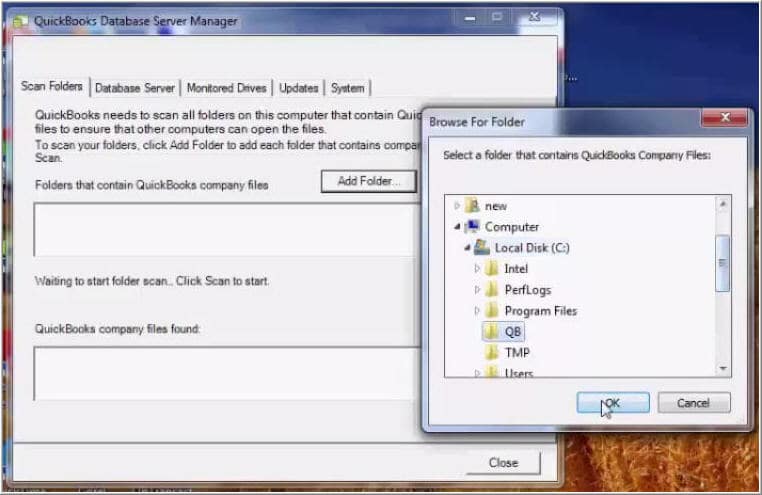
You need to change the port number by hitting on the new tab. Find out the scan folder tab and also opt for the scan now tab. This will basically reset the firewall permissions, but you can only upgrade ports for QuickBooks 2019 and later versions.
Once you are able to enter port no., you need to hit on the next tab.
Then, choose to allow the connection, and later on, hit the next tab.
Check mark all profiles and then hit on next.
Create a rule and name it as QBPorts
Hit the finish tab.
For creating outbound rules, perform a similar set of steps. Move to QuickBooks desktop and switch to multi-user mode. Open QuickBooks on the network from one of the host systems.
Steps for creating windows firewall exceptions for QuickBooks programs
Initiate the procedure by heading to the windows start menu.
Type in 'windows firewall' and double-tap on the windows firewall to open the same.
Then, hit on the advanced settings.
Right-click on the inbound rules and tap on the new rule.
Furthermore, choose the program option and head to the next tab.
Head to the program path and also opt for the browse tab.
Look for and tap on one of the executable files on the chart above.
Hit the next tab.
Opt for allow the connection option and hit on the next tab.
Ensure that all the profiles should be marked and also tap on the next tab.
Generate a rule and later on assign a name to it.
You are required to create outbound rules and also repeat the steps for outbound.
In case you can notice program files, then it indicates that you are using the 64-bit operating system. You need to move to QuickBooks desktop and also switch to multi-user mode.
Check your antivirus or firewall settings
In case you configured the firewall but continue to land into similar issues, then checking the antivirus settings would be the best-recommended solution. You are also required to ensure that QuickBooks has general permissions. This ensures that it is not blocked. However, the procedure might be different. You can have a look at the procedure to set up permissions for your antivirus software.
Add QuickBooks ports exception on your antivirus or firewall
Are you still experiencing the same issue when opening the file over a network or in multi-user mode? A solution to that is to add port exceptions for the executable files listed in the table above.
Ascertain that the TCP is opted right and also type in the ports required for the QuickBooks version. The port numbers are mentioned in the step related to configuring the firewall manually. Also, keep in mind that if you are using different or multiple versions of QuickBooks desktop, then adding each year's ports is recommended.
Restart your computer
A couple of programs demand rebooting the system, so as to save the changes. After you are done with the procedure above, you need to reboot the system and try opening QuickBooks now.
Still unable to configure firewall settings for Quickbooks?
Having explored the steps mentioned above, you should be able to configure firewall and security settings for QuickBooks. However, if that isn't the case, all you need to do is to get on a call with our QuickBooks technical support professionals using the support line. Our customer executives will be more than interested in answering your queries associated with this accounting software.














 +1-888-368-8874