Tips to fix QuickBooks 15xxx (15000 series) errors when downloading payroll updates:
QuickBooks Desktop is an incredibly powerful and user-friendly software that simplifies accounting for countless businesses. To keep it running smoothly and securely, regular updates are essential. However, it's not uncommon to encounter frustrating "update failed" messages, especially those in the 15xxx error series, during the download and installation process.
These update failures can interrupt critical operations, lead to reduced functionality, and even cause data inconsistencies. While QuickBooks often provides helpful prompts to fix minor issues, more complex problems might require a deeper dive.
This article will guide you through installing QuickBooks desktop updatesand errors that begin with 15xxx. We'll cover frequent culprits and provide actionable solutions to get your software updated and working perfectly again.
List of QuickBooks Error 15XXX series
Payroll update errors in QuickBooks mostly has an error code in the format of 15XXXor 15000, etc. The causes of QuickBooks error 15000 series are similar and their troubleshooting methods involve common steps. There are a few errors which is related to the 15XXX series which exist when downloading QuickBooks desktop or Payroll updates:
QuickBooks unable to verify the digital signature of a file.
There is a problem with the configuration or security settings of Internet Explorer or the default browser.
And the list goes on!
How to Fix QuickBooks Error 15XXX (15000) when downloading updates
Check out these quick steps to resolve the error QuickBooks error 15xxx. You can also take instant help from our technical support team in order to save your precious time and efforts.
Note down the license or service key for Payroll to check that you have an active Payroll subscription.
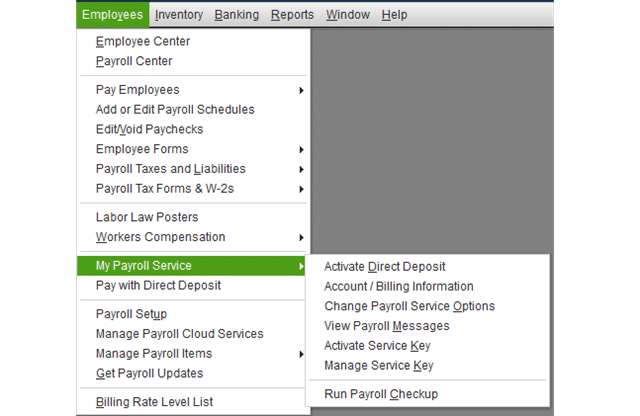
Next step is to open QuickBooks desktop and go to the Employees menu.
After that click on My Payroll Services and then click on Manage Services option.
Now, tap on the Edit button.
Check and verify if the license or service key entered here is correct.
If necessary, edit and enter the correct service. Click Next and save changes.
Now, restart your computer.
Solution 2: Edit Internet Explorer options
At first, launch Internet Explorer.
After then tap on the gear icon and select Internet Options.
Now move to the Security tab and choose trusted sites.
Later, you need to click on Sites and add the following websites if you are using the US version of QuickBooks:
*.quickbooks.com
*.intuit.com
Add the given sites if you have a Canadian version of QuickBooks:
*.quickbooks.ca
*.intuit.ca
Once done with that, hit on Close tab.
Finally, tap on Apply and then the OK button to save changes.
If the above-provided steps didn't resolved the issue, then move to the next solution method.
Solution 3: Update Microsoft Security Certificate
Please check the validity date of your Windows Security Certificate. If it is expired the it can cause the problem. Following are the steps to run Windows Update or download an updated certificate from Microsoft.
Press the Windows key and type File explorer in search bar and tap on it.
Once File explorer open, go to the following location C:\Program files\Intuit\QuickBooks.
Here you are required to find QBW32.exe file.
Once done, hit a click on QBW32.exe and choose properties tab.
Now, go to digital signature tab and make sure that Intuit inc. is selected in signature list.
Here hit a click on details tab.
Furthermore, click on view certificate option in the digital signature details window.
In next step, click on install certificate.
You now have to click on next and wait for the finish tab to appear.
Later on click on finish tab.
Once done, restart your system.
Now you need to open QuickBooks and download the update again.
Solution 4: Download the updates in safe mode
In case, the error still remains on your software after following the above steps, then try to download the updates in safe mode.
At first, you need to simply open your system in safe mode.
After that, download the updates again.
If it gets successful then reboot your system in normal mode.
Once done, open the QuickBooks Tool Hub and navigate to the Program Problems.
Here you need to click on Quick Fix My Program tab.
Let the scan process complete. Once done, check the problem is fixed by the tool.
Solution 7: Try to update QuickBooks desktop
Try opening QuickBooks and company file in your account.
Now download and install the update in QuickBooks desktop.
If you are unable to update the software, delete the update from the root folder.
First, close QuickBooks desktop.
Then open the location C:\Documents and Settings\All Users\Application Data\Intuit\QuickBooks XX\Components (XX is the year or version of QuickBooks software)
Do not shorten the port number of the QuickBooks desktop version.
Go to Start again and click on Windows Firewall.
Click on the Advanced settings option.
Right-click Inbound Rules.
Click on New Rule than port option.
Now click on next and choose enable the TCP option.
Checkmark the specific Local Ports and enter Port numbers.
Click next and Allow the connection.
Click on next and name the new rule.
Follow the same steps for outbound rules to complete the process.
Winding up!
Hopefully this article covers almost every solution that you can try to get rid of QuickBooks payroll error 15000. If you are facing any issue and any doubts or you need any technical guidance then you contacting to our 24/7 QuickBooks enterprise support team is suggested. You can directly speak to our experts and they will provide you immediate guidance for your problem.
Learn how you can disable Merchant Services in QuickBooks MAC in simple steps
QuickBooks is a powerful accounting solution, seamlessly operating on both Mac and Windows platforms. While its core functions are consistent, certain processes, like managing merchant services, can differ between operating systems.
This guide provides simple, step-by-step instructions specifically for disabling merchant services in QuickBooks for Mac. By following these quick procedures, you'll learn how to prevent QuickBooks from prompting for credit card details when you create an invoice, streamlining your workflow.
Our instructions are designed to be straightforward and time-efficient. Should you require any further clarification or expert assistance, don't hesitate to reach out to our dedicated support team. Our certified professionals are ready to answer your questions and help you navigate any QuickBooks-related queries.
Easy Steps to Turn Off Merchant Services in Your QuickBooks MAC
Step 1. Access your MAC computer. Once the screen is up, hit the Command ⌘ + F keys together.
Step 2. Search for Key-chain and hit on Key-chain Access.
Step 3. In the search field, search for the keyword QuickBooks and tap on the Connection ticket(s) for the QB merchant service.
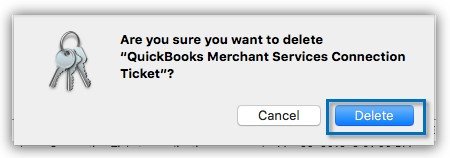
Step 4. Choose Edit and then hit on the Delete button. A box will pop up asking you if you really want to delete the Connection ticket.
Step 5. The above step will disable Merchant service. Log out of QuickBooks and close it to make sure that all the merchant service remnants are removed. You can also restart the computer.
More often than not, there may be multiple key chains listed for a variety of applications (such as the updates in Windows Programs & Features) so it is simpler to pull up the correct keychain by just entering its name in the search field.
Alternate Method to Unlink Merchant Services in QuickBooks Mac
The automatic highlight available on Mac will obtain these updates and then put it on your MAC, which will support to disable the merchant services in QuickBooks Mac. It is an easy process to install QuickBooks in Mac. Disabling merchant service in QuickBooks MAC is pretty much a do-it-yourself task and we hope by reading this post it will be an even easier thing for you.
Points to Remember Before Disabling Merchant Services in QuickBooks MAC
Before you begin with the process of disabling Merchant services in QuickBooks desktop for MAC, there are certain points to be kept in mind:
You should refresh and restart QuickBooks MAC.
Ascertain that any file will not get vanish while refreshing or restoring QuickBooks MAC.
Close the company files and versions before refreshing QuickBooks MAC.
The last thing to keep in mind is that by refreshing or restarting QuickBooks MAC, the issues related to the same might get rectified. If not so, then you can check the version of QuickBooks in use and ensure to update it to the latest one.
Winding up!
In case you face any issue with this topic or have any other QuickBooks related issue, you can reach us at our QuickBooks desktop support number and rest assured of quick and precise solutions.
Know the latest features of QuickBooks Desktop 2021:
Boost Productivity: Discover the Top Features of QuickBooks Desktop 2021
QuickBooks consistently delivers powerful updates, and the QuickBooks Desktop 2021 version was no exception, packed with innovative features designed to revolutionize how businesses manage their finances. The core focus of this release was automation, aiming to significantly save time and boost overall productivity for users.
This guide delves into the most impactful new features introduced in QuickBooks Desktop 2021. You'll gain valuable insights into how these enhancements help you get paid faster, streamline essential tasks, and empower your employees with more effective data for their roles.
New and Improved Features in QuickBooks Desktop2021
Not only the old features of QuickBooks are revamped in the 2021 version, some new features are also introduced. Let us explore all together:
1. Streamlined Bank Feeds
Now you get advanced online banking, which would help you to review the bank transactions, match them to the existing ones in your books or quickly add new ones. Importing bank feeds faster is now possible with this feature and by automatically categorizing or batch editing the bank transactions by payees, accounts, and classes.
2. Rule-based Customer Groups Integrated in QuickBooks Desktop 2021
You can now create rule-based customer groups based on fields such as customer type, status, location, and balance. This will help you in easily managing them and using them across multiple features.
3. Automated Statements/Payment Reminders
No more manually reminding your customers of their overdue balances is required, you can now automate frequently sent statement emails, tailored to different customer needs. Send the statements with payment links that encourage customers to instantly settle their dues using online payment portals.
4. Advanced Inventory Improvements in QuickBooks Enterprise
The software continues to build upon the new inventory features. These features released in 2018, 19, and 20. This new release makes it much easier for business owners to manage their warehouse inventory in QuickBooks desktop. This also improves security and confidentiality by limiting access.
5. The QuickBooks Desktop 2021 Comes with Payroll Liability Reminders
Small and medium business owners can set up calendar notices. These notices shall ensure that they are reminded of the upcoming payroll tax and liability payments. You can also track the different deadlines to pay liabilities and get reminders in a timely way.
6. Customized Payment Receipts in QuickBooks Desktop
You can also have a consistent, professional look across all of the customer’s communication with this particular feature. Sending detailed, customizable, and professional looking payments receipts with all the relevant information fields, is now easy.
This feature will ensure improved matching workflow for QuickBooks payments. And would help you in matching all the payments to your accounting automatically, every time. The best part about this feature is that the majority of the payments and transactions are automatically reconciled.
8. QuickBooks Tool Hub Program
QuickBooks Tool hub has always been a saviour for assistance with common QuickBooks related issues. You can simply fix common issues using this one stop solution.
9. Data Level Permission
This is whole new feature in QuickBooks enterprise 21.0 that permits you restricted access for your users and roles created. This lets the admin to create users and roles with access permissions at record level for customers and vendors. You can create data level permissions by performing certain set of steps.
Final Note..! We hope that the article apprised you of all the necessary information
This is the list of top 10 features that rolls in with QuickBooks desktop 2021. However, If you have any questions, comments, or concerns, feel free to contact us! Our QuickBooks desktop support team will be more happy to help you out with your accounting related concerns.
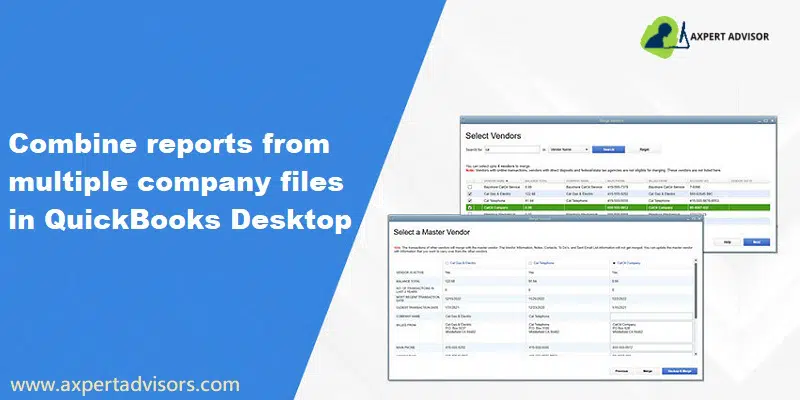
A Guide to Combine Two or More QuickBooks Reports from Multiple QuickBooks Desktop Company Files:
QuickBooks is the go-to accounting program for countless small and medium-sized businesses today, thanks to its extensive features and user-friendly design. One of its most powerful yet often overlooked capabilities is the ability to merge and combine financial reports from multiple QuickBooks company files. This feature is incredibly useful for businesses managing several entities or needing a consolidated view of their financial health.
This article will guide you through the process of combining reports from multiple company data files in QuickBooks. You'll learn how to seamlessly integrate data to create comprehensive reports, such as a consolidated balance sheets that can be easily exported to Microsoft Excel spreadsheets for further analysis. This functionality provides a highly reliable way to gain a holistic financial overview.
If you have any questions as you go through the process, don't hesitate to send a support request or contact our dedicated technical support team for expert assistance here.
Steps to Combine Two Companies Into One in QuickBooks Desktop
Option 1: Combine Reports in QuickBooks Desktop Enterprise (Built-In)
A few main features of built-in combines reports in QuickBooks Desktop Enterprise:
If you are having any built-in function in any of the fields, then you can simply perform several complicated tasks with utmost ease. Likewise, QuickBooks Enterprise also offers a built-in feature for merging various company files.
Note that QuickBooks Enterprise allows you to combine reports from multiple company files. These include:
Standard of record
A conclusion of the balance sheet
Financial loss amount and profit
Category of profit and loss
Comment on the cash flow
Check on balance
For Combining the Reports:
Initially, you need to choose Combine reports from multiple companies from the reports menu.
Moreover, opt for the "add files" option, then locate the other company file and choose "open." Repeat the same process for additional files.
Now, underSelect reports for combining, choose the reports you wish to combine.
Heading forward, pick the report from and to date range and also go for a report basis.
You now have to hit on Combine Reports in Excel. A Microsoft Excel spreadsheet will show up with the combined information.
Option 2: Use a Third-Party Software
If you agree to use third-party software, then you can simply pinpoint various programs that work with QuickBooks. Some of these programs offer important information to make the additional data from various corporate files.
Option 3: Manually Export Reports From Each File and Combine them Using Microsoft Excel
You can simply transfer the reports by following some of the given steps and merge reports through Microsoft Excel:
You need to initially access the first company file.
Now, on the select reports, you are supposed to export to an Excel worksheet and save the workbook.
You are then required to access your second company file.
Furthermore, create the same report and then export it to an Excel worksheet in the same workbook, and also choose the Save tab.
You now have to launch Microsoft Excel and open the workbook.
Later on, combine the two reports into a third worksheet manually.
End the process by saving the workbook.
Launch Microsoft Excel and open the workbook.
How to Customize QuickBooks Desktop Custom Reports?
Some basic parts for the simple data about reports in QuickBooks Desktop are described below:
Understanding Between Two or More Several Accounts:
One of the main tasks for performing the combined reports is completely understandable. If you are acquainted with this or you can simply understand the several data, then you can simply check the needed information for the completion of a task.
Maintain Report for Orientation:
After checking all the information, the next thing is to organize the data as it is needed.
Modify Reports:
If you are willing to make any kind of changes in the information as per the requirement, then it is an imperative part.
Mark Comment:
To make your information effective as well as a favorite, then you can simply comment.
Build and Organize Regular Reports:
One of the most imperative things is to classify the data, and it also needs to be scheduled.
Important Points to Note
To combine the reports, some of the below points are required to remember:
The report is required to be much simpler for reading as well as for creating a profile in several company files that are almost similar.
The reports are required to be combined if they contain appropriate data in an identical way, such as name, type, and alike gradable level.
Below are some valuable points that tell that accounts will not be combined if:
If they contain dissimilar property and assets.
There is some difference in alphabetic character.
Account mismatch.
If one user has a dissimilar report and the other has distinct data.
Reports are categorized into different types. The details are to be selected in some order of what has been done in the chosen company file within each report. If the account is appended by others in sequence after that, they are encountered.
If you choose to log in to your file and also want to switch them to various users so as to accommodate the merging routine.
Which data cannot be merged?
The types of data that cannot be merged include the following:
Memorized Transactions from secondary files.
Bank reconciliation.
Negative inventory and assembly builds.
Payroll checks cannot be displayed in payroll reports
Files having sales tax groups and items
Customer notes and to-do lists.
Customer fields brought from transactions.
Conclusion!
We hope that this article assisted you in integrating QuickBooks reports. In case the issue persists or you need further assistance regarding the process to combine two or more QuickBooks reports, you can speak to our 24x7 QuickBooks support team. Whatever your accounting issue is, our professionals have the capability to root out all the technical problems encountered while using the QuickBooks accounting software.
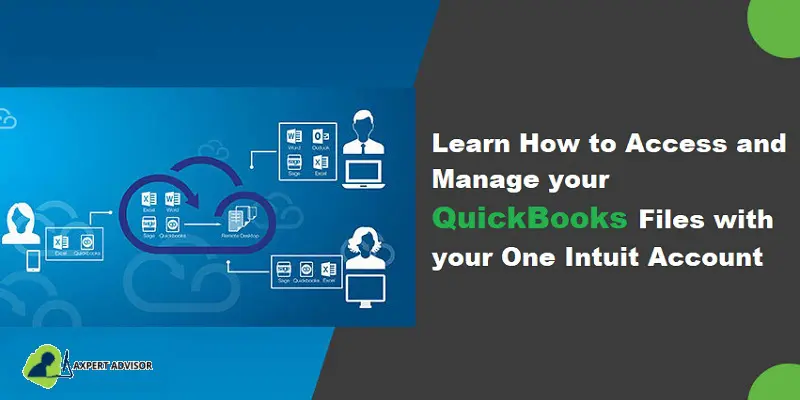
Checkout the quick guide to access Quickbooks Desktop files with One Intuit account:
Looking to streamline how you access and manage your QuickBooks Desktop company files? Integrating them with One Intuit Account is the solution you need! This comprehensive guide will walk you through the entire process, providing all the details you need to get set up.
By connecting or creating an Intuit account for your QuickBooks desktop company file, you unlock a range of benefits that enhance security, accessibility, and overall management. Sit back, relax, and continue reading this post to discover how you can leverage One Intuit Account for a more connected QuickBooks experience.
An extra layer of security and protection
Secured single login for access to all of Intuit’s products. This also includes payroll, payments, time tracking, and much more.
Access to features and benefits for payroll, payments, time tracking, and much more.
Steps to Accessing QuickBooks Desktop Files with One Intuit Account and Manage Them
You have to pass the below given 3 Scenario when you are accessing or managing your QuickBooks files with One Intuit Account:
Scenario 1: No Prompt for Intuit Account Setup or Login
In case you aren’t asked for Intuit account setup or login, you can continue to make use of the company file as normal.
Scenario 2: Just in case you successfully sign in to the company file with a request to set up the intuit account
If you encounter this option, then your client will have to link their account to their company file.
Non-Admin
In case you are an accountant reviewing the client’s file, then you will have to select non-admin. Choose non-admin only if you manage the company’s financial actions on the admin’s behalf and choose the continue tab. QuickBooks will close the intuit account promptly. Once 14 days’ time passes away, you would have to sign in to the file again in order to work on it.
Admin
Whereas, if you are an accountant that does everything for the client, then you might have to pick the admin option. This isn’t the standard through. Thus, only pick this option if you own/manage the company and its financial actions. Pick the admin option, in case you manage the company and its financial actions. Furthermore, enter the email address and hit on the continue tab. Enter the Intuit account password later on and hit the OK tab. All these steps would allow you to work in the file.
Scenario 3: Just in case you are asked to sign in to the Intuit account after you sign in to the company file
You are recommended to ask your client to approve your QuickBooks access if you want to access your client’s info. You will be able to see the User ID prompt, in case the client has already linked their intuit account to the company file. Whereas, if the email address you find isn’t yours, then replace it with the appropriate one. Pick the continue tab and enter the password.
If you are signing in with your Intuit account credentials for the very first time, then your client will have to approve the access. Pick the OK tab and tell your client to approve the access.
How Important is it to Access QuickBooks Desktop Files with One Intuit Account?
You can ask your client to add you as an external accountant user in their file. And after that, you will be able to sign in with the external accountant credentials and you won’t get Intuit account prompts.
Just in case you don’t use an accountant edition of QuickBooks with a company file you get from the client, then you might see one of the three scenarios, which will be discussed later in this piece of information. You might see the first two scenarios if you sign in to the client files as the admin.
Final Words..!
This is all you should know about how to access QuickBooks desktop files with one Intuit account. As always, if you have any queries, comments, or concerns, kindly connect with us! Our dedicated QuickBooks desktop support will be always there to assist you in a better way.












 +1-888-368-8874