Learn how you can resolve QuickBooks Error 6147 in just a few minutes
Encountering QuickBooks Error Code 6147 can be a major hurdle, especially when you're trying to restore a crucial backup from your computer. This error is a common member of the -6000 series errors, often indicating an issue that prevents QuickBooks from accessing or restoring your company file backup.
This guide is designed to provide you with all the necessary information and quick solutions to effectively eradicate QuickBooks Error 6147. We'll walk you through the steps to get your backup restored and your QuickBooks running smoothly again.
Should you find the techniques in this article challenging to implement on your own, remember that our expert team is always ready to provide instant help and professionally root out this error from your system. Let's get started!
What is QuickBooks Error Code 6147?
This error may appear when the file is corrupted or when attempting to open your company file or a backup file. This error usually shows up when you restore the backup using the network drive while the name of backup file goes beyond the limitation of 210 characters (which is its maximum limit). Below we have shared some of the possible a nd effective causes and troubleshooting steps to resolve this QuickBooks error code 6147 quickly. So keep reading on!
Advanced Solutions to Fix the QuickBooks Error Code 6147, 0
Now you are completely aware of the causes and the different symptoms that you see when confronted by such an error. So, check below some of the possible solutions on how to resolve QuickBooks Error 6147, 0.
Solution 1: Download & Run QuickBooks File Doctor on your Server
The initial requirement necessitates a visit to the Intuit website and getting the QuickBooks Tool Hub program installed from therein.
After the tool has been transferred to your PC, you can run install and run it.
Then the subsequent step is to proceed to Company File Issues section and go for the option to Run QuickBooks File Doctor Tool.
Make a choice for the suspected Company file and go on with the scan process.
This process is comprehensive and can take some time. As it reaches an end, the next step should be running QuickBooks and then making an attempt to open the same company file again in QuickBooks.
Solution 2: Make a Backup File at a Different Location
First of all, ensure that the QuickBooks backup filename is correct. If it is not correct or exceed the character limit so go to a new location and restore the backup files. Implement the following steps:
In this process make sure that you have not done hosting of your system.
After that in QuickBooks, hit on the File menu and then choose Utilities.
If you find Stop Hosting Multi-User Access option there then follow the Next step.
Next step is to access of Hosting Multi-User access.
After that, opt for Yes on the window and wait for a couple of minutes until any new window appears.
After that you have to hit on Yes again while the company file is closed.
Now you are good to go to Restore the backup file present on the system.
In last you have to check as we mentioned earlier that the company file name is not more than 210 characters.
Solution 3: Use Trend Micro Active Scan
Firstly, you have to find the location of the company’s file.
Then tap on the Ctrl key and double-click on QuickBooks simultaneously.
Open the software without disturbing the company’s file.
In this, company’s file must be on top so choose the Company file from the list.
After that the file list will open that would display the location of the file.
Now open the scan settings in Trend Micro Active Scan.
In the last step, carefully choose the Folder and add it to the exception.
Solution 4: Repair the Network and Transaction Log File
The Network (.ND) and transaction Log (.TLG) files are configuration files of QuickBooks that allow users to run the company file easily in a network or multi-user mode. In the below-given points, you can learn how to rename the files.
Initially open the folder which harbors your QuickBooks company file.
In the list, locate the '.ND' and the '.TLG' file.
To end the process, right-click on these files and Rename them to '.ND.old' and '.TLG.old'
Solution 5: Rename the '.ADR' File
Renaming auto data recovery (.ADR file) can help you tofix the QuickBooks Error 6147, 0. The few steps involved in the process are:
The initial step is to open the folder with QuickBooks company file.
Now, find QuickBooks '.ADR' folder
And then, open the Folder and search recent ADR file.
Last to complete the process, right-click on that file and Rename it to .QBW file.
Solution 6: Access the Rebuild Utility
Proceed to the File menu and then choose the Utilities tab.
And then, hit on the Rebuild data option.
Once done with that, hit on the OK tab, if asked to back up the file.
Under this process, you need to login as admin on the server system.
And further, tap on the Ctrl + Shift + Esc keys together.
Moving ahead, show the processes for all the users by choosing the Users tab.
Now highlight each of QuickBooks processes.
You now have to hit on the End task option.
lastly, open the company file in multi-user mode.
Solution 8: Leverage the Features of the QuickBooks Install Diagnostic Tool
You need to download the QuickBooks tool hub program and from there access QuickBooks install diagnostic tool. Run the tool and let it perform the necessary steps to rectify the issue.
What Causes QuickBooks Error Code 6147, 0?
As we mentioned earlier, when the file is corrupted at the time of restoring, the QuickBooks error code 6147, 0gets instigated. There can be other factors as well which are briefly illustrated below.
All these causes may lead to the company file error code 6147
While restoring a backup file from an external drive or network.
You cannot access your company file if it is damaged or corrupt (For e.g., .ND or .TLG extensions)
This error occurs when you give incorrect information to the QuickBooks company file.
If the company QB file is opened by a mapped drive that might have got deleted and it doesn’t exist anymore.
Concluding lines..!
We hope that by following the points encapsulated in this blog, you were successfully able to resolve the QuickBooks Error 6147, 0. However, if you have any doubts, queries, or suggestions that you would like to share with our team, you can directly reach out to our Certified QuickBooks desktop support team. All you need to connect with our experts will help you with the right solution and resolve this error within no time.
Solutions for the QuickBooks balance sheet Out of balance issue:
QuickBooks stands as a global leader in accounting software, celebrated for revolutionizing financial management across large corporations, medium and small businesses, and even for individual use. Its robust features significantly simplify complex financial operations.
While QuickBooks Desktop is an incredibly powerful tool, like all software, it can occasionally encounter errors. The good news is that most QuickBooks issues are easily fixable!
This comprehensive resource is designed to empower you with the knowledge to resolve QuickBooks Desktop errors efficiently. Whether you prefer self-help solutions through detailed articles or require expert assistance, we've got you covered. Dive in to troubleshoot common QuickBooks problems and keep your financial operations running smoothly.
Steps to Fix QuickBooks Balance Sheet Out of Balance Issue
Below are the different solutions you can try to fix QuickBooks balance sheet out of balance on an accrual basis.
Troubleshoot basic data damage
Resolve manually the transactions responsible for the balance sheet that is out of balance.
Step 1. Switch the Report to an Accrual Basis
Checking whether the balance sheet is out of balance in both accrual and cash basis will help determine how to troubleshoot this issue.
From the 'Reports menu', you need to choose the 'Company & Financial' option.
And then choose 'Balance Sheet Summary'.
After that choose the 'Customize Report'.
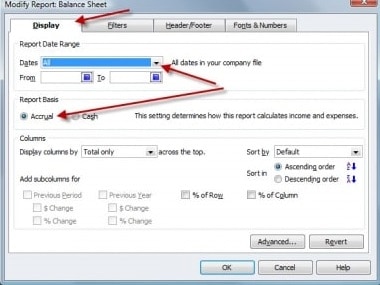
Next, select the 'Accrual under Report Basis 'on the Display tab, .
Finally hit a click on "OK" button.
If the report is out of balance in both accrual and cash basis, your file might be broken. Refer to resolve a balance sheet out of balance in accrual basis for troubleshooting steps.
In the event the report is in equilibrium in accrual although not in cash, it means there are some problems with specific transactions.
Step 2. Understand Why QuickBooks Balance Sheet Went out of Balance
First thing to do is go to the 'Reports menu' option
Then you have to select 'Company & Financial'
You will get 'Balance Sheet Summary'
Now choose the 'Customize Report'
After this go to the 'Display Tab'
Set the 'Report Basis' to cash
Once done you can modify the columns as per the year/month/week/ day the balance sheet went out of balance.
If it is the year:
First you have to Select All from the 'Dates drop-down'
Now choose the 'Year' from the Display columns
After this tap on 'OK' button.
Compare the 'Total Assets' and 'Total Liabilities' in order to find out the year the balance sheet went out of balance.
If it is month:
You will come across the 'From' and To 'Fields section' where you have to enter the year balance sheet went out of balance.
Now select 'Month' from the 'Display columns'.
Tap on 'OK' button.
In last compare the 'Total Assets' and 'Total Liabilities' in order find the month the balance sheet goes out of order.
If it is week:
In the ‘From and To’ fields, enter the month your balance sheet goes out of balance.
From the Display columns, select the 'Week'
Choose 'OK' button.
To find the week the balance sheet goes out of balance, compare the 'Total Assets' and 'Total Liabilities'.
If it is the day:
In the From and To Fields, enter the week your balance sheet goes out of balance.
Choose the day, from the 'Display columns',
Next, hit a click on 'OK' button
To find the day the 'Balance sheet' goes out of balance, compare the 'Total Assets' and 'Total Liabilities'.
Step 3. Track the Transaction Responsible for QuickBooks Balance Sheet out of Balance
After you find out the date when the Balance sheet goes out of balance, make a Custom Transaction Detail Report in order to track the transaction which might be causing the issue.
Move to the 'Reports menu' then choose 'Custom Transaction Detail Report'
In case the 'Modify Report' does not open automatically then select the 'Customize Report'.
Now, hit on the 'Display tab' and type the date where balance sheet was out of balance in the form of boxes From 'Report Date Range'.
After this, set the 'Report Basis to Accrual'.
Under columns you have to 'Uncheck account', split, 'CLR' as well as class.
You can now 'Check the amount'
Tap on the 'OK' button
Now the amount which went out of balance will appear as the ending balance in the report.
In case you are not able to track down the transaction that is causing the problem then run the below mentioned reports:
Customer Report
Journal Report
Vendor Report
Other Transaction
Step 4. Re-Date the Transactions
Once you are identified the transaction or transactions that are causing the problem. It is supposed to 'change the dates' on them. Also, note down the current dates, followed by editing the date on each of the transaction to a day 20 years in the future.
After that, you need to 'save each of the transactions'.
And then, refresh the report, if the users finds correct transactions, then the paid amount column will get 'Zero'.
Now 'locate the transactions' that you have dated into the future and then date them back to their original date. The point to be noted here is that the re-dating step basically re-links the transactions and can simply repair them.
Step 5. Removing and Re-Entering the Transactions
In case you are unable to fix the issue even after changing the dates, then in that case it is recommended to delete and re-enter the transaction once.
Check and Fix Specific Data Damage
This specific data damage may consist of the journal entries showing amounts without the associated accounts, the balance sheet summary out of balance, discrepancy in the column settings, and differences in the cash and accrual balance sheets. It is manual troubleshooting that can actually resolve the issue.
QuickBooks Balance Sheet Out of Balance and Its Causes
You might see the following error message on the desktop screen when the Issue of the Balance sheet Out of Balance in QuickBooks happens.
Accrual basis of accounting basically records expenses and revenues as they are earned even though there can be changes in cash. There can be various causes behind this error namely:
Company data file gets damaged.
Transactions entered or links have compatibility issues.
If you are making use of multi-currency feature.
Important Points to Remember
First of all you need to modify the reported total by year.
And then check if the balance sheet is back in balance.
Furthermore, log out of the QuickBooks file and log back in.
Backup the QuickBooks company file before performing any steps for troubleshooting.
If in case you are working in a multi-user environment, it might cause damage to the company file and balance sheet might go out of balance.
Fixing the data damage and using the main system from where the file is hosted is recommended.
Ascertain to verify and rebuild the QBWIN logs before proceeding.
Wrapping up!
We have a firm hope that you must have successfully resolved the QuickBooks balance sheet out of balance issue. If still the problem persists, then you can call our 24/7 QuickBooks error support team and seek assistance. The best part is that are certified experts are available 24/7 and provide instant solutions. Our dedicated helpline is available round the clock.
A simple guide to fix QuickBooks Error H101, H202, H303 or H505 on your own:
QuickBooks is the go-to accounting software for countless small and mid-sized businesses, empowering owners to manage their finances efficiently and focus on core business operations. However, even this robust platform can encounter frustrating errors, particularly the QuickBooks H series errors: H101, H202, H303, and H505.
These common "H series" error codes typically appear when you attempt to access a QuickBooks company file stored on a different computer (multi-user mode issues). Among them, QuickBooks Error code H202 and QuickBooks Error code H505 are frequently encountered.
This comprehensive guide will help you understand what these common errors mean and, crucially, the underlying reasons for their occurrence. While many can be resolved with straightforward troubleshooting steps, understanding the cause is key. For more in-depth solutions or personalized assistance, our team of certified QuickBooks experts is ready to provide unparalleled support to get your system running smoothly again.
Steps to Fix QuickBooks H Series Errors: H101, H202, H303 and H505
The solutions to H series errors (H202, H505) in QuickBooks accounting software are different depending on the cause of the error. The troubleshooting is, however, pretty much similar in most of the cases. You need to check out the following quick steps to resolve the issue. However, the step-by-step walkthrough will assist you.
Solution 1: Use QuickBooks File Doctor tool from tools hub program
You can download directly the QuickBooks file doctor tool from here. Also, QuickBooks tool hub program will let you download the file doctor directly from the inside program.
Download QuickBooks tools hub program and Save the file on your system.
After that install the program on your system using the on-screen instructions.
Once the install process gets complete, double-click on the icon to open the tool hub program.
After that open the tool hub and choose Company File Issues tab.
Then choose Run QuickBooks File Doctor option from here. This process can take less then a minute to open.
Now select your company file from the dropdown menu.
Also, choose the option 'Check your file and Network' and then press on Continue button.
Lastly you need to type and enter your Admin password of QuickBooks and then hit on Next button.
Solution 2: Verify hosting and services
Verify hosting
Launch QuickBooks, head to 'File', and opt for 'Utilities' (do this on all hosting computers).
Systems showing 'Host Multi-User Access' on the list are not hosting the file. Move to the next computer and consider not making any changes on your workstation.
Opt for 'Stop Hosting Multi-User Access' option.
If you see File Must be closed window, hit on the 'Yes' tab.
Verify the services
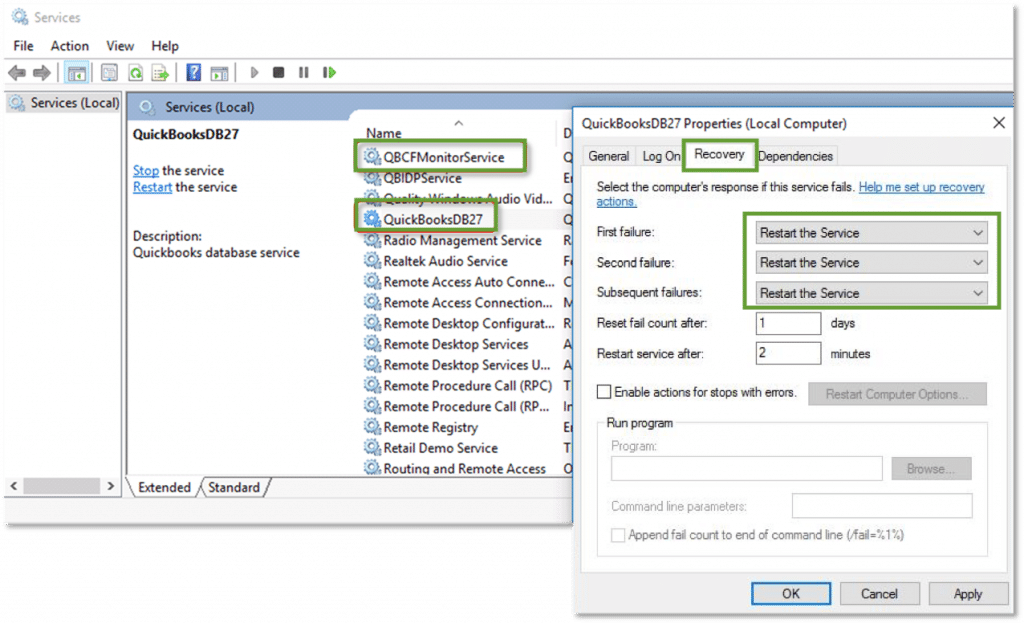
Check if the 'QuickBooksDBXX' and 'QBCFMonitor Service' are active.
Tap on the 'Start' button on your computer.
Hit the 'Windows + R' keys to open 'Run' command.
As soon as the Services window pops up, the user should search for the QuickBooksDBXX service.
In service window, scroll down and choose the 'QuickBooksDBXX' service.
If QuickBooksDBXX Service is unavailable:
If you are using QuickBooks Database Server Manager (QBDSM) (the entire program is not run on the server), ensure that Database Server Manager (QBDSM) is installed on the server.
If the entire application/program is run on the server PC, open QuickBooks, make a move to the File tab, and finally tap on Utilities. Make sure that hosting is enabled (it should display the dialog as "Stop Hosting Multi-User Access"). If it displays the "Host Multi-User Mode" dialog, click it to enable hosting on the server.
Double-click on the QuickBooksDBXX service and ensure that the Startup Type is set to "Automatic" and the service status is "Running" or "Started."
Now go to the Recovery tab.
Choose the drop-down list option for initial failure and select "Restart the Service." This will allow the QB software to restart the QuickBooks Database service if it fails. Repeat the process if it fails again.
Also hit a click on OK to save the changes.
Repeat the procedure discussed prior for the QBCFMonitorService.
Open the QuickBooks application in a multi-user environment on each affected workstation.
If you encounter the same issue again, ensure that the QuickBooksDBXX service is a member of the administrator group and has the appropriate permissions.
Finally, share the QuickBooks company files using "Set Windows Access Permission" and verify the company file.
Solution 3: Configure Firewall to communicate with QuickBooks
Uninstall any antivirus, windows defender or other protection tools that Windows came equipped with.
Firstly, you need to resolve the 'Connection Windows Firewall' Settings
Right-click on 'Outbound Rules', and hit on the 'New Rule'
Opt for 'Ports' and then hit on 'Next'.
Choose 'TCP' in the local ports box.
Now, hit a click on 'Next' and 'Allow the Connection' tab.
Tap on 'Next' and enter a file name in the name field, for example, “QuickBooks ports” and hit 'Finish'.
Follow the same steps for the Inbound Rules.
Now, launch QuickBooks in 'Multi-user mode'.
Solution 4: Using QuickBooks Database Server Manager
Navigate to the server system (system that has physically stored the QuickBooks company file).
In the server PC (system hosting the QuickBooks company files), click on the Start icon and type in database.
Click onto the QuickBooks Database Server Manager (QBDSM).
If no folder locations are shown, click on the Browse icon and search for the QB folder where company files are stored.
Hit a click on the OK tab.
Click on the Start Scan option.
This will repair the firewall permissions and allow the QuickBooks application to communicate over the network, fixing the QuickBooks Error code H101, H202, H303, or H505.
Once it is completed, click on the Close icon. Afterward, attempt to open the QuickBooks application in Multi-User mode on one or more workstations.
Solution 5: Repair/Update QuickBooks desktop
Hit on the 'Windows' button and access the 'Control Panel'.
Tap on 'Programs and Features' and then QuickBooks.
Now, dive into the 'Change/Repair' option.
Read the prompts and 'Allow' the positive options.
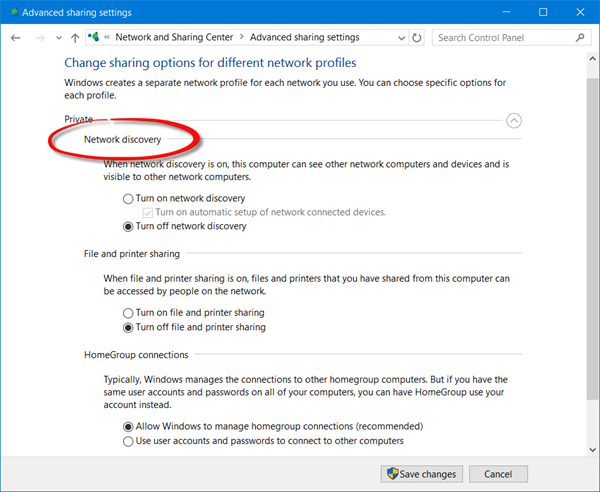
Select System and Security, then choose the Windows Firewall icon.
In the left section, select Allow an app or feature through Windows Firewall (for Windows Server 2012).
Choose the Change Settings option.
Click on the Network Discovery tab and select OK.
Step 2: Identifying the server name
Press the Windows key + R key to open the Run command.
Type "CMD" and press Enter.
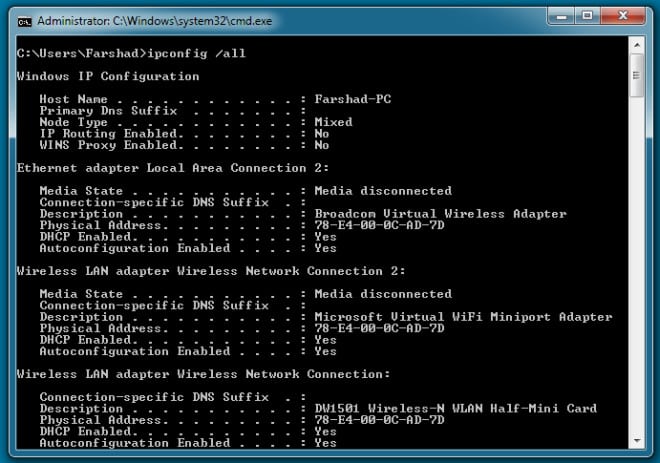
Type "ipconfig /all" and press Enter.
In the IP Configuration field, locate the Host Name line.
Take note of the server name on the right side of the screen.
Step 3: Ping the server
Press the Windows key + R key to open the Run command.
Enter "ping [servername]" and press Enter.
You should receive a reply for each packet with none being lost.
Step 4: Verify UNC vs. Mapped Drive
If you are using a mapped drive to connect to the QB company file on the server, bypass the mapped drive and access the server shared folder via the UNC (Universal Naming Convention) path from the workstation computer (e.g., serverQBData). If the path to your company file starts with a drive letter, it indicates a mapped drive.
Use the UNC path to locate the QB company file within the QuickBooks application. You can also find it in the title bar when accessing the mapped drive or follow these steps:
Press the Windows key + R key to open the Run command.
Type "CMD" and press Enter.
Enter "net use [drive letter:]" (e.g., net use z:).
Now Press Enter.
In the IP configuration field, locate the Remote Name line.
Take note of the UNC path.
Solution 7: Using QuickBooks connection diagnostic tool
Furthermore, run the tool and let it scan the QuickBooks company file folder.
Take note of the IP address shown when the tool runs.
Enable the Ports that have the open Ports tab in the firewall status section.
Carry out the wizard instruction till the end.
Try opening the file from the system and check if the issue persists. .
An overview of QuickBooks Error H101, H202, H303 and H505
H Series Error Codes like (H101, H202, H303, or H505) are extremely most common errors that occurs in multi-user environments. These errors may occur while attempting to transfer a company file from one computer to another computer. During the process, you may be obstructed by this error. To fix these type of errors, we recommend you to run the QuickBooks file doctor tool which is designed to deal with these type of errors. The another reason for occurring these errors might be you don't have QuickBooks desktop installed on your server along with the database server manager. We also recommend you to add it on your server to get rid of from these errors.
Conspicuous Causes behind to QuickBooks Error H101, H202, H303 and H505
There may be numerous reasons
that may trigger these errors. When you try to open a QuickBooks company file
in multi-user mode, you may receive the following errors-
QuickBooks Error Code H202:
When Error code H202 occurs you may see the following image on your desktop screen:
You’re trying to access a QuickBooks company file stored in another computer and this QuickBooks replica can’t reach the server on that computer.
Your QuickBooks accounting software may not be able to communicate with the server and causing this error.
QuickBooks Error Code H505, H101 & H303:
You’re trying to open a company file stored on a different computer and the other computer requires extra installation and setup.
Other causes
One or more of the following causes may trigger H series error:
QuickBooks file hosting configuration/setting is wrong.
QuickBooks communication blocked by system firewall.
Database server manager is conflicting with DNS Server.
QB workstation can’t ping the Host computer, i.e., IP address is not reachable.
Some QuickBooks Services or components damaged.
Multiple Database Server Manager versions that are running may be clashing.
Error Code H202 port is unavailable.
Important points to consider before proceeding with the troubleshooting
Essential pointers to consider before you head further:
Ascertain that QuickBooks is installed on the server system.
QuickBooks needs to be installed on the server before you initiate.
It is installed with or without a license.
In case QuickBooks application isn't installed on the server, then you will be unable to use or access the multi-user environment.
If you implement the above-enumerated solutions carefully, you should most likely be able to fix QuickBooks Error H101, H202, H303, or H505. In case the issue still persists, get immediate solutions from our QuickBooks enterprise error support experts.
QuickBooks is an avant-garde software that has transformed the landscape of accounting, offering solutions that benefit not only large corporations but also small and medium-sized enterprises. This powerful application streamlines financial operations, making complex tasks more manageable.
While QuickBooks consistently delivers positive changes to business operations, it is, like all software, susceptible to occasional issues. Users may encounter various errors, some of which are easily resolvable with simple troubleshooting. However, certain complex issues may necessitate the intervention of an expert. This platform aims to guide you through common QuickBooks challenges, helping you maximize your efficiency and minimize downtime.
What is the QuickBooks error code 6000, 82?
The QuickBooks Error 6000 82 is a very common technical snag faced by QB users. Generally this error happens when the users try to open the company file or when the QuickBooks individuals make an attempt to access the company file data stats that the application cannot reach as they are located in an additional computer. It mostly happens when there are multiple clients. You may see the following error message on your desktop screen:
In this blog post, we are going to discuss QuickBooks error code 6000, 82, and why this error occurs. You can fix this error with the help of our enterprise support experts or go through the below-given manual solution methods.
Easy Avenues of Troubleshooting the QuickBooks Error Code 6000 82
Avenue 1: Remove the blank spaces before the company file
The next incentive step to follow is to get logged out from the QuickBooks Desktop on all the computers.
Once done with that, you just need to access the folder housing the company file.
Next, you are required to click right on the company file.
After that, you are supposed to choose the Rename tab.
Now, hit on the name of the file, and find and remove if there are any spaces between the file extension and the company name.
In the next step, attempt to open or create a company file.
Avenue 2: Turn off hosting on each computer
Step 1: Access by Single-User
Turning off the hosting mode disables multi-user access. Proceed ahead by following the following set of instructions.
At the very first step, proceed to File.
Then you have to opt for Utilities.
Then choose the Stop Hosting Multi-User Access option.
After you get the message, "Stop hosting multi-user access," hit on the "Yes" tab.
Opt for Yes, after you get the message, the company file must be closed.
Step 2: Access by Multi-User
This error may also cross your path when more than one client computer is set up incorrectly to host the multi-user access.
If on every client computer the error is displayed, then follow the steps below:
Choose File, then opt for Utilities in the No Company Open window.
After this, you have to confirm that the menu option Host Multi-user Access is showing. In multiple client computers, the following message may display: ‘Stop Hosting Multi-user Access.’ It indicates that these computer systems are already hosting the multi-user access.
On any client computer that is showing the 'Stop Hosting Multi-User Access' message, choose it and then follow the steps for turning off the hosting.
After this, open the problem file again, and now the log-in window will be displayed.
And if the problem persists, try out the next method.
Avenue 3: For Multi-user access, switch to Hosting Local and Remote files mode
Follow the below-mentioned process if the previous steps don’t assist in resolving the error.
When QuickBooks is opened, tap on the F2 key to open the Product Information page.
At the bottom of the window, verify the Local Server Information if hosting is set to local files only.
Now, opt for the File Menu and then choose the Switch to Multi-User Mode option.
After this, you have to open the company file on the network computer. If you require more help, then check out the QuickBooks in-product or set up multi-user or network for QuickBooks Desktop resource page.
After the company file is open, click on the 'F2 key' so as to open the 'Product Information' window.
Now you have to verify the 'Local Server Information,' which is at the bottom of the window. Hosting is set to local files only.
Avenue 4: Restart the Client computer
Restarting the system is one of the effective ways of solving the problem. However, it will revert the device back to scratch and will delete the current state of the software. If this doesn’t work, then try out the next step.
Avenue 5: Accompany standard data troubleshooting
There can be a possibility that the company file has data damage. To resolve that, check the Resolve data damage issue, which is basic troubleshooting.
You need to first hit on the Utilities tab from the File menu and then hit on Verify data.
Furthermore, when the error message appears stating QuickBooks detected no problem with the data, pick the OK tab.
Continue using the Company file.
Just in case the verify data tool finds an issue with the data, you will be prompted to Rebuild now.
Hit on Close. Or perform the following steps:
Look for the QBWin.log or QuickBooks.log files.
From the Tech Help window, if you are working with a support agent, then hit the Send log files to Intuit support.
This will send the file to the repository that will enable the support agent to view the log files.
Just in case you are working with a support agent, then locate the most recent file for verification.
In case you are a Mac user, then scroll all the way to the bottom for the most recent verification information.
Look for the line that has LVL_ERROR.
You might see the Data Damage Top LVL Errors Library.
Avenue 6: Running quick fix program on the client PC
Moreover, choose the Quick Fix My Program tab from the list.
End the process by starting the QuickBooks desktop and then opening the data file.
Avenue 7: Use Verify and Rebuild Tool
Heading forward, you need to click on the Utilities tab from the file menu.
Next, then click on the Verify data.
While the error message pops up on the screen stating, “QuickBooks detected no problem with the data“, you are required to click on the OK tab.
After that, you need to continue using the company file.
If, in any case, the Verify tool finds an issue with the data, you must rebuild now or view errors.
Next you will have to click on Close.
Or you should perform the following steps:
Spot the QBWin.log or QuickBooks.log files. From the tech help window, in case you are working with a support agent, then you need to click on the Send log files to Intuit support.
After that, the file will be sent to the repository, which will enable the support agent to view the log files.
If, in case you are working with a support agent, then you will need to locate the most recent file for Begin Verify.
Or if you are a Mac user, you are supposed to scroll to the bottom for the most recent verified information.
Search the line that contains the LVL_ERROR.
Once done with that, you now have to look for QuickBooks Learn and Support.
Later on, you can also see the data damage in the Top LVL errors library.
Signs and symptoms that lead to the QuickBooks error code 6000 82
You can simply identify the QuickBooks error code 6000 82 using the below-given signs and symptoms:
One of the basic signs can be if the system or the software freezes repeatedly
Another common sign can be if the system crashes again and again with the same error message.
If the Windows is running slowly.
If the error code itself appears on the screen.
Triggers to QuickBooks Error code 6000 82
Below are the reasons that incite this Error 6000 82 in the QuickBooks desktop software.
Damage caused in the data source name.
Damage to the QuickBooks Transaction Log file.
The Network Descriptor (.ND) file got damaged.
Still in need of assistance?
By following the above-mentioned steps, you can fix QuickBooks error 6000 82. However, for further help, you can connect with our enterprise support, available 24/7.
You will get a quick solution to all the QB-related issues by getting in contact with our well-trained experts. You can just connect with our 24/7 QuickBooks Enterprise error support team of experts, who will be there to assist you in a single call.
A Quick Guide on How to Install and Use QuickBooks Install Diagnostic Tool
QuickBooks Install Diagnostic Tool is a useful and efficient tool to diagnose during the installation process. The impressive tool is equipped to handle multiple issues that can occur in C++, the .NET framework, or MSXML.
Encountering errors during your QuickBooks installation can be incredibly frustrating, but the QuickBooks Install Diagnostic Tool is your powerful and efficient solution. This impressive utility is specifically designed to diagnose and automatically fix installation errors, including problems related to C++, the .NET Framework, or MSXML.
Considered a highly effective repair tool, the QuickBooks Install Diagnostic Tool significantly reduces the time and effort needed to resolve complex installation hurdles. Experts strongly recommend running this tool as your first step before attempting any manual troubleshooting methods. Its intelligent design allows it to identify and resolve issues seamlessly, making your QuickBooks installation process smoother and hassle-free.
To learn more about how this indispensable tool can simplify your QuickBooks experience, continue reading this blog post. For immediate assistance or further insights, don't hesitate to connect with our tech professionals.
What are QuickBooks Desktop Installation Errors?
Errors that can be resolved using the QBInstall Diagnostic Tool:
TheQuickBooks Install Diagnostic Tool can be employed to fix a wide range of assorted problems that occur in QuickBooks while installing or setting up the software. If you are a victim of the below-given errors at the time of opening QuickBooks Desktop after installing it, follow the below-given steps to resolve it.
You now have to save the file on the system where you can easily find it.
After you have downloaded it successfully, then open it.
Perform the on-screen prompts.
Hit on the next tab to agree to the terms and conditions.
After the installation of the QuickBooks ToolHub finishes, then open the tool hub by tapping twice on the icon.
You now have to keep in mind that if you are not able to find out the icon from the desktop menu, then look for QuickBooks Tool Hub from the start menu and choose the program.
Step 2: Run QuickBooks Install Diagnostic Tool
You need to launch the QuickBooks Tool Hub program from the desktop icon or do a search from Windows Search.
Now, in the QuickBooks Tool Hub, choose the installation issues from the list.
Choose the QuickBooks install diagnostic tool option.
After you tap on the QB Install tool, it will start on its own.
Let the tool run.
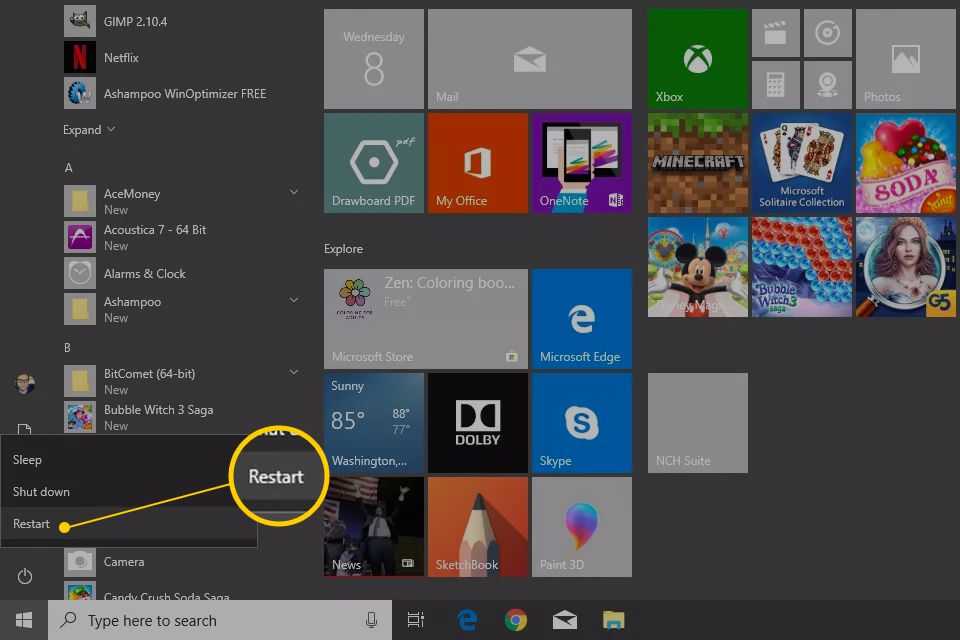
This might take some time, after which you simply have to reboot the system.
Other Methods to Effectively Fix the QuickBooks Desktop Install Errors
Following are the latest solution methods to resolve the installation errors of QuickBooks desktop:
Method 1: Download the Latest Update for Windows OS
You are initially supposed to update Windows to the latest version.
After the update process completes, make sure to reboot the system.
Just in case QuickBooks starts along with any issue, then you are suggested to open the company file and start the work.
In case the QuickBooks installation is not completed in a proper manner, then ascertain to install QuickBooks again.
Method 2: Uninstall/Reinstall QuickBooks Desktop
Firstly, hit on the Windows Start menu and then find the control panel and open it.
After that, choose the Programs and Features option
Now, hit on the Uninstall a Program option.
From the list of programs, opt for the version of QuickBooks Desktop that you want to uninstall.
Lastly, choose to uninstall or change and then remove the program.
If the error still occurs, then there might be an issue with your operating system or computer.
Method 3: Check your Firewall Status
You need to check your computer firewall settings. This will help you to set up the company file that is accessible from a hosted device. It gives the proper information on the firewall.
Important Note:
After running the tool, there might be a chance to reactivate or re-register the QuickBooks Desktop.
If the problem still persists and there is an error, then consult a QuickBooks expert.
If there is an error while installing QuickBooks updates, then you need to run the QuickBooks Install Diagnostic Tool one more time or contact a professional.
Method 4: Re-Install QuickBooks Desktop in Selective Startup Mode
Steps for reinstalling QuickBooks in selective startup mode.
For reinstalling QuickBooks in selective startup mode, you simply have to tap on the Ctrl + R keys to show the Run window.
Furthermore, type in ''MSConfig'' on the keyboard and hit the ok tab.
Opt for the selective startup option in the general tab.
Choose the system services as well as the startup items.
Hit on the hide all MS and tap on the disable all option.
Hit on the listing of services.
Choose the heading after tapping on the OK tab.
Head to the start again into the system configuration and reboot the system.
End the process by reinstalling with the help of clean install process.
How to Download and Install QuickBooks Diagnostic Tool?
Now, close all the apps that are running in your system background.
You will notice. exe file on the system, just double-click there to run the file.
Restart the system after the diagnosis to ensure that the QuickBooks components are updated correctly.
You can also update your Windows operating system to prevent yourself from facing these types of installation errors. (Note: Check out this article in order to manually update your window OS at Microsoft site.)
Blog Summary in Infographic
Wrapping up!
We hope that you find this article helpful to understand all about the QuickBooks Install Diagnostic Tool. If you are still facing the installation errors and are in need of expert advice, then contact our support line and speak to our certified QuickBooks Desktop support technicians. We wrap up the article, yet our support will always remain. All you need to do is call our technical experts, who are adept in QuickBooks, and let them fix the issue.







![[Step 2] Track the transaction responsible for QuickBooks Balance sheet out of balance - Screenshot](https://axpertadvisors.com/wp-content/uploads/2019/05/Step-2-Track-the-transaction-responsible-for-QuickBooks-Balance-sheet-out-of-balance-Screenshot.jpg "How to Resolve Balance Sheet Out of Balance in QuickBooks Desktop? 15")







![ping [servername] - Image](https://axpertadvisors.com/wp-content/uploads/2021/05/ping-servername-Image.jpg "How to Fix QuickBooks Error H101, H202, H203 and H505? 39")
![net use [drive letter] - Image](https://axpertadvisors.com/wp-content/uploads/2021/05/net-use-drive-letter-Image.webp "How to Fix QuickBooks Error H101, H202, H203 and H505? 40")








 +1-888-368-8874