Learn how to fix data damage and resolve basic QuickBooks company file issues:
Encountering data issues or company file problems in QuickBooks can be incredibly frustrating, often preventing you from accessing your critical financial information. While these errors can feel sensitive and complex, the good news is that most company file issues are resolvable with the right approach.
This comprehensive guide will walk you through a series of effective steps designed to help you fix QuickBooks company file errors and regain access to your data. Whether your file won't open, or you're experiencing other data corruption symptoms, our solutions aim to restore your financial records.
If you prefer not to manually perform the troubleshooting steps, or if you require immediate expert assistance, our dedicated support professionals are readily available via our helpline to guide you through the process. Don't let data issues hold your business back – let's get your QuickBooks company file back on track!
Steps to Resolve Common QuickBooks Company File Issues
Below we have shared a few methods to resolve the most common QuickBooks desktop company file issues.
Solution 1: Open the QuickBooks company file
When you find that the issues you are facing with QuickBooks continue to grow, at that time, moving Company File to Windows Desktop can help with folder permission problems.
1stStep: In QuickBooks, go to File and Open or Restore the Company.
2ndStep: Find the correct radio button for the file you are opening.
Final Step: Browse to the file location and open it.
Note: You will get a notification of where you want to restore the file if you are opening a .QBX, .QBB or .QBM file.
Solution 2: Preventing QuickBooks desktop windows from opening automatically
An error occurs wherein when you try to open the company file, many windows open. In this case, you can follow the steps below:
Choose the company file on the No Company Open window
Click and hold the ALT key and Open QuickBooks.
Note: If you get a login window, enter your password, tap and hold the ALT key, and hit on the OK button. Till the time the company file starts completely, or the error text pops up, do not release the ALT key. If the company file opens and no error pops up and proceed with the steps below:
Head to Edit > Preferences
Tap on the Desktop View > Don’t Save the Desktop
Hit on the OK button.
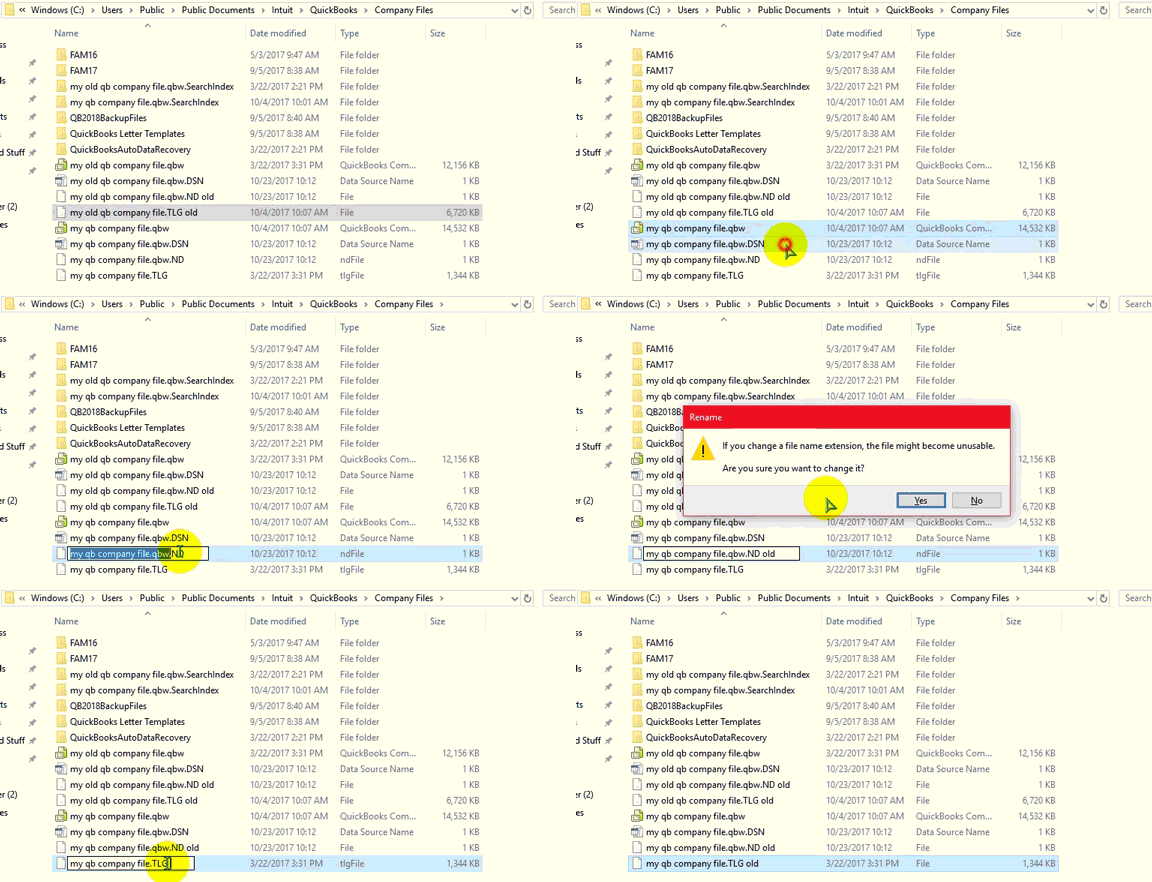
Solution 3: Rename .TLG and .ND extensions on the QuickBooks company files
If you find that the TLG and ND files are corrupt, then you can stay up to the old ones. This will now help you open your file.
1stStep: Access the folder where the QuickBooks company file is saved.
2ndStep: Right-click on the transaction log file and rename to OLD.qbw.TLG
Final Step: Open the company file, this will enable QuickBooks to build new .TLG and .ND files.
Note:
When you delete.TLG files, then you are not assisted as they can recover your lost data.
Copy the transaction log file with the company file so that error does not take place again.
Solution 4: Copy QuickBooks Company File to New Location
If you notice that your company file is placed in a network drive, then you must copy it to the local drive. If the local file opens, then resolve your network configuration. Also, try to download and run the 'file doctor' as it can help you out.
1st Step: Create a new folder in C: drive
2nd Step: Open the folder housing the company file.
3rd Step: Tap and hold the Ctrl key. Choose the company file and the corresponding .TLG of the company file
4th Step: Right-click and hit on the option to Copy.
Final Step: Open the new folder, Right-click, and hit on the Paste option.
2nd Step: Once the tool is installed on the system, it will open up automatically.
3rd Step: Next step is to hit on run QuickBooks file doctor. It can take up to one minute for the file doctor to open.
4th Step: In QuickBooks file doctor, you need to opt for the company file from the drop-down menu. In case you are unable to spot the company file, then it is recommended to choose browse and search to find your file.
5th Step: After that, you need to check the file and then hit the option to continue.
Final Step: The last step is to type in the QuickBooks admin password and then push the Next tab.
Solution 6: Repairing the company file using Rebuild Data Tool
The last yet effective approach to troubleshooting company file issues in Quickbooks requires users to take the aid of the Rebuild data tool, an integrated tool, which is usually run in consonance with the Verify tool. While the verify tool inspects any issues within the company file, the rebuild tool rectifies those issues.
Head to the File menu and proceed to the utilities tab
After that, you need to choose the rebuild data option,
Hit on OK on the QuickBooks information window
Perform the onscreen steps to save a backup
Let the tool fix the file. This might take some time
QuickBooks might seem stuck, but as long as you can move the mouse, the tool is working
Once the tool finishes, choose the ok tab
Now, visit the File menu and hover over the utilities tab
Finally, choose the verify data option.
Let the tool check the file for any sort of issues
In case there are no issues, then choose the ok tab and continue using your company file.
Or else opt for the rebuild now option if QuickBooks finds an issue with the company file.
Major causes leading to QuickBooks Company File issues.
Some of the major causes that may result in company file issues in QuickBooks are given as follows:
A damaged or corrupted company file may be one of the major causes of this error.
The file extension of the company file may be wrong.
You may be using a QuickBooks version that does not show compatibility with the version of your Windows Operating system.
You may be trying to access a company file that may have been deleted accidentally in the past.
Some Important points.
Points to consider before you start troubleshooting the QuickBooks Company file issues:
First of all, ensure the issue has occurred with the Company File and not the program. Also, make sure that the QuickBooks application has been updated so that it can function better. You can do this in this way:
Click and hold the 'Ctrl key' and double-click the 'QuickBooks Desktop icon.'
If the program is not starting, then try another method.
Note: When you are doing this, ensure that you do not release the Ctrl key until the No Company Open window opens
Ensure that the company file is hosted by only one computer. If it is being hosted by other computers as well, turn it off. You can do the same by following the steps:
In QuickBooks, go to 'File > Utilities'
Now, choose to 'Stop hosting multi-user access
Note: If you see anything else apart from Stop hosting multi-user access, that means that multi-user hosting has already been turned off.
In the worst case scenario, if the above-discussed steps are unable to assist you in the process to resolve basic QuickBooks desktop company file issues and errors still keep pervading, then in that scenario, you can speak to our QuickBooks error support team at the helpline 1-888-368-8874. Here you can connect with our experts, share your concern, and find answers to all your QuickBooks-related queries.
Simple Steps to Fix 'This is a Corrupted or Damaged QuickBooks Database' Error
Encountering a corrupt or damaged QuickBooks database error can be incredibly frustrating and disruptive, potentially jeopardizing your essential company files and the seamless operation of your accounting software. However, every QuickBooks error has a specific solution, making recovery possible if you know the right steps.
This common issue, often displayed as "Error: This is a corrupted or damaged QuickBooks database," can affect all versions of QuickBooks. Its repercussions can be severe, highlighting the critical need for an effective resolution.
This guide provides the precise measures you can take to fix this QuickBooks database error. By carefully reading through this segment, you'll gain the knowledge to troubleshoot this issue effectively. Should you have any questions or require further assistance, our dedicated support team is just a call away.
Steps to Locate Corrupt Files on QuickBooks Desktop
Locating the corrupt file, which is a source of the error pop-ups is one of the most important steps take. The complete process of locating the damaged file is quite complex, thus, it is advised to contact a professional. Here are the instructions that you need to follow:
The very first step is to shut down the QuickBooks desktop and after that try to save or delete a transaction.
Then you need to check for any missing transaction from the list of entries.
Next, notice any delay or breakage in the operations in QuickBooks.
At the end, check whether or not the negative balance of the transaction history is popping up.
If you follow these steps in the right manner, you can easily spot the reason for the error report you are being showered with.
Fixing Corrupted or Damaged Database Error in QuickBooks Desktop
As of now you know other aspects that you need to have an idea about while dealing with this error. Here are the points that you need to go through in order to fix the issue:
If the corrupted file is stored on the network drive, then just copy that file to a local drive.
Next, head for the QuickBooks Desktop and make sure to unhide items such as Accounts, customer names, etc.
Once done with that, proceed to the QuickBooks File menu and then opt for Utilities
In the next step, run the Rebuild utility
You also need to launch the Verify data utility.
When Error: This is a Corrupt or Damaged QuickBooks Database" Occurs?
As we all know, QuickBooks is a network-based software, that allows one or more users to access and work on a database server simultaneously. As the sheer size of the virtual space is impressive, it is common to get errors occasionally, especially the Corrupt or Damaged QuickBooks Database error.
This error leaves you to face some puzzling situations where you are not able to use the database to get the information. Although, the database remains completely fine and it's just an error that says otherwise. So, if you have encountered this issue, or even if you have not then stay with us till the end as we will offer you the perfect solution to fix this error once and for all.
Major Causes Behind the Database Error in QuickBooks
Despite the fact that there is a change wherein the database is actually failing to respond, most of the time this error is displayed for no reason whatsoever. One of the basic reasons behind this is that the database manager of QuickBooks is quite complex from the end of service providers and thus, it is hard for them to offer a precise factor that is causing the error. There can be situations when the error occurs due to a network problem. In such circumstances, you need to follow the steps below:
Opt for the close company/log-off option in QuickBooks.
Make sure to run the verify data utility.
You can look for this option in the QuickBooks file menu.
This is why one of the best solutions to this problem is to simply run the QuickBooks File recovery solution. Apart from this, one of the many reasons that you are receiving this error message can be the local drive or network issue. Also, corruption of the file can be another case as well.
Conclusive lines!
This will make the file just as it is meant to be by assisting you to fix This is a corrupt or damaged QuickBooks database error withoutharming your data, network, or QuickBooks. If the issue still keeps reiterating, you can contact our 24x7 QuickBooks error support team. Our certified technicians are trained in solving all sorts of QuickBooks-related issues. All you need to do is ring us a call.
As a QuickBooks user, encountering errors, especially those related to company files or network malfunctions, is not uncommon. While these issues can be frustrating, many are surprisingly easy to resolve. This guide focuses on a specific challenge: QuickBooks Payroll Update Error 12031.
Are your QuickBooks operations derailed by Payroll Update Error 12031, leaving you unsure of the next step? Look no further! This comprehensive guide provides you with the best possible solution steps toget rid of QuickBooks Error Code 12031 with ease, along with a detailed understanding of the factors triggering this error.
To avoid any further complications, we highly recommend you read through this segment with utmost concentration. By understanding the root causes and following our expert solutions, you can quickly resolve this error and get your QuickBooks back on track, ensuring smooth payroll operations.
What is QuickBooks Update Error 12031?
This particular error can be seen by you when you try to update QuickBooks payroll service. You might bump upon QuickBooks error 12031 due to network timeout. This basically restricts the software from accessing the server. You will further encounter such an error due to any firewall or security-related bug. This is a pretty common error that could be tackled using some practical steps.
Methods to Resolve the QuickBooks Error 12031 Successfully
You can implement the below procedures so as to rectify of the QuickBooks error code 12031 successfully:
Method 1: Configure your Internet Settings
Start off with closing QuickBooks software.
Make sure to click on Internet browser.
Hit a click on Tools and Internet options.
Choose Security tab and also click on Globe icon.
Hit a click on Content tab.
Press the Content advisor button, in case it says disable, then enter the password and disable the Content advisor.
Further, click on Connections tab:
Choose Never dial a connection option, in case you do not use the dial up node.
Else use the Dial up node and make sure that you have entered the correct ISP.
Hit OK tab.
Press LAN settings tab.
Make sure that Automatically detect settings option is checked.
You need to Verify use a proxy server checkbox is cleared.
Use the Proxy server and document the complete address and port.
In case the port is other than port 80, avoid unchecking use a proxy tab. And use the proxy box for testing purposes. In case the port is Port 80, then you can simply uncheck.
Now, select OK on the LAN settings.
Choose the Advanced tab
Click on the Restore advanced settings.
Now in the Settings tab, scroll to find use TLS 1.0, USE TLS 1.1 and Use QuickBooks TLS 1.2 options.
Make sure that USE TLS 1.0 is checked and USE TLS 1.2 s not.
You further need to click on OK tab and close the Internet options window.
And close Internet explorer and reboot the system.
You then need to open QuickBooks and try to update QuickBooks desktop again and check if the issue is rectified.
Method 2: Inspect your Internet Connection and Try to Update QuickBooks Desktop
In this particular method, you need to click on Help tab.
And further click on Internet Connections setup.
You are then required to click on Option stating Use my computer’s internet connection settings to create a connection when the app accesses the internet.
Further, click on Next tab.
You then require to update again:
You need to select Help, and click on update QuickBooks desktop. In QuickBooks 2008 and later versions, you need to select Update now tab.
If you are using 2006 and earlier version, choose File, update, QuickBooks, and Update now tab respectively.
Method 3: Check the Advanced Settings in The Internet Properties
Under this method, you would have to open the menu for Internet connection setup available in QuickBooks.
And further click on Internet properties.
You can see several tabs in the Internet properties.
From the available selections, click on Advanced tab.
Ensure that the Advanced setting matches.
And click on Apply tab.
Moreover, click on Save tab.
At last, close QuickBooks and open it again and also try the payroll updates process again.
Method 4: Use the Safe Mode to Update Quickbooks
This method requires you to click on Strong and update now tab and select Strong tab.
You are then required to select Reset updates checkbox and click on Get updates tab.
If the program update doesn’t work, then you would have to perform the following steps:
You will have to check the Internet connection.
Now, you would have to start Microsoft Windows in the safe mode and download it again.
To start using the system in the safe mode, follow the steps below:
Restart your system and tap on the F8 keys repeatedly. This shall take you to the Advanced Boot Options.
Afterward, use the arrow keys to choose the Safe mode with Networking option. Follow it up by hitting the OK button.
When the system starts up, try updating your system once again.
Method 5: Make Changes to The Firewall Settings
To start the process, head to the Start menu.
Then, in the Search field, type in "Firewall".
From the list of results, double-click on the Windows Firewall.
Now, you need to opt for 'Allow a program or feature over Windows Firewall.'
In the following window, hit on Change Settings.
After that, mark the checkbox to allow the software. Depending on whether the network is private or public, the same can be done.
Upgrade QuickBooks and see whether the error still exists.
Method 6: Use the Selective Startup to Uninstall & Reinstall QuickBooks Software
Step 1: Use the Selective Startup Mode Option
if none of the previously mentioned methods work out to solve the error 12031, you should consider uninstalling and re-installing the software in the selective startup mode. the directions to be followed are as follows:
To accomplish this method, tap the Win + R keys simultaneously. This action shall let the Run window pop up on the screen.
Within this window, type in 'Msconfig' and hit the Enter key.
A window titled System Configuration will show up.
Within this window, choose the General tab.
Go for the Selective Startup option and deactivate the Load startup items checkbox.
Then, hit on OK.
Start your computer up once more.
Once the above steps are followed properly, you now need to uninstall the QuickBooks software. Continue as follows:
Open the Control Panel from the Start menu.
Then pick Programs and Features.
Find ''QuickBooks" in the lengthy list of installed programs. When located, hit a click on it.
Choose Uninstall/Change
After that, choose the Uninstall option.
Hit on Finish to uninstall the software.
After QuickBooks Desktop has been successfully removed, move to the downloads folder and search for the QuickBooks installation file (with the ".exe" extension).
Double-click the file to install the QuickBooks program again.
The Install Wizard shall start installing the software, where you must choose the suggested options.
To finish the installation, adhere to all of the on-screen directions.
In the end, hit on Finish.
Launch QuickBooks and attempt an update right away. The Error should be fixed. If that is the case, then attempt switching to the Normal Startup mode.
Step 2: Revert Back to The Normal Startup Mode
You need to tap the Win + R keys to bring up the Run window.
In the Run window, type "Msconfig" tab.
Hit on the Enter key. and then choose the Normal Startup as your startup type.
Subsequently, hit on Apply and hit a click on OK tab.
Restart your computer system.
What Instigates QuickBooks Payroll Error 12031?
There can be a handful of factors triggering QuickBooks Error code 12031, out of which the common ones are listed below:
Often the internet connection issue might trigger this error. When the internet works on alternate connections and it stops proper software working.
If the server is taking a bit too long to respond, then such an error can be seen.
Furthermore, just in case the internet explorer isn’t the default browser, then it might restrict the software functioning.
If several times the internet or firewall security settings are blocking the connection or pages needed for the software to download an update.
The Bottom Line
That was all you needed to know about fixing the QuickBooks error 12031. As always, for further queries, please connect with our QuickBooks error support that is readily available to resolve all your QuickBooks and other accounting-related issues in no time.
So, without wasting another second, call our experts and get your doubts, queries, and technical difficulties resolved.
Steps you need to apply when you are not able to open your QuickBooks desktop:
Are you facing the frustrating "QuickBooks Desktop won't open" error? This common issue can severely disrupt your workflow, preventing you from accessing your company files and managing your finances. Understanding why this error occurs and how to resolve it is crucial for maintaining seamless business operations.
This comprehensive guide aims to demystify the "QuickBooks Desktop won't open or doesn't start" error message. We'll explore the various reasons behind this problem, which can arise when you attempt to open either the QuickBooks application itself or a specific company file. Such an error can even lead to broader system issues.
Read on to uncover the meaning behind this perplexing error and discover effective, step-by-step solutions to get your QuickBooks Desktop back up and running. If you prefer not to troubleshoot manually, our expert tech support professionals are ready to assist you immediately via our dedicated support line.
An overview of the QuickBooks desktop won’t open error
Error name: QuickBooks won’t open
Error description: “QuickBooks already has a company file open. If you want to open another company file, close this one first”.
Signs of QuickBooks won’t open error: QuickBooks freezes, windows run slowly, if the system hangs every now and then, system responds slowly, unable to open QuickBooks, etc.
Quick fix: Use Quick fix my program
This post will brief you on some of the reliable solutions to get rid of the QuickBooks desktop won’t open error. Thus, you can read this article carefully till the end, in order to get rid of the issue.
Methods to Deal with the QuickBooks Won't Open or Doesn't Start Error
You can perform the below measures to fix QuickBooks won’t open error successfully.
Procedure 1: Close QuickBooks desktop installation
Right-click the QuickBooks desktop icon
Hit the ctrl key and choose open
Tap and hold the Ctrl key till no company open window appears on the screen.
now, launch QuickBooks desktop.
Procedure 2: Make a new windows admin user
Under this procedure, you need to hit on the control panel and head to it.
You are then required to double-click the user account and then choose the manage user tab.
Hit the add tab.
Enter the name as well as the domain of the admin and also tap on the OK tab.
You now have to choose admin.
Push the finish tab which will direct to the user accounts and conclude the process by hitting on the OK tab.
Procedure 3: Alter the name of the QBWUSER.ini file
Herein, access the folder where ini file is saved.
Hit on the QBWUSER.ini file and also choose Rename tab.
Enter in insert.old in the last name and alter the name of ECML.file
Inspect if the issue resolved.
Procedure 4: Run QuickBooks Install Diagnostic Tool
If there are certain installation errors, the QuickBooks program can stop working. To resolve such problems, use the QuickBooks install diagnostic tool. To fix the problem, adhere to the guidelines below.
If you are looking for a location on a network server, check the network drive where the file is stored.
After spotting the file, right-click on it and copy it (Ctrl+C keys)
Head for C drive and make a new folder
Give a new name to the folder, for example, QBTEST
Now, access the newly created folder and paste (ctrl+v) there
Find Open or Restore and Existing Company and check QBTEST in C drive
Access the company file in the QBTEST folder
Procedure 6: Run Quick Fix my Program from the QuickBooks Tools Hub
The very first step is to make an exit from QuickBooks.
And then, the user needs to download the QuickBooks tool hub file. Also, save the file where it can be accessed easily. (such as the downloads folder or the windows desktop).
After that, access the file downloaded earlier i.e. QuickBooksToolHub.exe
Also, follow the on-screen steps to install and agree to the terms and conditions
The last step is to, double-click the icon on the windows desktop to open the tool hub when the installation concludes.
The Quick fix my program will automatically shut down any open background processes QuickBooks uses. It will also run a quick repair on the program.
For this, tap on the program problems in the QuickBooks tools hub.
And also, hit on the Quick fix my program
Lastly, launch the QuickBooks desktop and open the data file.
What Causes QuickBooks desktop won’t open error?
Let’s see what constitute the most common causes of QuickBooks desktop won’t open error.
One of the basic reasons is a corrupted hard disk.
Another trigger can be if the company file name is too long
You can also experience similar issue if you are using an outdated operating system
Another step is to turn off hosting on the workstations.
Change the name of the .tlg and .nd files for the company file.
Repair the QuickBooks installation.
Unable to deal with the QuickBooks won’t open error?
QuickBooks won’t open error can be extremely exasperating and it’s not always clear what are the causes that trigger this issue. But with a little digging around, and reading the steps mentioned above, you can get to the root of the problem and quickly implement a solution.
But if in case you are unable to fix the error even after performing the set of steps listed above, then contact our QuickBooks error support professional is recommended. Use our support line and let our technical professionals handle the issue for you.
A Quick user guide to get started with QuickBooks Web Connector Error QBWC1085 or Exception TypeError: Unknown name
The QuickBooks Web Connector, powered by Microsoft Windows, is a vital tool for bridging your online applications with your offline QuickBooks Desktop products (like QuickBooks Enterprise Solutions or Point of Sale). It facilitates the seamless exchange of qbXML and qbposXML data, enabling crucial data integration for organizational analysis and goal setting. For successful integration, QuickBooks Desktop must be actively running on the same device where the Web Connector is installed.
However, improper installation or missed steps can lead to the frustrating QuickBooks Web Connector Error 1085. This error commonly appears when opening QuickBooks enterprise solutions or even upon starting your computer. Don't worry, this comprehensive guide will delve into the possible causes of this error and provide you with quick, effective solutions to get your Web Connector back on track.
Web Connector Errors: Either it’s QBWC1085 or Exception Type Error
In case you try to use QuickBooks Enterprise solution on your desktop, the following errors may occur and leave you confused or worried.
QBWC1085: QuickBooks was unable to write to the log file. QuickBooks will open without writing to the log file.
QBWC1085: There was a problem with the log file. QuickBooks Web Connector will continue without the log file.
Exception TypeError: Unknown name
Mostly, the type error is also detected due to the distortion or disruption of the data log file, QWCLOG.TXT, which was originally meant to be used by the QuickBooks Web Connector to integrate the data. This error occurs when the QWCLOG.TXT file used by the Web Connector program becomes damaged or cannot be accessed.
Avenues to resolve QuickBooks Web Connector Error QBWC1085 or Exception Type Error
The purpose of the QuickBooks Web Connector is to share the log files between the third-party applications on the internet to the QuickBooks products on the desktop, as we have explained above. But, in case you have not at all connected the QuickBooks desktop product with your third-party application before using the QuickBooks Web Connector, then obviously, it wouldn’t work. Check out the measures that can be taken to rectify the QBWC1085 issue:
Avenue 1: Rename the QWCBLOG.TXT File as a Solution to The Type Error
Firstly, you need to access the taskbar and right-click the QuickBooks Web Connector icon.
Next, hit on the exit tab.
You are now required to access the Windows file manager.
Head over to this path: 'C:\ProgramData\Intuit\QBWebConnector\log folder.
Once done, you are supposed to right-click on the QWCLOG.TXT file and also choose the rename tab.
In the next step, you need to make changes to the name of the QWCLOGOLD.TXT file and then hit on the save tab.
After that, restart the web connector program.
Conclude the process by rebooting the system and also reopening the software.
Avenue 2: Eliminate Web Connector From the Startup Menu
Under this particular method, log in on the system as the Windows admin.
Navigate to the command ''C:\Program Data\Microsoft\Windows\Start Menu\Programs\Start Up.''
For Windows XP: Follow the path: ''Documents and settings\All users\ Start Menu\ Program \ Start Up.''
Move ahead in the process by deleting the QuickBooks web connector file.
And restart the system and open QuickBooks.
Avenue 3: Connect the Company File to a Third-party Program
You need to first tap on the Windows + R keys.
You will now see the Run window on the screen.
Type in MSConfig and also hit the OK tab.
Tap on the startup tab.
Mark the checkbox for the QuickBooks Web Connector.
Hit on Applyoption and push the ok tab.
Sum up the process by restarting the system.
Avenue 4: Renaming the Web Connector QWCLOG.TXT File Manually
You are supposed to go for this option only when your company file was connected with the third-party application via the web connector.
Later on, close all the QuickBooks Desktop sessions along with 'QuickBooks Web Connector'. It shouldn’t be running in the background. [If you are unsure if they are properly closed or not, open the task manager and end the tasks for both the applications to be on the safe side]
You now have to head to the C://ProgramData/Intuit and also choose QBWebConnector on the next screen.
Furthermore, hit on log and also rename the QWCLOG.TXT to QWCLOGOLD.TXT.
Reopen the web connector
Reboot the system.
Some Other Common Web Connector Errors are as:
QBWC1005: QuickBooks Web Connector failed to run
QBWC1006: QuickBooks Web Connector failed to run
QBWC1007, 1008 or 1009: An error occurred when connecting to QuickBooks
QBWC1011: The application named [AppName] does not exist in the registry
QBWC1016: No application was selected for update
QBWC1018: No application available to select at this time
QBWC1085: QuickBooks was unable to write to the log file. QuickBooks will open without writing to log file
QBWC1020: There are scheduled jobs. Web Connector will not be able to run these jobs if you exit
QBWC1022, 1023, or 1024: An error occurred when connecting to QuickBooks
QBWC1030: Password is not available for application
QBWC1035: DNS.Resolve(localhost) failed due to exception.
QBWC1033: QB web connector failed to initialize the QWCLog.txt file and will not run
QBWC1032: Could not find application [AppName] in the registry to complete scheduled update
QBWC1037: Application sent the following error or warning message when checking the version of the QB Web Connector. Update aborted.
QBWC1038: User canceled from master key input. Need master key to continue
QBWC1040: Web Connector did not provide a valid username and/or password
QBWC1048: QuickBooks Web Connector could not verify the web application server certificate
QBWC1019: No application available to un-select at this time
QuickBooks found an error when parsing the provided XML text stream
Signs and Symptoms of QuickBooks Error QBWC1085
There can be numerous signs and symptoms of QuickBooks web connector error QBWC1085 that can assist you to identify the error. A few of these signs are listed below:
In case the functions of the web connector program are not working accordingly.
If, the QuickBooks accounting software is not functioning properly.
In case the QuickBooks software gets frozen for some time.
If you are not getting any response from the windows, then this kind of issue could be seen.
What can Lead to QuickBooks Web Connector Error QBWC1085? (Prominent Causes)
One of the most common factors can be when the QBWCLOG.TXT file of the web connector is damaged.
Another reason can be if there is any kind of damage to the components of the QB web connector.
Moreover, if you are unable to access the QBWCLOG.TXT file on the web connector.
You can also experience a similar issue if you didn't connect to the third-party program with QuickBooks.
To Conclude!!
Your problem must have been resolved by following the above-mentioned solutions. Though, for a better implementation, you need to restart your device and then use QuickBooks desktop by connecting it to your third-party online application for a successful exchange of files and data head. We hope this was a quick walk-through for your QuickBooks Web Connector error QBWC1085. You can also contact our QuickBooks enterprise error support team if the issue persists.
Learn easy ways to Fix QuickBooks Error 3371: Could not initialize license data.
QuickBooks users occasionally encounter technical hurdles, and Error Code 3371 is a common one that can prevent you from opening or activating QuickBooks Desktop. This frustrating error often stems from system reconfiguration issues, damaged license data, or even corrupted company files (sometimes linked to the QuickBooks 6000 series errors). These factors, individually or combined, can lead to the "QuickBooks could not load the license data" message.
This comprehensive guide will provide you with a full insight into QuickBooks Error 3371. We'll delve into the various reasons behind its occurrence, helping you understand how to avoid it from recurring in the future. Furthermore, you'll discover the top solutions and professional strategies to effectively fix QuickBooks Error 3371, getting your software back up and running smoothly.
Methods to Fix Error 3371: Could not initialize license properties
You can try the following resolutions to get rid of Error 3371: QuickBooks could not load the license data:
Method 1: Delete the .ecml file
Deleting the ECML file is considered the most effective measure to rectify this error related to license data. Although renaming the same is also an alternative, as it prevents QuickBooks from accessing this file, it is preferable to get it deleted. Upon restarting QuickBooks, a new ECML file shall be automatically created, which may also root out Error 3371 in QuickBooks. Afterward, you will need to register the product once again.
Access the Run command (hit the "Windows key + R" keys on your keyboard).
Find the .ecml file and soon after Delete it.
Try to Run QuickBooks normally and register the product.
Method 2: Update Windows OS to the latest if you could not load the license data
If the issue persists after trying the previous method, continue to the next step.
Hit the button with the Windows symbol on your keyboard.
Then, tap on All Programs and visit the Windows update section.
Now, proceed to Check for updates.
Download all the available updates and restart the PC to proceed with the installation of these updates.
The issue should probably be fixed by now. On the off chance that the problem continues, you can try the following method.
If all the previously discussed methods fail to resolve the error, then one viable approach is to clean install QuickBooks. An elaborate yet effective method, it requires users to uninstall the QuickBooks Desktop software and, after that, rename the QuickBooks folder. Subsequently, set up the accounting application on the system once again. Apart from the manual procedure, users can also conform to the QuickBooks clean Install Tool. This process requires uninstalling QuickBooks and reinstalling it using clean install.
How to clean Install QuickBooks manually?
For your clear understanding, we have split the procedure into three steps. Follow the below-given instructions to go for a clean installation of QuickBooks.
1st Step: Uninstall QuickBooks
Important Note: Before proceeding with the uninstall process, open QuickBooks, press the F2 key, and in the Product Information Window, takenote of your license and product keys. You will require them during the re-installation of the product. When you are done, you can move to the next step.
To kick start, hit the "Start Menu".
From the Start menu, head for the "Control Panel".
Access "Programs and Features" and then pick the option to "Uninstall a Program".
2nd Step: Rename the QuickBooks folder.
Navigate to the QuickBooks folder by right-clicking on the QuickBooks icon, following the Properties option, and then clicking on the option to Open File Location.
Right-click the QuickBooks folder and then choose the Rename option,
Change the folder name of the QuickBooks folder. It is recommended to add '.old' at the end for your easy recognition in terms of differentiating this folder from the original QuickBooks folder.
3rd Step: Reinstall QuickBooks Desktop
The last step demands re-installing QuickBooks. For this, you can use the original CD/DVD or download the .exe file from the official website of Intuit.
Method 6: Use the QuickBooks Tool Hub
Follow the step-by-step walkthrough below for setting up the Quickbooks Tool Hub and use it to resolve license data issues in QuickBooks.
1st Step: Run Quick fix my program using the QuickBooks tool hub
2nd Step: Run the 3371 error fix from the Tool Hub
Double-tap the icon on the Windows Desktop to open the tool hub.
Hit on the installation issues tab
Choose the 3371 error fix
Click on the ok tab and launch QuickBooks to access the file.
Different forms in which Error 3371 may show up
It’s pretty simple to identify this error as it appears as an error code on the screen. When you activate or open QuickBooks desktop, you see one of these error messages:
Could not initialize license properties. Error 3371: QuickBooks could not load the license data. This may be caused by missing or damaged files.
Could not initialize license properties. [Error 3371, Status Code -11118] QuickBooks could not load the license data. This may be caused by missing or damaged files.
Could not initialize license properties. [Error: 3371, Status Code -1] QuickBooks could not load the license data. This may be caused by missing or damaged files.
The message may read – “could not initialize license properties: QuickBooks could not load the license data.”
Note: This error oftentimes occurs when a QuickBooks file is damaged or missing. This error type may hold you back from meeting your deadlines and be very frustrating. Thus, we will learn the ways to get rid of this bug. Let’s first discuss the reasons for this annoying error.
What enforces QuickBooks Error 3371?
Some of the major causes of this license error in QuickBooks are:
QuickBooks Stopped working appears when you try to copy the company or computer data on C:/ drive to a hard drive.
The first major cause could be damaged license file namely “Qbregistration.dat”, or corruption of the license related data.
Your MSXML component is damaged and since it is required for running your computer (as the component is provided by Microsoft).
Firewall may have labeled the license ECML file as a potential threat
The QB files got accidentally deleted.
ECML or Entitlement file got damaged
Anti-virus program blocks QuickBooks desktop, which stops the sync with the important windows components needed by QuickBooks.
Failed or incomplete windows updates can also keep the windows components outdated, which can lead to more problems for QuickBooks desktop like:
Signs related to QuickBooks Error 3371: Could not load the license data
Below are the major signs and symptoms related to Error 3371:
One of the most common signs can be if you are unable to open the company file in QuickBooks.
If the system gets hanged somehow or QuickBooks crashes.
You can also spot the issue if you get notified of a mysterious HTML file.
Or at the time of the cloning process from C:\ drive to another new hard drive.
Summing up!
We hope that you find this article helpful in fixing Error 3371: QuickBooks could not load the license dataor Could not initialize license properties. If you need further assistance, contact us at our 24x7 QuickBooks error support line, i.e., 1-888-368-8874.












 +1-888-368-8874